
In Webtrix24 CRM, users can manage records using Search, Filters, Export options, List View, Kanban View, and Column Management tools. These features help users quickly find information, organize records, export data, and improve productivity across different CRM modules.
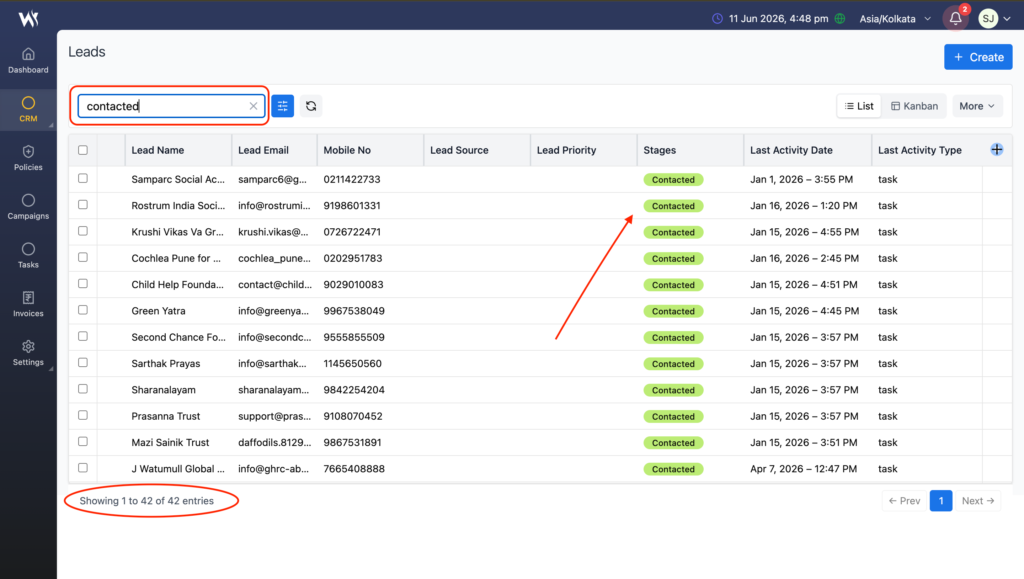
Search Records
The Search box allows users to quickly locate records using available information.
Users can search using:
- Record Name
- Email Address
- Mobile Number
- Record ID
- Other available record details
The list updates automatically based on the entered search criteria.
Filters
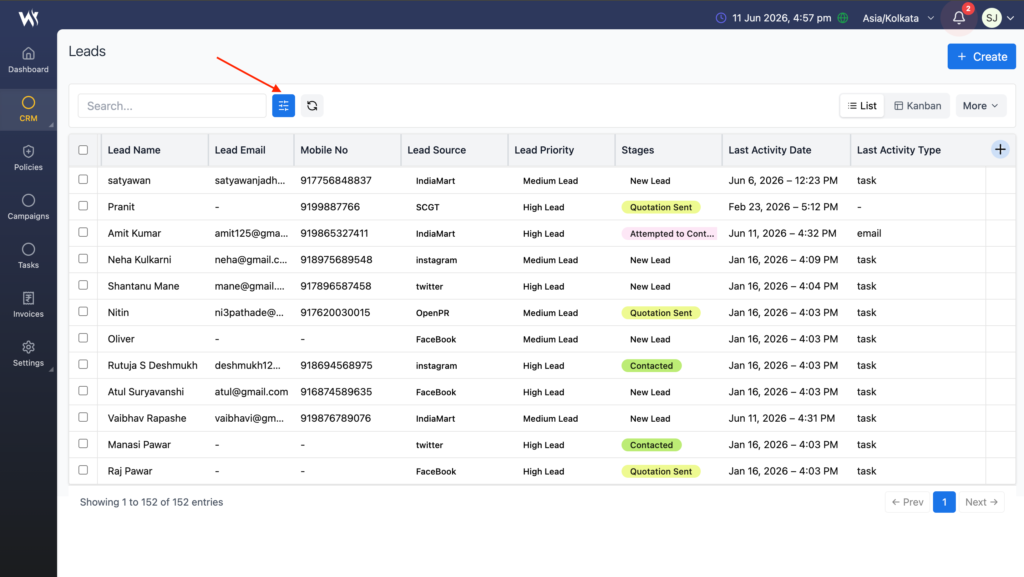
The Filter icon allows users to apply filters and narrow down records based on specific criteria.
Users can filter according to business requirements and view only relevant records.
Users can:
- Create custom filters
- Apply multiple conditions
- Save frequently used filters
- Reuse saved filters
Applying Filters
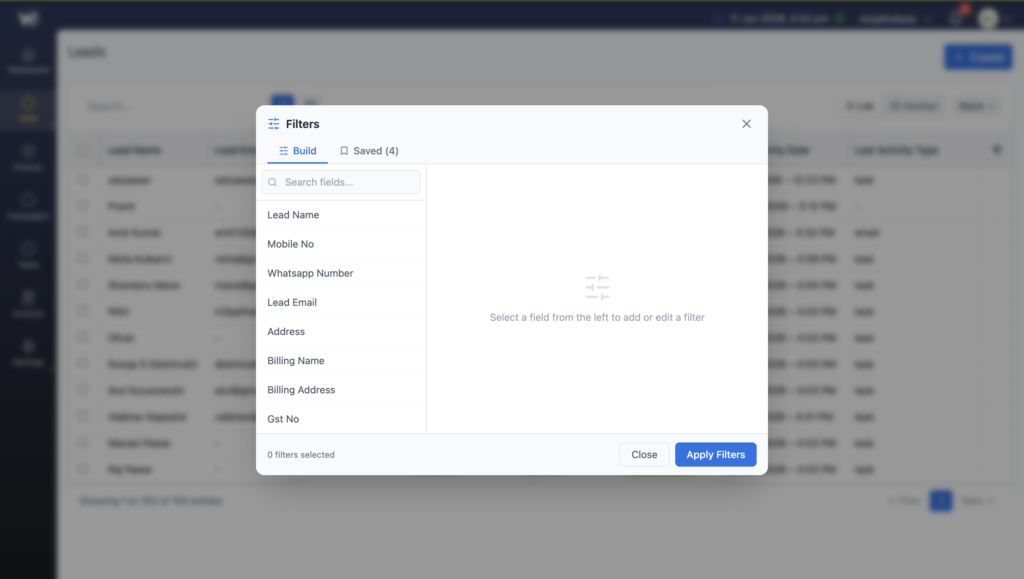
- Click the Filter icon.
- Select the required field.
- Choose a condition.
- Enter the required value.
- Click Apply Filters.
The system displays only matching records.
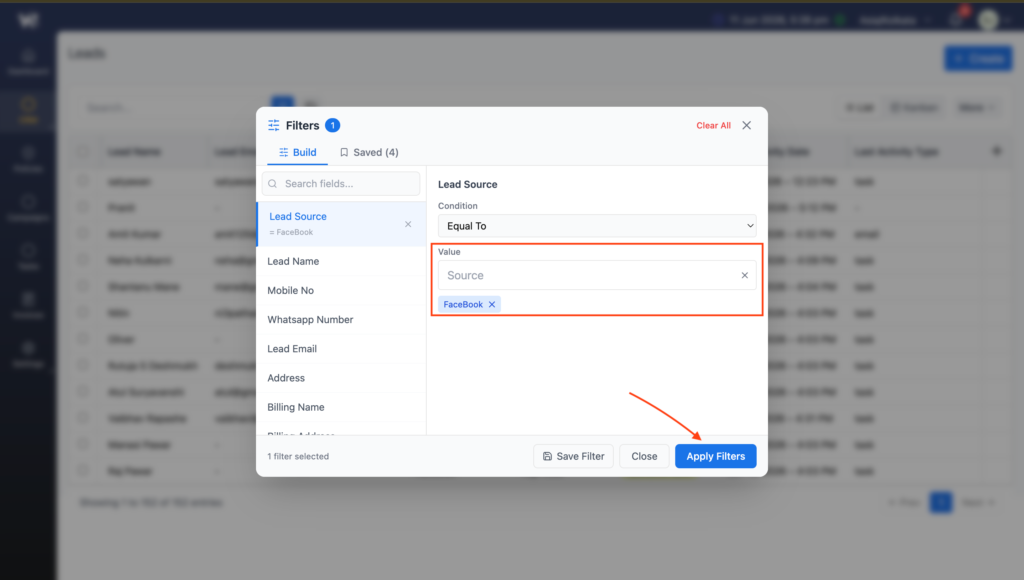
Examples:
- Lead Source = Facebook
- Lead Priority = High Lead
- Stage = New Lead
Saved Filters
Frequently used filters can be saved for future use.
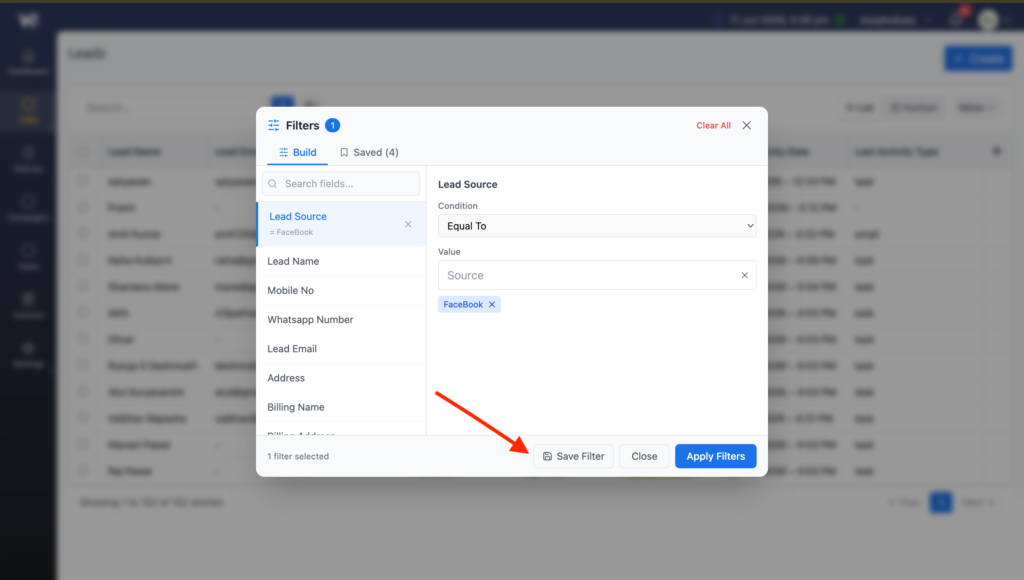
To save a filter:
- Create the required filter.
- Click Save Filter.
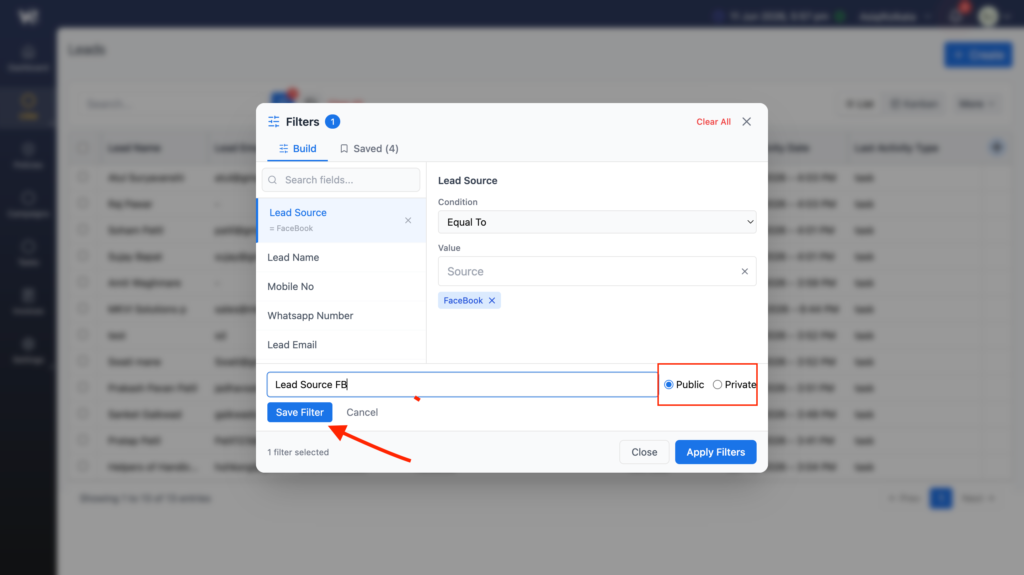
- Enter the filter name.
- Save the filter.
The saved filter becomes available for future use.
Public and Private Filters
While saving a filter, users can choose its visibility.
Public Filter
- Visible to all authorized users.
- Can be used by multiple team members.
- Useful for shared reports and team workflows.
Private Filter
- Visible only to the user who created it.
- Cannot be accessed by other users.
- Useful for personal tracking and reporting.
Applying Saved Filters
To use a previously saved filter:
- Open the Filter popup.
- Navigate to the Saved tab.
- Select the required saved filter.
- Click Apply.
The lead list will be updated based on the saved filter criteria.

Refresh Records
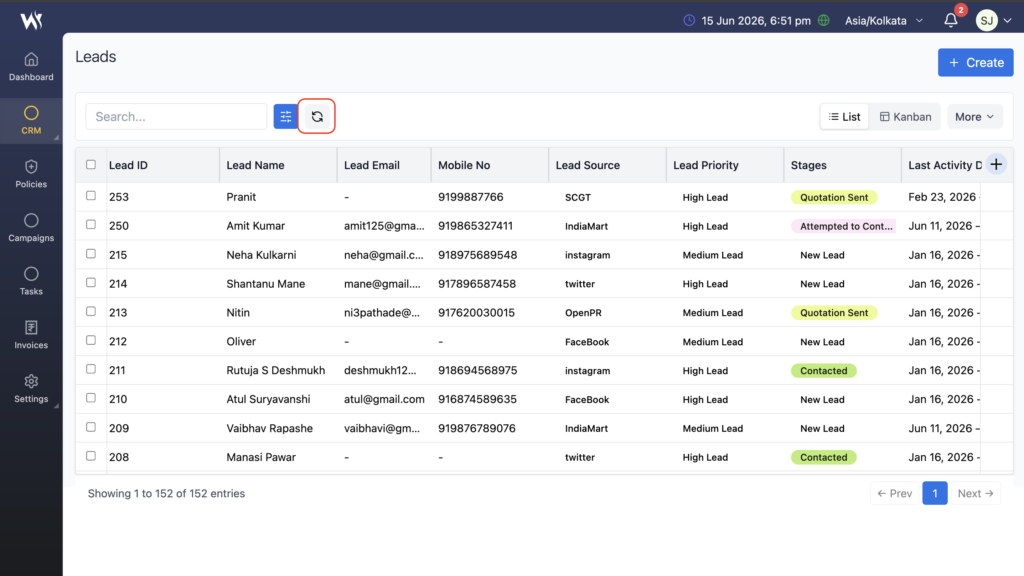
The Refresh icon reloads the latest data available in the module.
This helps users view newly added or updated records without manually refreshing the browser.
List View
List View displays records in a tabular format, allowing users to view and manage multiple records simultaneously.
Users can:
- Search records
- Apply filters
- Manage columns
- Export records
- Access record actions
Kanban View
Kanban View displays records as visual cards organized by stages or statuses.
Users can:
- Track record progress
- View stage-wise records
- Access record actions
- Move records between stages using drag-and-drop functionality
Manage Columns
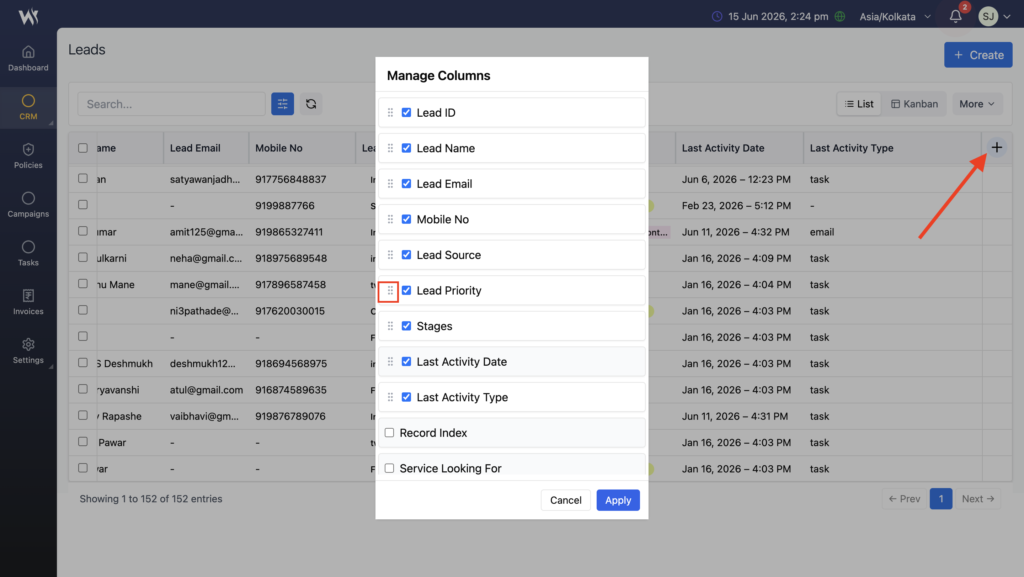
The Manage Columns feature allows users to customize the List View.
Users can:
- Show required columns
- Hide unnecessary columns
- Rearrange column positions
- Personalize the record view
This helps users focus on important information.
Export Records
Webtrix24 CRM allows users to export records for reporting and analysis purposes.
Supported export formats:
- Excel
Filtered records can also be exported, allowing users to generate reports based on specific criteria.
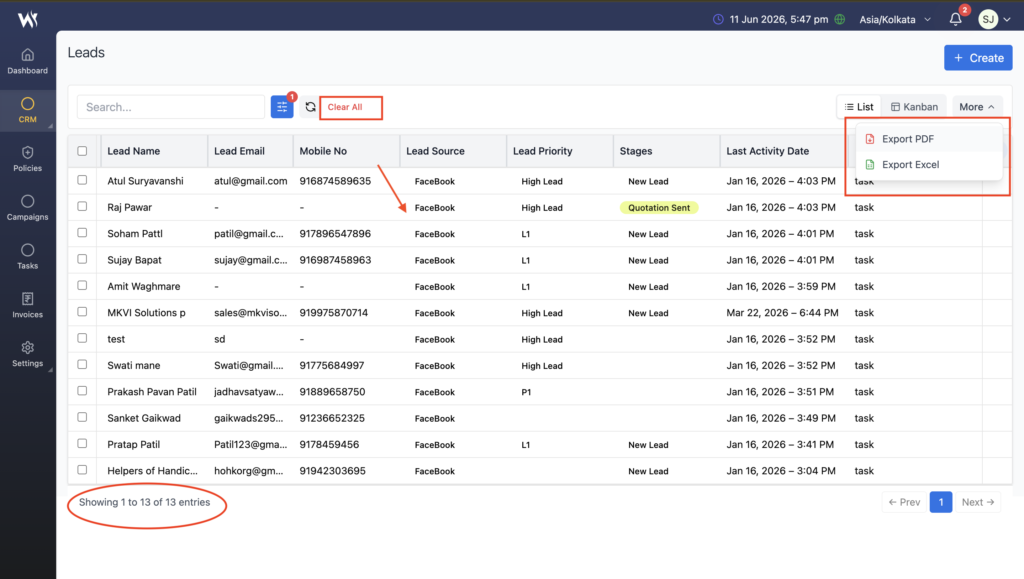
Exporting Records Steps
- Apply filters if required.
- Click the More menu.
- Select Export PDF or Export Excel.
- The system downloads the selected records.
Filtered records can also be exported.
Record Actions
The List View provides quick actions for managing records directly.
Users may be able to:
- Edit a record
- Delete a record
- Send an email
- Create a task
- View record details
Available actions may vary depending on the module and user permissions.
Some modules may provide additional actions that are specific to their business process. Refer to the respective module documentation for more information.may vary depending on the module and user permissions.
Pagination
Pagination helps users navigate large sets of records.
Users can:
- Move to the next page
- Move to the previous page
- Jump between pages
- Control the number of records displayed per page
This improves performance and makes record management easier.
Frequently Asked Questions
What are filters in Webtrix24 CRM?
Filters help users narrow down records based on specific criteria such as Lead Source, Lead Priority, Stage, and other available fields.
Can I save filters for future use?
Yes. Users can save frequently used filters and apply them whenever required.
What is the difference between Public and Private filters?
Public filters are available to authorized users, while Private filters are visible only to the user who created them.
Can filtered records be exported?
Yes. Records displayed after applying filters can be exported in PDF or Excel format.
How do I refresh records?
Click the Refresh icon available in the List View to load the latest available data.
What is List View in Webtrix24 CRM?
List View displays records in a table format, making it easier to view, search, filter, and manage multiple records simultaneously.
What is Kanban View in Webtrix24 CRM?
Kanban View displays records as visual cards organized by stages or statuses, helping users track progress and manage workflows more efficiently