
he Media Manager module provides a centralized location to upload, organize, search, filter, preview, and download files used across the CRM.
Users can store images, documents, PDFs, videos, audio files, and other attachments in a single repository, making file management easier and improving accessibility across different CRM modules.
The module helps teams maintain organized records, quickly locate files, and manage media assets associated with customers, policies, campaigns, tasks, and other CRM records.
Who Can Use the Media Manager?
The Media Manager can be used by:
- Sales Teams
- Customer Support Teams
- Insurance Agents
- Marketing Teams
- Operations Teams
- CRM Administrators
It is useful for anyone who needs to upload, manage, search, or retrieve files within the CRM.
Accessing the Media Manager
Navigate to:
Main Menu → Media
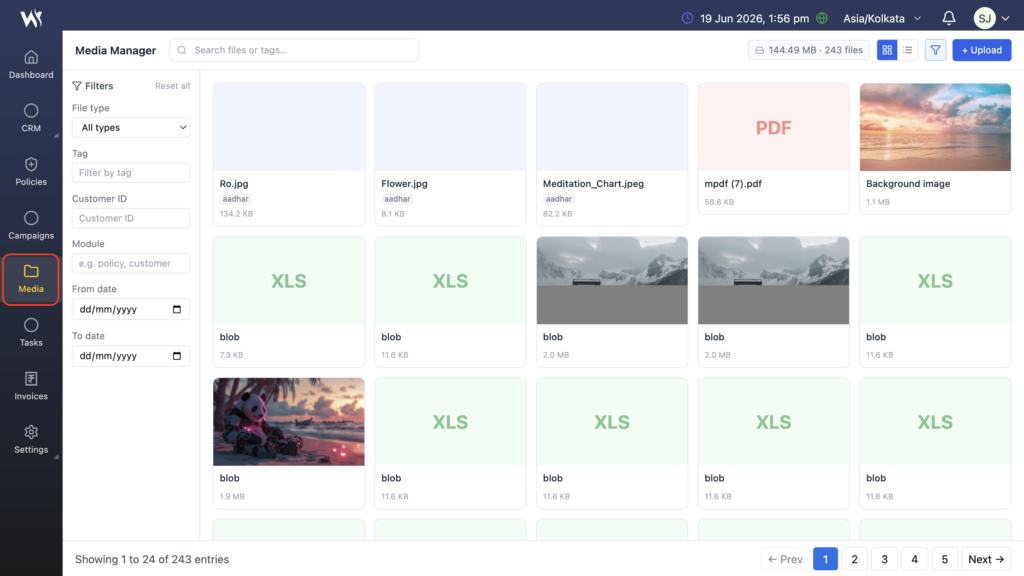
The Media Manager dashboard displays all uploaded files and provides options for searching, filtering, uploading, and managing media records.
Understanding the Media Manager Dashboard
The dashboard contains:
Search Bar
Users can search files using:
- File Name
- Tags
- Keywords
This helps quickly locate files without manually browsing records.

Storage Information
The top section displays:
- Total Storage Used
- Total Number of Files
This helps administrators monitor storage usage.

Upload Button
The Upload button allows users to add new files to the Media Manager.
Supported file types may include:
- Images
- Documents
- PDFs
- Videos
- Audio Files
- Spreadsheet Files
Uploading Files
To upload a file:
- Open Media Manager.
- Click Upload.
- Select Browse Files.
- Choose one or more files.
- Upload the selected files.
Uploaded files become available within the Media Library.

Media Library View
The Media Library displays all uploaded files.
Each file card may display:
- File Name
- File Type
- File Size
- Tags
- Preview Thumbnail
Users can browse media assets directly from this screen.
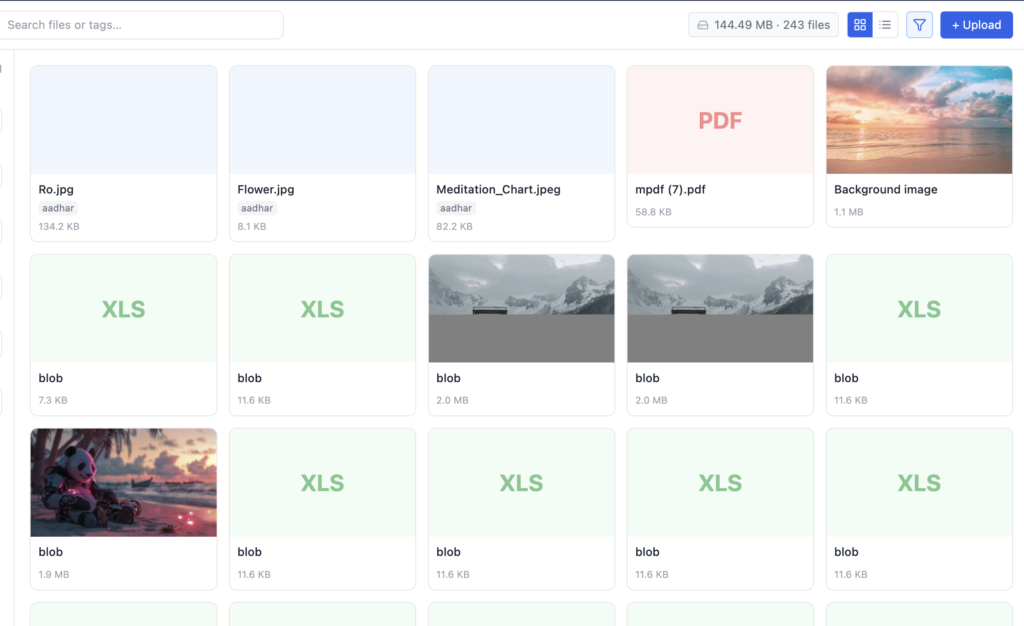
Grid View
Grid View displays files as visual cards.
This view is useful when working with:
- Images
- Graphics
- PDFs
- Media Content
Users can quickly identify files using thumbnails.
List View
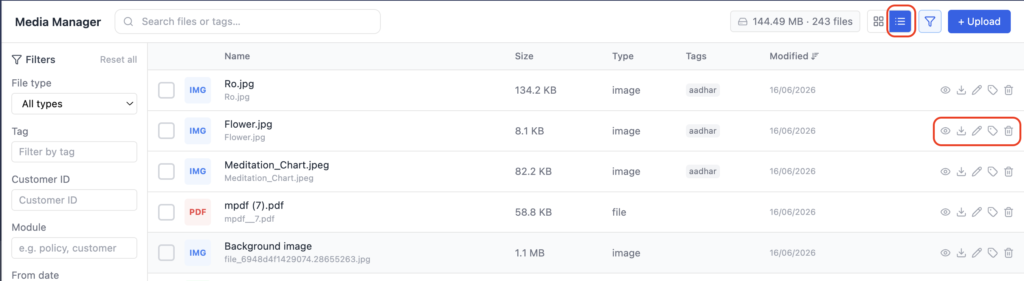
List View displays file records in a tabular format.
Information may include:
- File Name
- File Size
- File Type
- Tags
- Modified Date
List View is useful when managing large volumes of files.
File Filters
The Filters section helps narrow search results.
Available filters include:
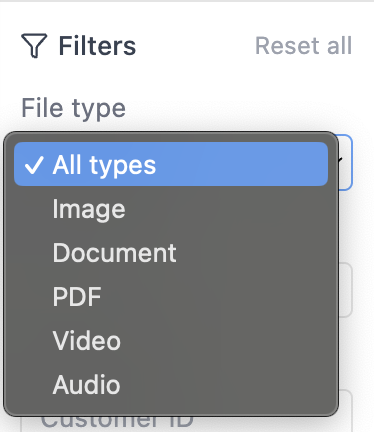
File Type
Users can filter files by:
- Images
- Documents
- PDFs
- Videos
- Audio Files
Tag Filter
Allows users to locate files using assigned tags.
Example:
- Aadhaar
- PAN
- Policy Document
- Customer Photo

Customer ID Filter
Used to locate files associated with a specific customer.

Module Filter
Users can search files associated with specific CRM modules.
Examples:
- Lead
- Customers
- Campaigns
- Tasks

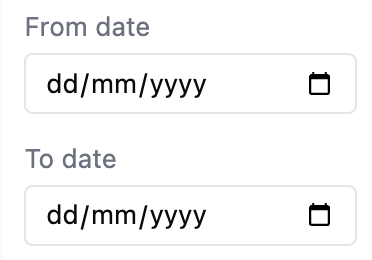
Date Filters
Users can filter files based on upload dates.
Available options:
- From Date
- To Date
This helps locate files uploaded within a specific period.
File Actions
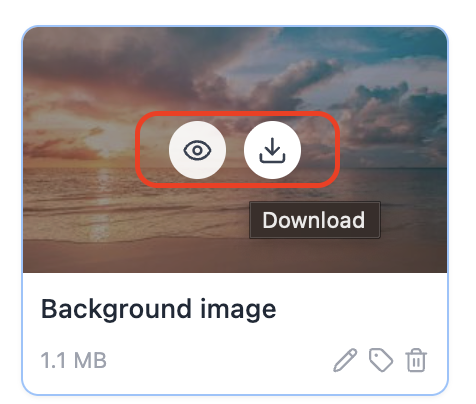
The Media Manager provides several actions for each file.
Preview File
Allows users to view file details before downloading.
Useful for verifying the correct file.
Download File
Downloads the selected file to the local system.
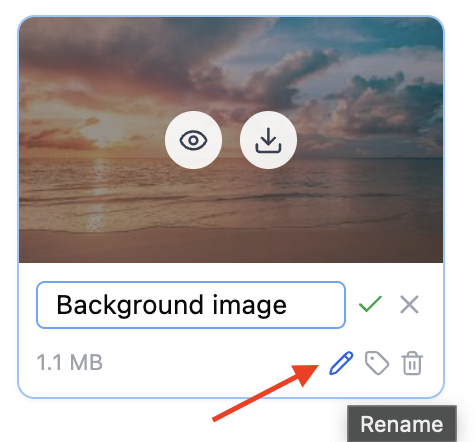
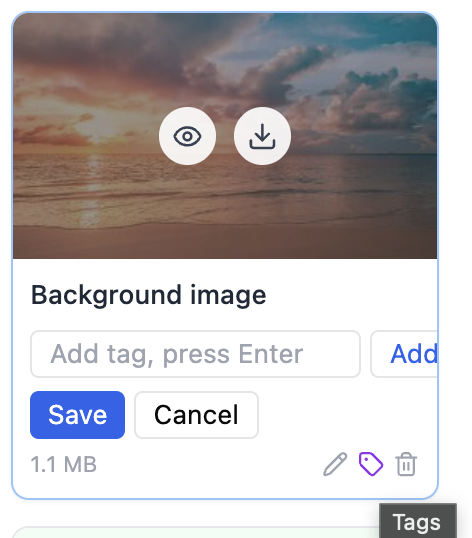
Edit Tags
Allows users to update or modify file tags.
Tags improve searchability and file organization.
Delete File
Removes the selected file from the Media Manager.
Only authorized users should perform this action.
Benefits of Media Manager
The Media Manager helps organizations:
- Centralize file storage
- Improve document accessibility
- Reduce duplicate files
- Quickly search attachments
- Organize files using tags
- Track module-related documents
- Improve record management efficiency
Best Practices
- Use meaningful file names.
- Apply tags consistently.
- Remove unnecessary files regularly.
- Upload correct document versions.
- Use filters for faster file retrieval.
Frequently Asked Questions
What files can be uploaded to Media Manager?
Users can upload images, documents, PDFs, videos, audio files, and other supported file formats.
Can I search files using tags?
Yes. Files can be searched using tags assigned during or after upload.
Can I filter files by file type?
Yes. The File Type filter allows users to display specific categories such as Images, Documents, PDFs, Videos, and Audio files.
Can I filter files by customer?
Yes. Customer ID can be used to locate files associated with a specific customer.
Can I filter files by module?
Yes. Files can be filtered based on CRM modules such as Policies, Customers, Campaigns, and Tasks.
Can I switch between Grid View and List View?
Yes. Users can toggle between Grid View and List View depending on their preference.
Can I download uploaded files?
Yes. Files can be downloaded directly from the Media Manage
Can I delete files?
Yes. Authorized users can remove files that are no longer required.
Can I track storage usage?
Yes. The Media Manager displays total storage usage and file count information.