
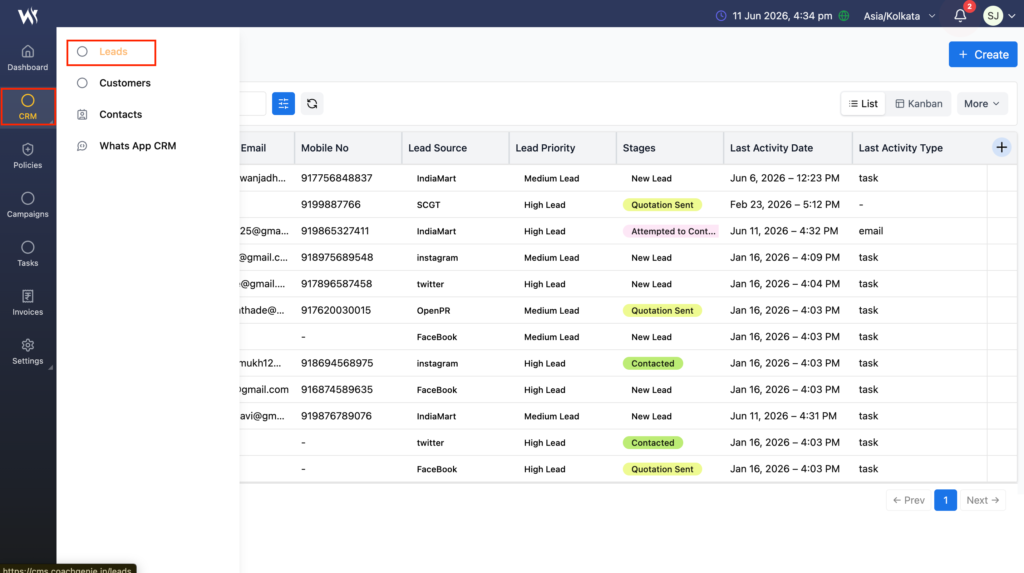
In Webtrix24 CRM, you can manage leads by navigating to CRM > Leads. The Lead Management module helps users organize lead records, track follow-ups, communicate with prospects, and convert leads into customers.
Accessing Leads
Steps:
- Click CRM from the left navigation panel.
- Select Leads from the CRM menu.
- The Lead List View page will open displaying all available lead records.
Create a New Lead
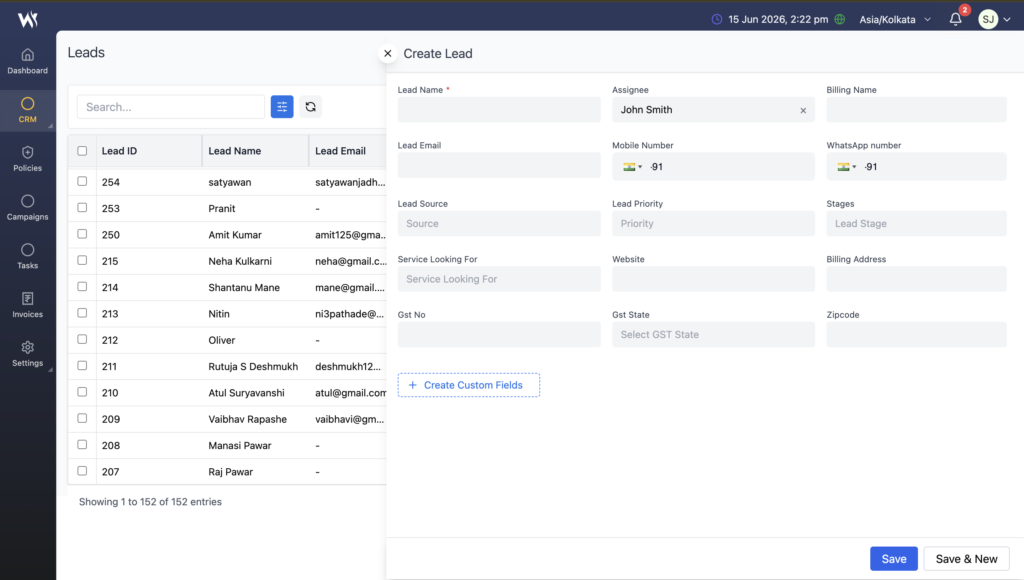
The Create button allows users to create a new lead record in Webtrix24 CRM.
Steps:
- Click the + Create button in the top-right corner.
- Enter the required lead information:
- Lead Name
- Email Address
- Mobile Number
- Lead Source
- PriorityStage
- Review the entered information.
- Click Save.
After saving, the new lead record appears in the Lead List View
Lead Details
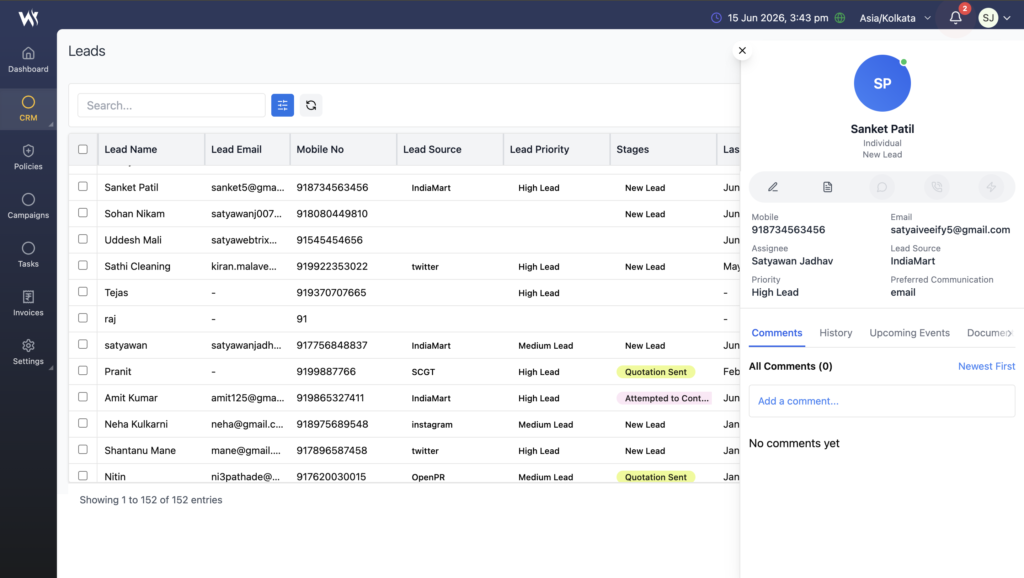
The Lead Details icon opens a side panel containing complete lead information.
The details panel provides quick access to:
- Edit Lead
- Notes
- Tasks
- Communication Actions
Lead Information Tabs
The Lead Details panel contains multiple tabs for complete lead tracking.
Comments
Used to add and manage lead-related comments and discussions.
History
Displays all activities performed on the lead record.
Documents
Stores files and attachments related to the lead.
Upcoming Activities
Displays upcoming tasks, meetings, and follow-ups.
Inquiry
Shows inquiry-related information associated with the lead.
Lead Quick Actions
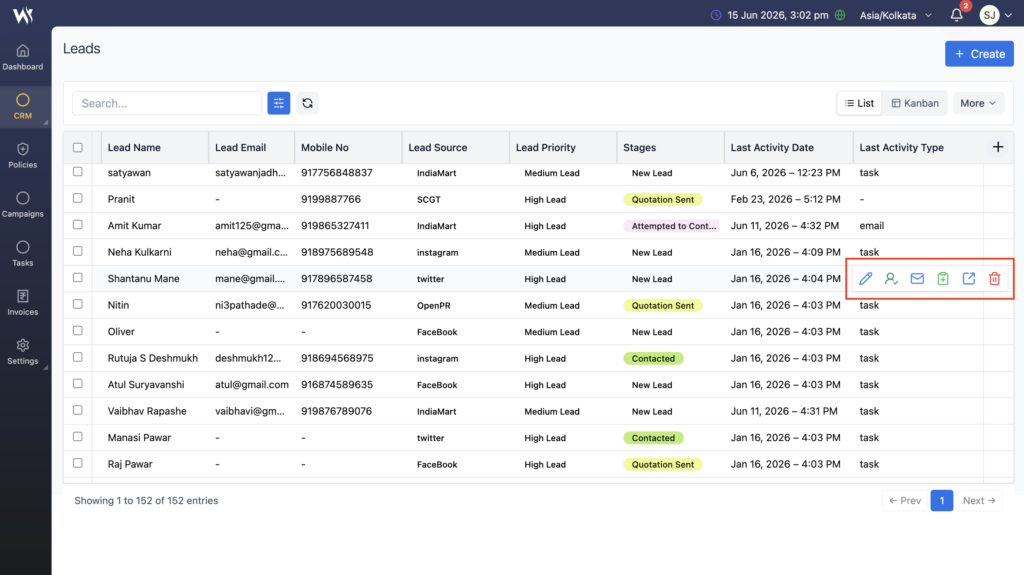
Webtrix24 CRM provides multiple record actions that help users manage lead activities efficiently.
These actions are available from both the List View and Kanban View.
Lead records support standard record actions such as View, Edit, and Delete.
For detailed information about record actions, searching, filtering, exporting data, pagination, and other common record management features, refer to the Managing Your CRM Records article.
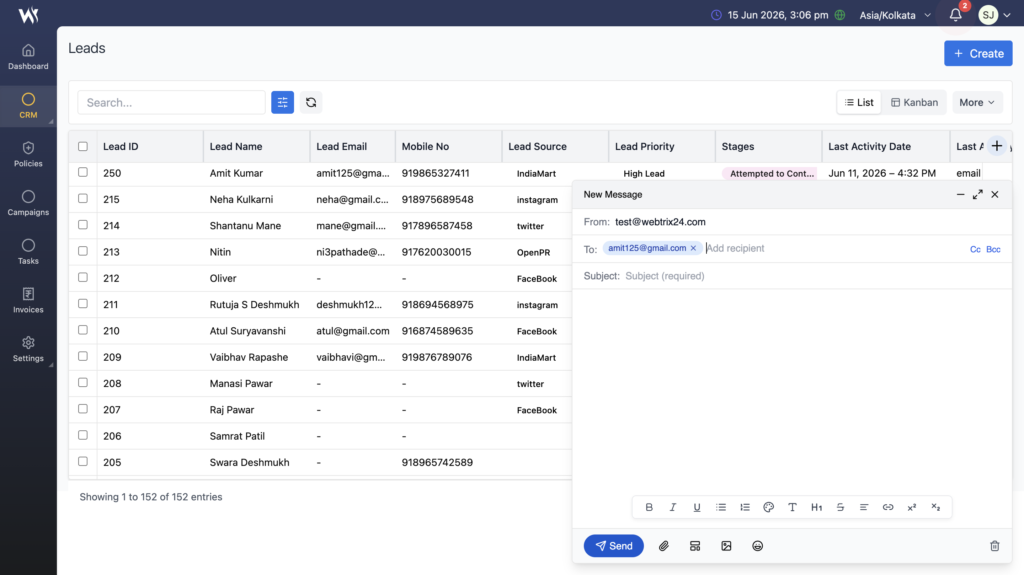
Send Email
The Send Email option allows users to communicate with leads directly from the CRM.
Users can:
- Open the email composer
- Select email templates
- Add attachments
- Send emails directly from the CRM
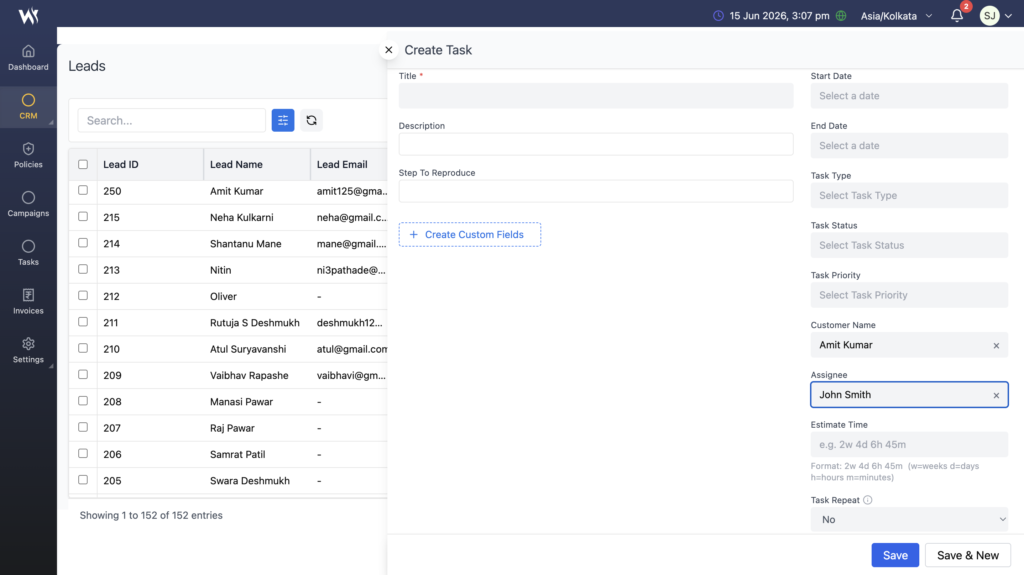
Create Task from a Lead Record
The Create Task option opens the Task Creation Form.
Users can create follow-up activities associated with the selected lead.
After saving, the task is automatically added to the Task module.
Steps:
- Locate the required lead record.
- Click the Create Task icon.
- Enter task information.
- Click Save.
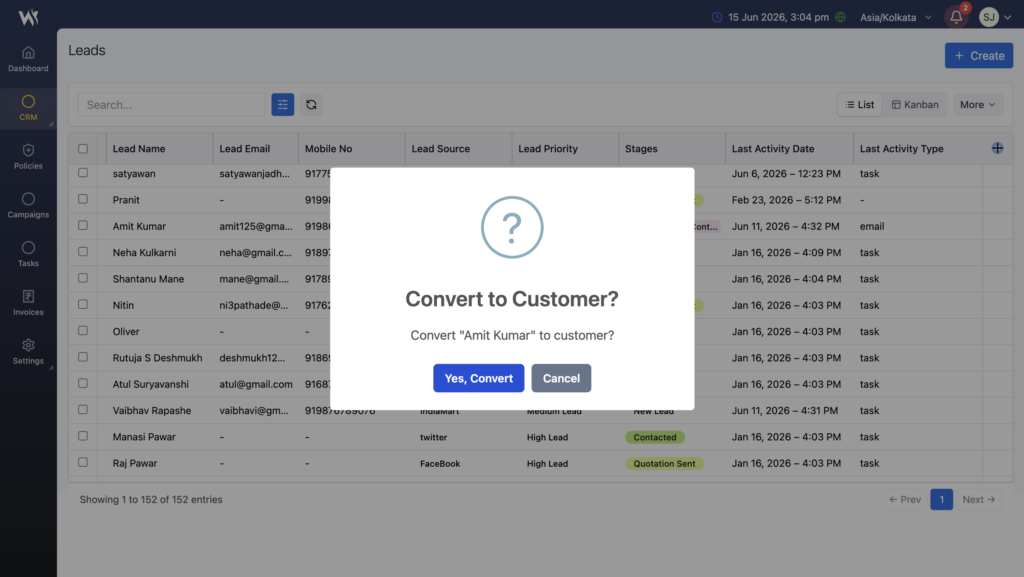
Convert to Customer
The Convert to Customer option allows users to convert qualified leads into customers.
Steps:
- Select the required lead.
- Click Convert to Customer.
- Review the confirmation message.
- Click Confirm.
After successful conversion:
- The lead is removed from the Leads module.
- The customer record becomes available in the Customer module.
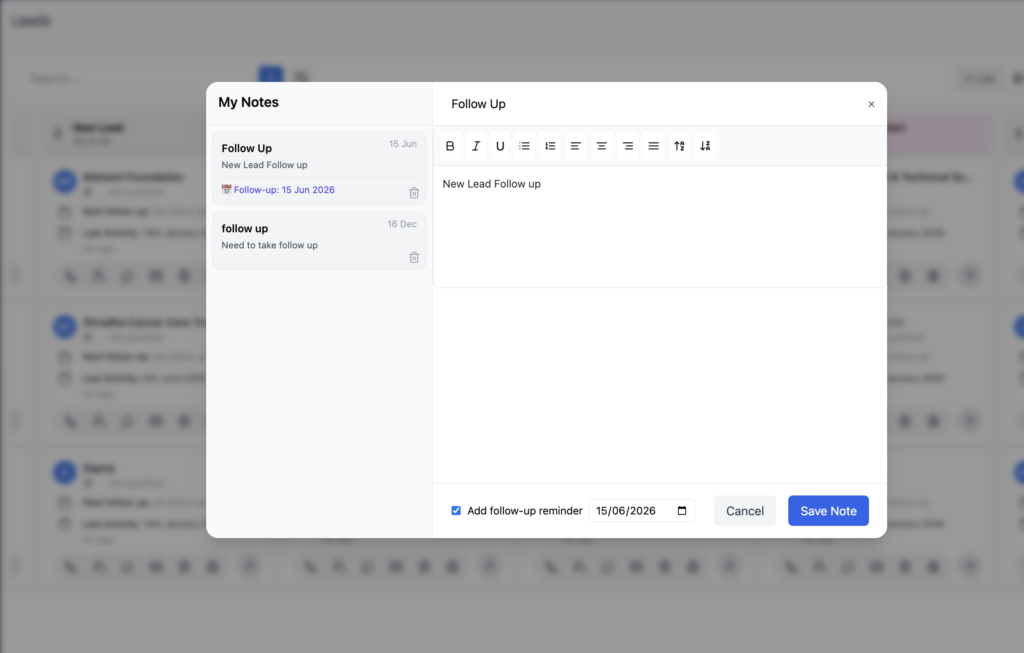
Notes
The Notes option allows users to create and manage lead-related notes.
Users can:
- Add New Notes
- Update Existing Notes
- Store Important Discussions
- Track Follow-up Information
Lead Kanban View
The Kanban View provides a visual representation of lead records based on their current stages.
It helps users easily track lead progress, manage follow-ups, and update lead statuses through drag-and-drop functionality.
Users can switch from List View to Kanban View by clicking the Kanban button available on the Lead page.
Kanban Board Structure
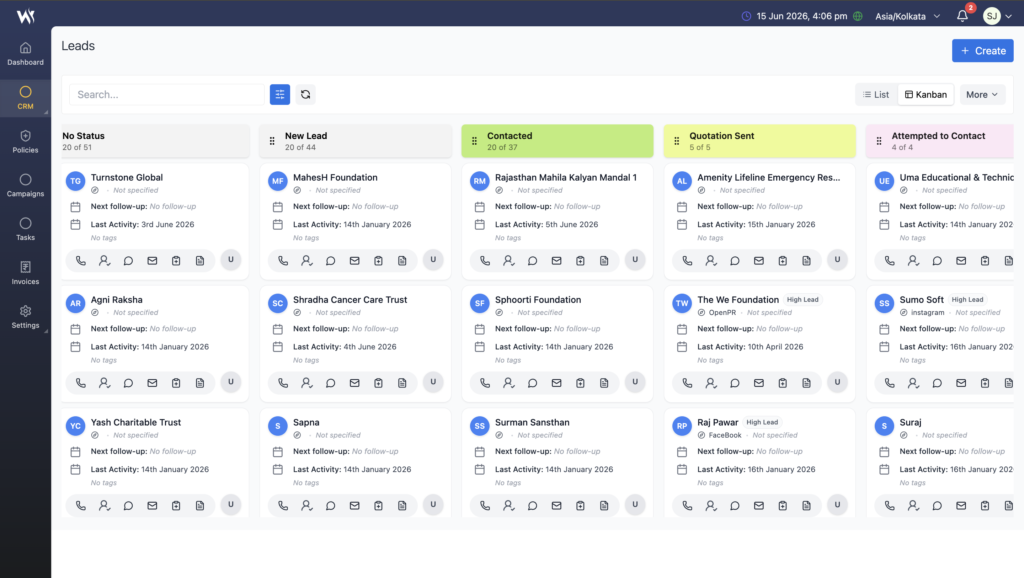
The Kanban board displays lead records as cards organized into different stages such as:
- No Status
- New Lead
- Contacted
Each column displays the number of records available in that particular stage.
Common Lead Stages
New Lead
A newly created lead that has not yet been contacted.
Contacted
The sales team has initiated communication with the lead.
Quotation Sent
A quotation or proposal has been shared with the lead.
Attempted to Contact
A communication attempt has been made but no response has been received.
Negotiation
The lead is actively discussing requirements, pricing, or terms.
Not Interested
The lead has indicated that they are not interested in the offered product or service
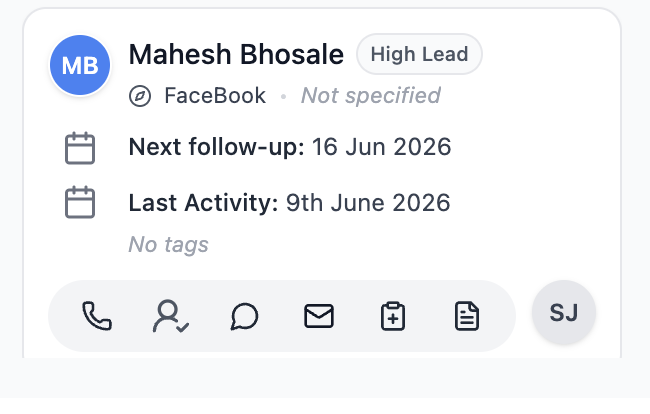
Lead Card Information
Each lead card displays important lead information including:
- Lead Name
- Lead Source
- Lead Status
- Next Follow-up Date
- Last Activity Date
- Assigned User
- Tags (if available)
This allows users to quickly review lead details without opening the full record.
Communication Options
Users can communicate with leads using available communication actions.
Available options may include:
- Call Contact
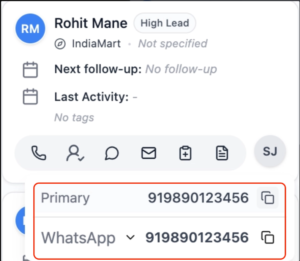
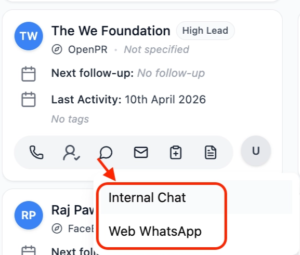
- WhatsApp Communication: Clicking Web WhatsApp opens WhatsApp Web in a new browser tab.
- Internal Chat: Clicking Internal Chat redirects users to the WhatsApp CRM module for communication.
- Email Communication
Drag and Drop Lead Stages
Kanban View supports drag-and-drop functionality.
Users can:
- Select a lead card.
- Drag the card to another stage column.
- Drop the card into the desired stage.
The lead stage is updated automatically based on the selected column.
This makes lead pipeline management faster and more intuitive.
Best Practices for Lead Management
- Keep lead information updated.
- Assign follow-up activities regularly.
- Move leads to the correct stage.
- Convert qualified leads to customers promptly.
- Review lead history before contacting prospects.
Frequently Asked Questions
What is a lead in Webtrix24 CRM?
A lead is a potential customer record used to track inquiries, communication, follow-ups, and sales opportunities.
How do I create a new lead in Webtrix24 CRM?
Navigate to CRM > Leads and click the Create button. Fill in the required information and save the record.
Can I edit lead information after creating a lead?
Yes. Open the Lead Details panel and update the required information.
How can I convert a lead into a customer?
Click the Convert to Customer option on the lead record and confirm the action.
What is the Lead Kanban View?
Kanban View displays leads in different stages, helping users visually track lead progress and manage follow-ups.
Can I move leads between stages in Kanban View?
Yes. Leads can be dragged and dropped between stages to update their status.
What information is displayed on a lead card?
Lead cards display details such as Lead Name, Source, Status, Follow-up Date, Assigned User, and Tags.
Where can I view detailed information about a lead?
Click the lead record to open the Lead Details panel and view complete lead information.
What tabs are available in the Lead Details panel?
Depending on configuration, tabs may include Comments, History, Documents, Upcoming Activities, and Inquiry Information.
What happens to a lead after conversion?
The lead is removed from the Leads module and becomes available in the Customer module.