
Invoices in Webtrix24 Rental CRM helps rental businesses generate customer invoices based on rental usage, billing type, billing dates, returns, replacements, and contract periods. Users can generate invoices for Day-wise, Monthly, and Contract Period rentals while tracking previous billing information.
How to Generate an Invoice
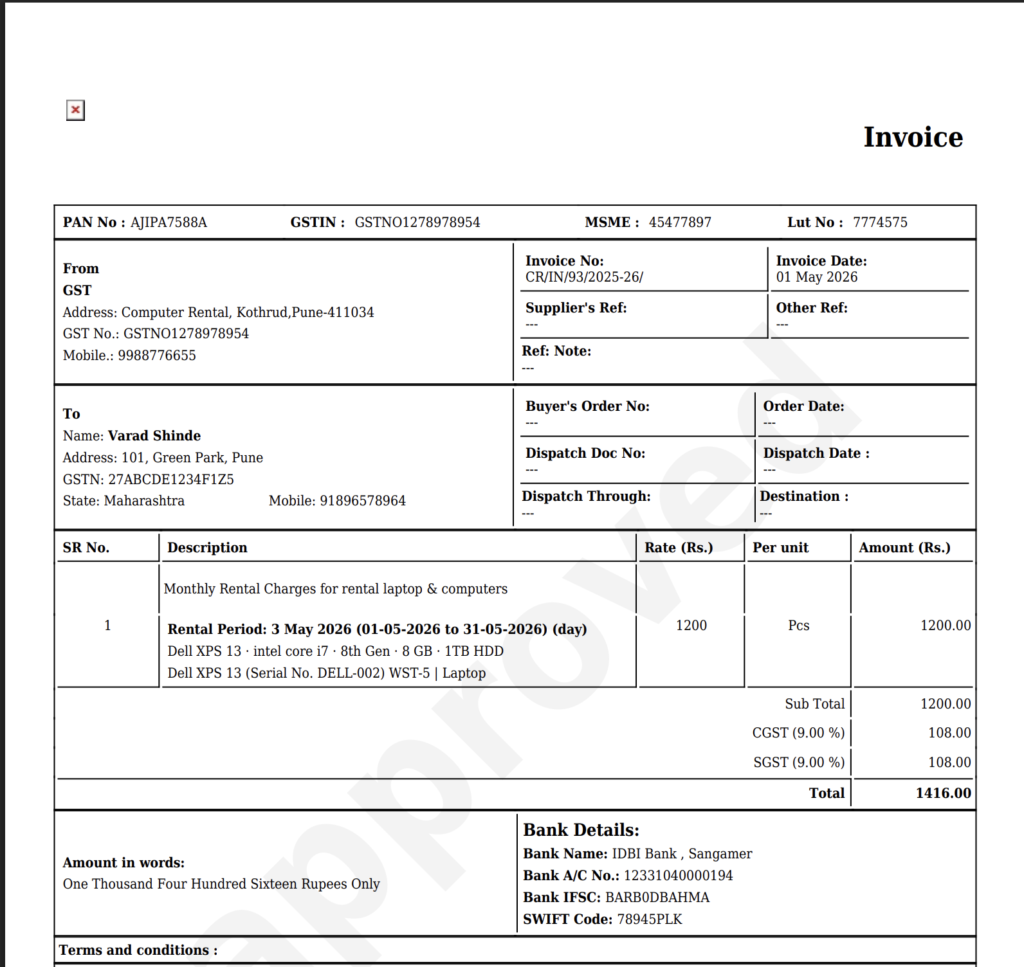
- The generated invoice appears in the Invoice List.
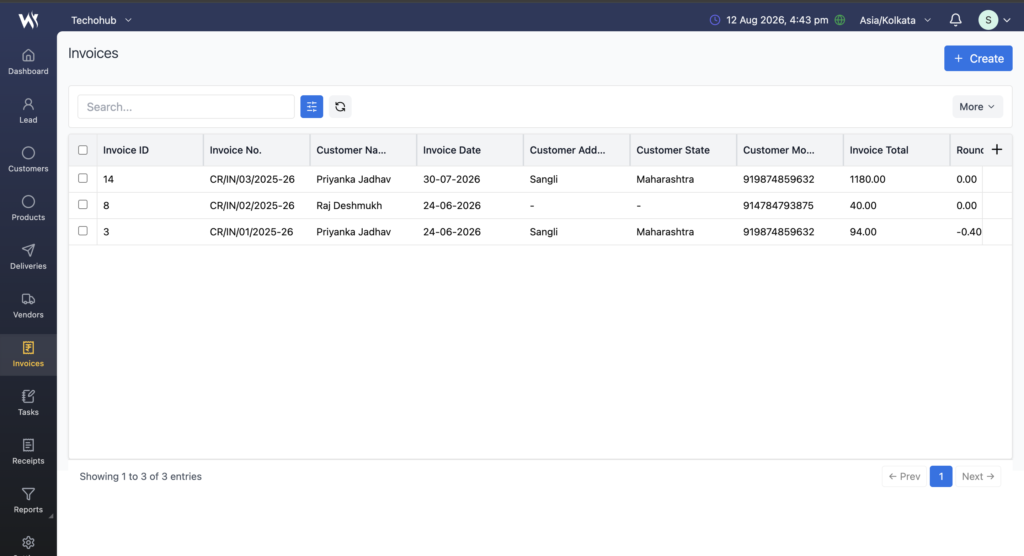
- From the left-side menu, click Invoices.
- The Invoice List page opens.
- Click Create in the top-right corner.
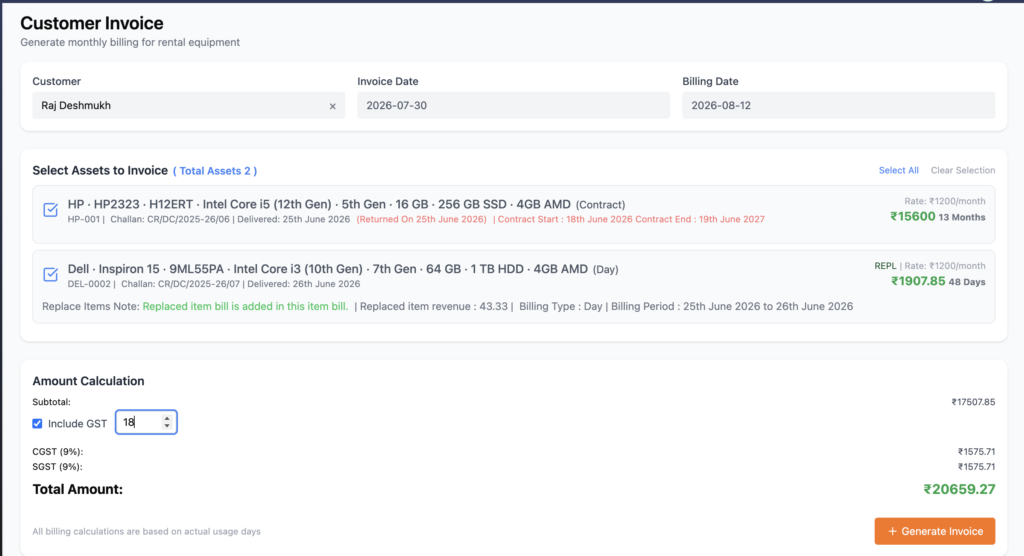
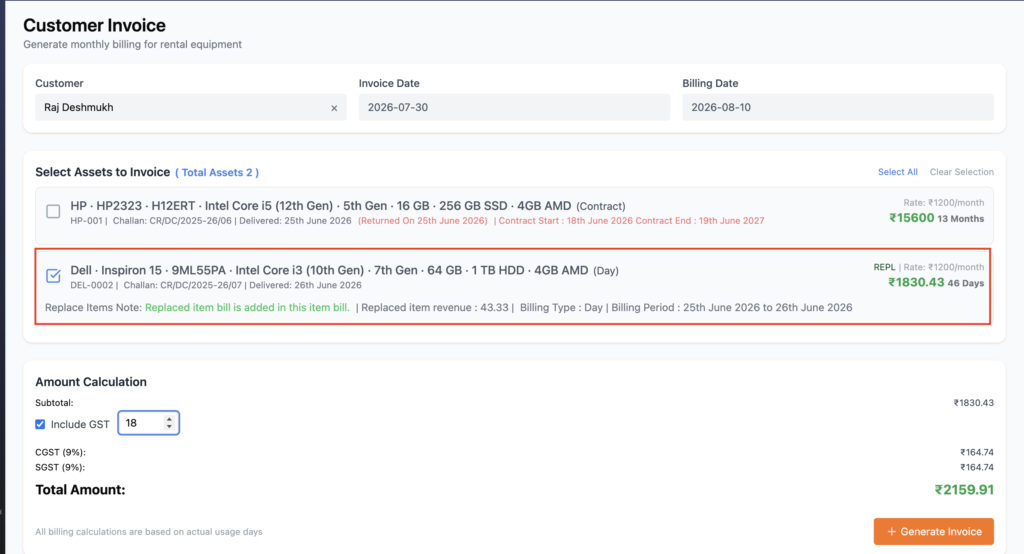
- The Customer Invoice page opens.
- Select the required customer.
- Select the assets to be included in the invoice.
- Verify the Invoice Date, Billing Date, and calculated amount.
- Click Generate Invoice.
- Confirm the invoice generation when prompted.
Customer Selection
First, select the customer for whom the invoice needs to be generated.
After selecting the customer, the system automatically displays the rental products available for billing.
The asset section can display information such as:
- Product details
- Serial number
- Delivery Challan number
- Delivery date
- Billing type
- Rental rate
- Rental duration
- Previous invoice information
- Return or replacement information, when applicable
Invoice Date and Billing Date
Invoice Date
The Invoice Date is the official date of invoice creation.
- The current date and future dates can be selected.
- Previous dates are restricted based on invoice sequence validation.
- Once an invoice date is selected, earlier dates cannot be selected.
Billing Date
The Billing Date is used to calculate rental charges up to the selected date.
- By default, the current date is selected.
- Current and previous dates can be selected.
- Future dates are not allowed.
- Billing calculations are generated up to the selected Billing Date.
The system also displays related billing information and previous invoice references under the asset details.
Select Assets to Invoice
After selecting a customer, the system displays available rental assets.
Users can:
- Select one asset.
- Select multiple assets.
- Use Select All when multiple assets need to be billed.
- Clear the selected assets.
At least one asset must be selected before generating an invoice.
After selecting an asset, the amount calculation is updated automatically.
The Generate Invoice button becomes enabled only after an asset is selected.
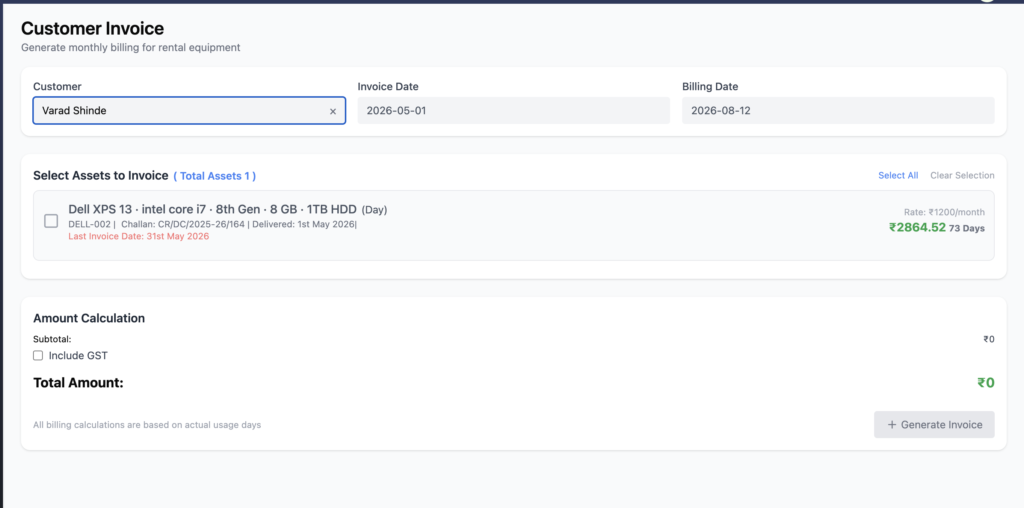
Day-Wise Invoice
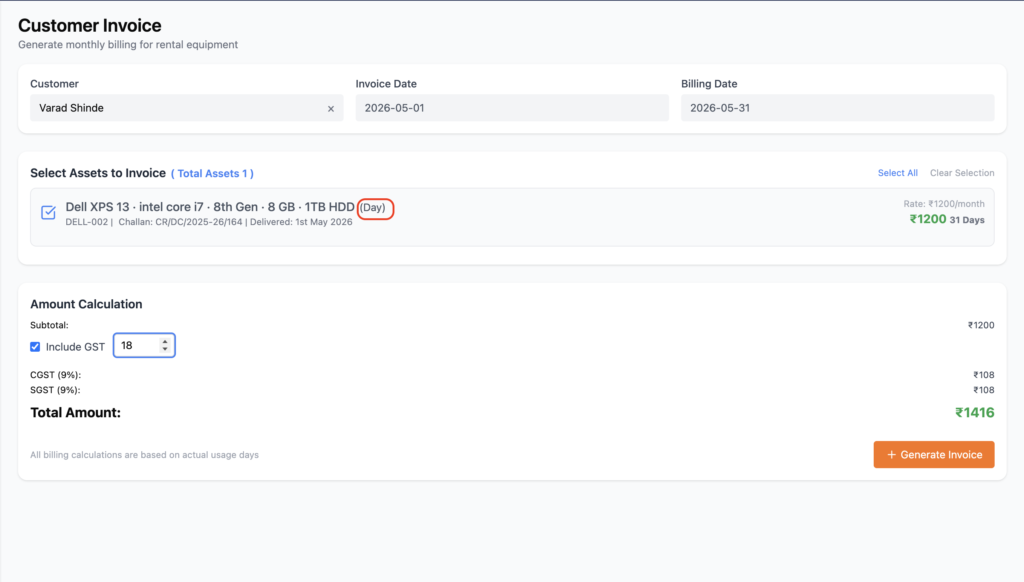
Day-wise billing calculates rental charges based on the actual number of rental days.
Example
If:
- Delivery Date = 30 April
- Billing Date = 9 May
The billing period is calculated from 30 April to 9 May, including both the delivery date and billing date.
The invoice amount is calculated according to the product’s day-wise rental rate and the actual usage period.
Generate Day-Wise Invoice
- Select the customer.
- Select the Day-wise rental product.
- Verify the Invoice Date and Billing Date.
- Select the product checkbox.
- Review the calculated amount.
- Click Generate Invoice.
- Confirm by clicking Yes, Generate It.
After generation, the selected Billing Date is saved as the Last Invoice Date.
On the same billing date, the product is temporarily disabled for another invoice.
From the next day, the product becomes available again for the next billing cycle.
Monthly Billing Invoice
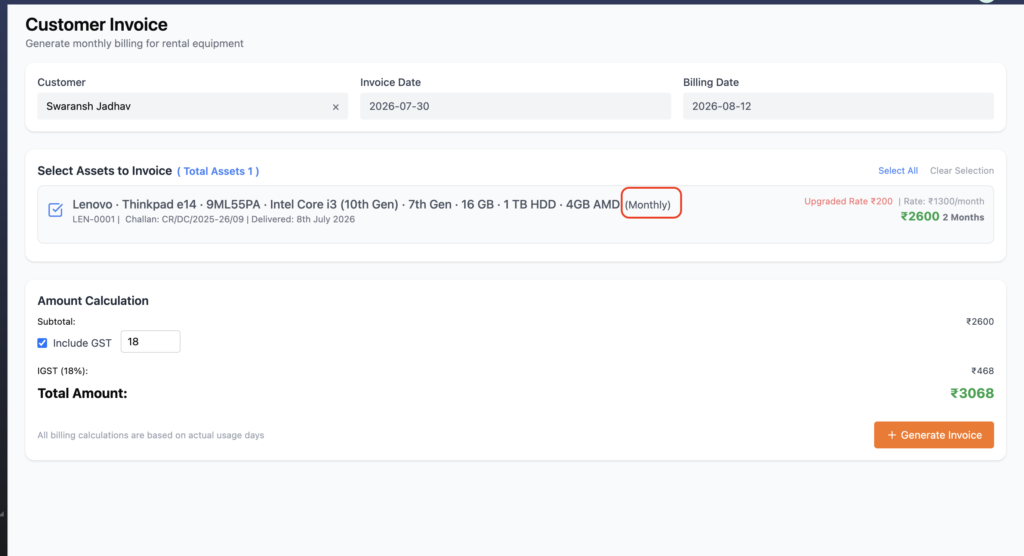
For Monthly billing, the complete monthly rental amount is considered regardless of the delivery date within that month.
Example
If:
- Product delivered = 10 April
- Monthly rental rate = ₹1,200
- Invoice generated = 26 April
The system considers the full monthly rental amount of ₹1,200.
The delivery date within the month does not change the monthly billing amount.
After Invoice Generation
Once the monthly invoice is generated:
- The product becomes disabled for billing during the current month.
- Last Invoice Date is displayed.
- The product becomes available again in the next billing cycle.
Contract Period Invoice
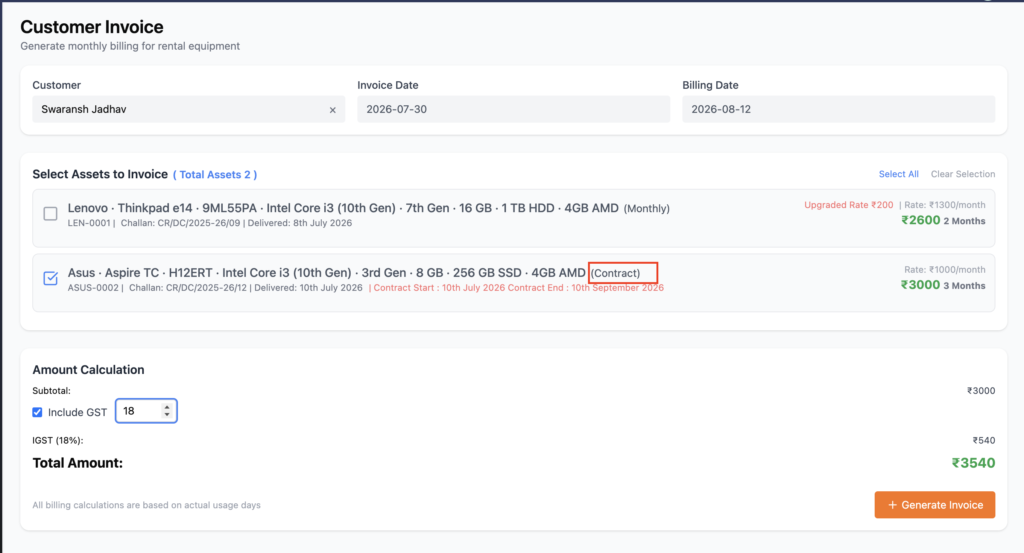
For Contract Period billing, the complete contract amount is calculated together.
Example
If:
- Monthly rental rate = ₹1,000
- Contract Start = 5 April
- Contract End = 5 June
The system calculates the contract amount for the complete contract period.
In the example, the total contract billing is ₹3,000.
The invoice amount does not depend on the date on which the invoice is generated.
The system displays:
- Contract Start Date
- Contract End Date
- Contract Duration
- Final Contract Amount
After Invoice Generation
Once the contract invoice is generated, the product no longer appears for invoice generation because the complete contract billing has been completed.
Returned Product Invoice
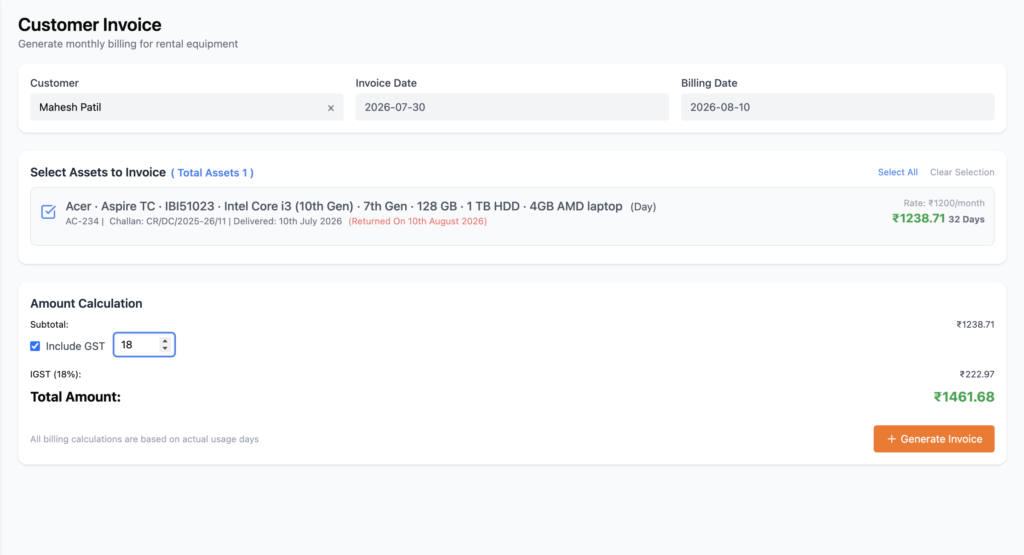
A returned product can still appear in the Invoice module when its final billing has not yet been completed.
Return Note
The product displays return information such as:
Returned On: Return Date
This indicates that the product has already been returned but the final billing is still pending.
Generate Final Invoice
- Select the returned product.
- Review the remaining billing period.
- The system calculates the final pending amount.
- Click Generate Invoice.
- Complete the invoice generation.
After the final invoice is generated, the returned product becomes invisible from the Invoice module.
This ensures that the returned asset’s pending billing is completed before closing the rental cycle.
Replacement Product Invoice
When a product is replaced before its pending invoice is generated, the old product’s pending billing is carried forward to the replacement product.
Replacement Billing Flow
- A product is delivered to the customer.
- The product becomes Ongoing.
- The invoice is not generated yet.
- The product is replaced.
- The old product becomes Replaced.
- The replacement product becomes the active rental product.
- The pending billing of the old product is added to the replacement product’s invoice.
Replacement Note
The replacement product displays:
Replace Items Note: Replaced item bill is added in this item bill.
This indicates that the old product’s pending bill has been included in the current replacement product invoice.
The old product is not shown separately for billing.
REPL Label
The replacement product also displays the REPL label.
This helps users identify that the asset is a replacement product.
The label remains visible while the replacement product continues with the customer.
Invoice Calculation
When the replacement product is selected, the invoice can include:
Old Product Pending Bill + New Replacement Product Current Bill
The combined amount is generated as a single invoice.
After successful invoice generation:
- The Replace Items Note disappears.
- Normal billing continues for the replacement product.
- The REPL label remains visible while the product remains with the customer.
Amount Calculation
The Amount Calculation section automatically calculates the invoice amount.
It displays:
- Subtotal
- GST option
- GST amount, when applicable
- Total Amount
Users can enable Include GST when required.
The final invoice amount is automatically updated based on the selected assets and billing calculation.
GST Calculation Based on Company and Customer State
When GST is enabled while generating an invoice, Webtrix24 automatically determines the applicable GST type based on the Company State and Customer State.
Same State – CGST + SGST
If the Company State and Customer State are the same, the system calculates GST as CGST + SGST.
Example:
Company State: Maharashtra
Customer State: Maharashtra
After entering the GST rate, the invoice displays:
- CGST (9%)
- SGST (9%)
- Total GST: 18%
Different States – IGST
If the Company State and Customer State are different, the system calculates IGST.
Example:
Company State: Maharashtra
Customer State: Karnataka
After entering the GST rate, the invoice displays:
- IGST (18%)
- Total GST: 18%
Customer GST State Not Set
If GST is enabled but the customer’s GST state is not available, the system does not allow the GST invoice to be generated.
A validation message is displayed:
“GST billing is enabled but no GST state is set for this customer. Please update the customer’s GST state before creating a GST invoice.”
This ensures that the correct GST type is calculated based on the company and customer state before generating the invoice.
Invoice List View
After generating an invoice, the invoice record is displayed in the Invoices List View.
The list displays important invoice information such as:
- Invoice ID
- Invoice Number
- Customer Name
- Invoice Date
- Customer Address
- Customer State
- Customer Mobile Number
- Invoice Total
- Round Off
- Pending Amount
Invoice Actions
When users hover over an invoice record, action icons are displayed.
The available actions are:
- Download Invoice
- Log Full / Partial Payment
Download Invoice
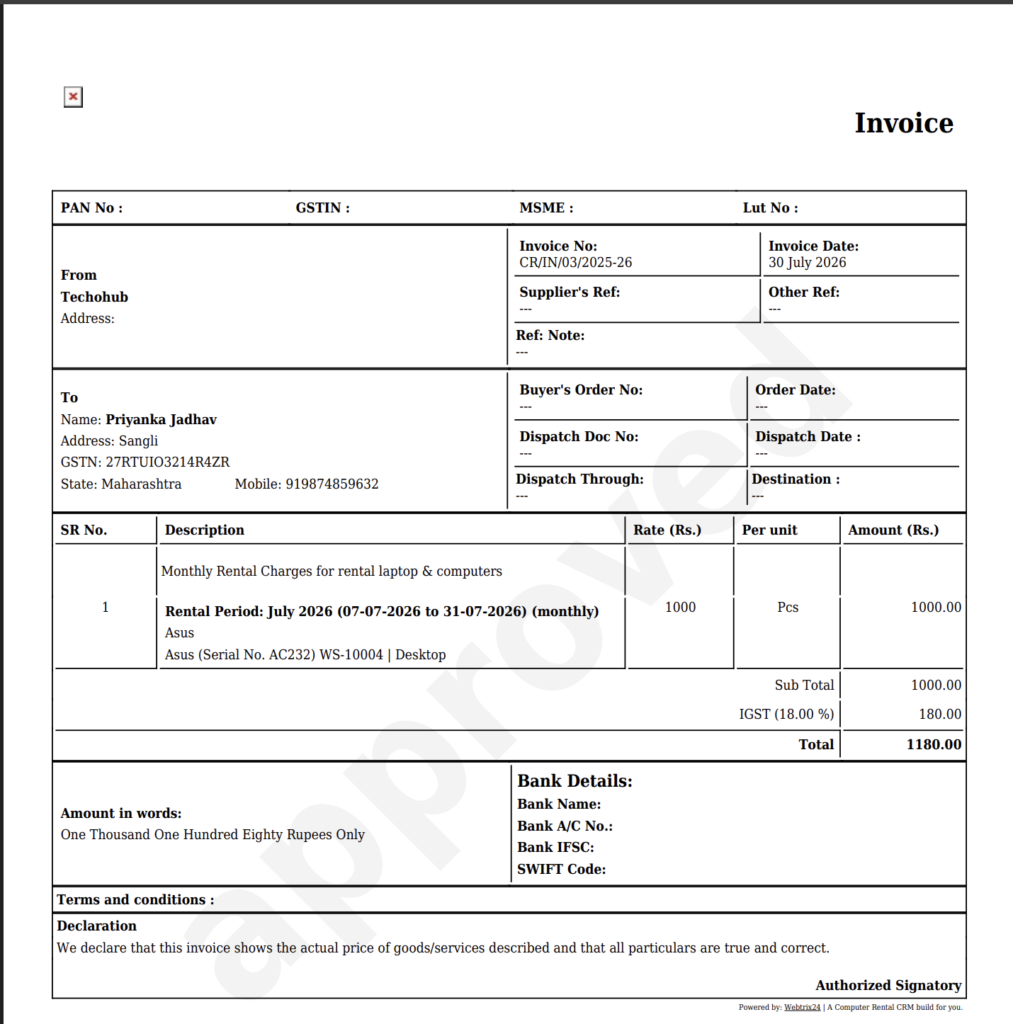
Click the Download Invoice icon to download the selected invoice as a PDF.
This allows users to quickly save or share the generated invoice document.
Log Full / Partial Payment
Click the Payment icon to record a payment against the invoice.
Users can record either:
- Full Payment
- Partial Payment
Record Payment Popup
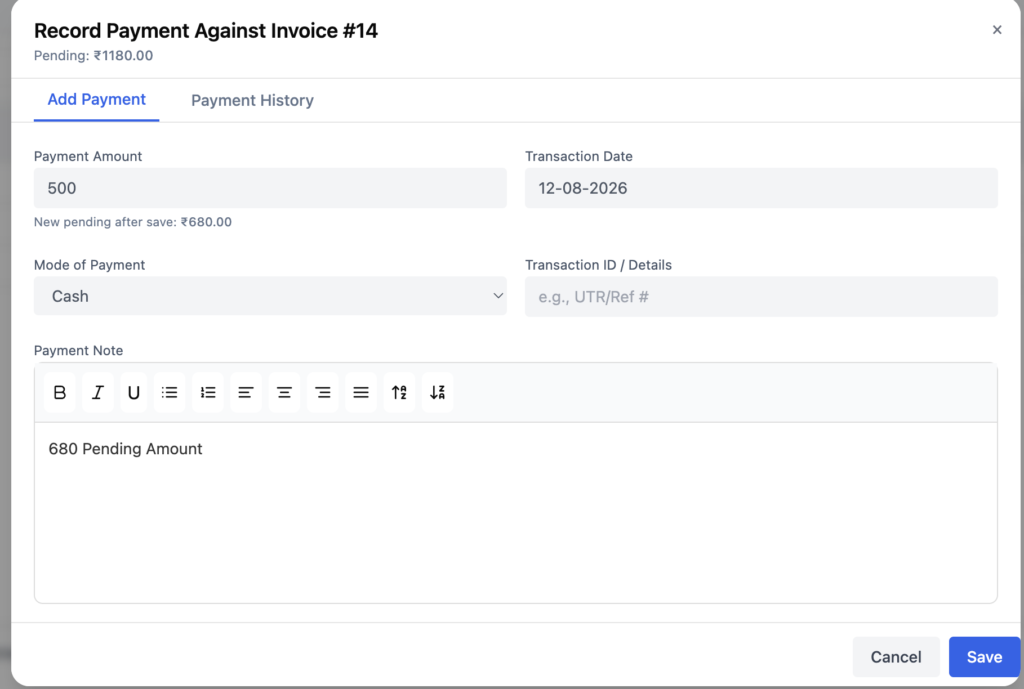
After clicking the payment icon, the Record Payment Against Invoice popup opens.
Users can enter:
- Payment Amount
- Transaction Date
- Payment Mode
- Transaction ID / Details
- Payment Note
The popup also displays:
- Current Pending Amount
- New Pending Amount after the payment is recorded
Payment History
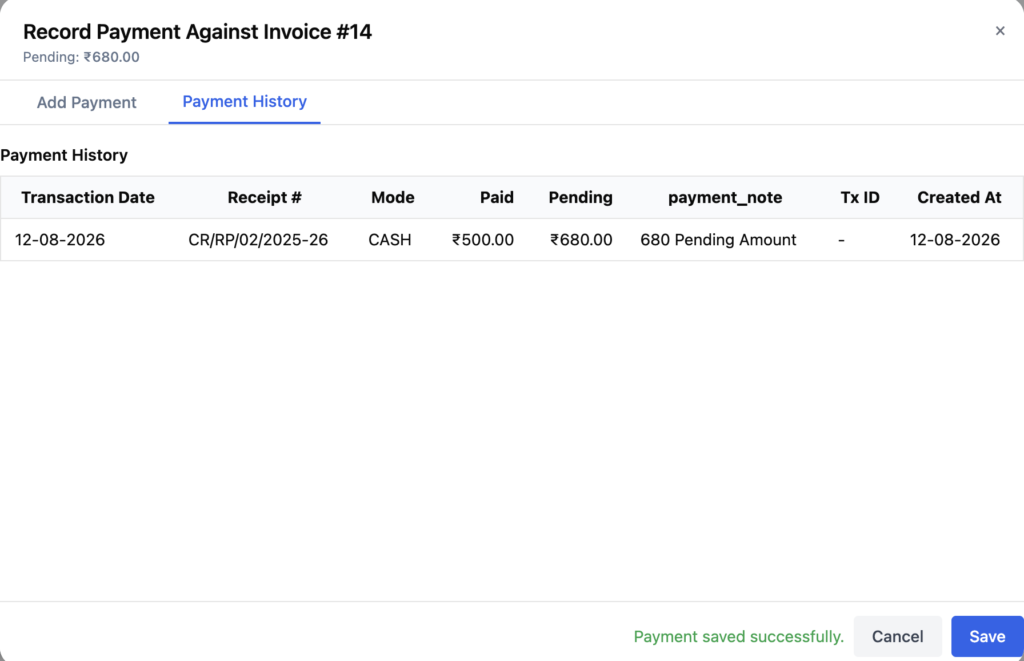
The same popup contains a Payment History tab.
This tab displays previously recorded payments with details such as:
- Transaction Date
- Receipt Number
- Payment Mode
- Paid Amount
- Pending Amount
- Transaction ID
- Created Date
This helps users track all payments made against the invoice.
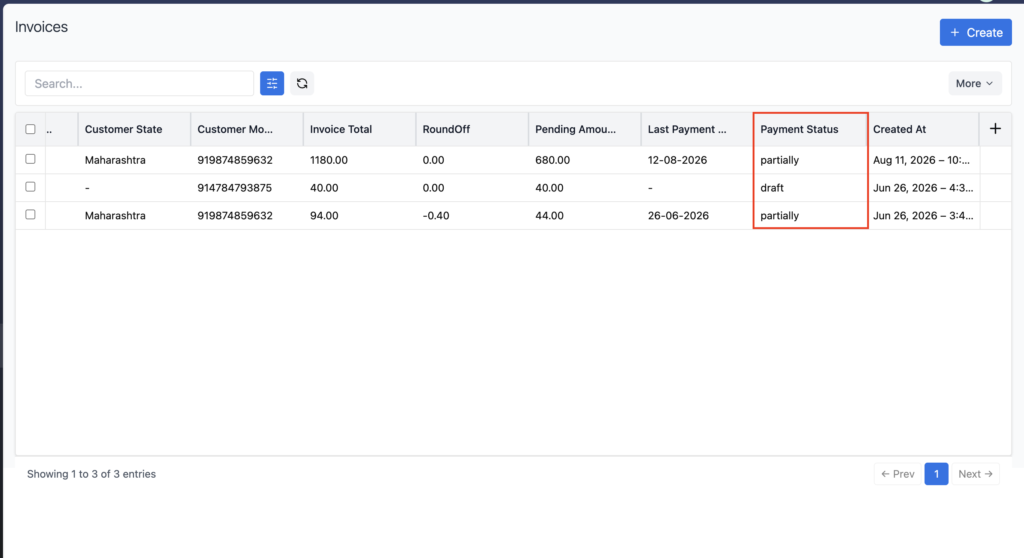
Payment Status
After recording a payment, the invoice payment status is updated automatically based on the amount received.
The status can be:
- Draft / Unpaid – No payment has been recorded.
- Partially Paid – A partial amount has been received and some amount is still pending.
- Fully Paid – The complete invoice amount has been paid.
Payment Tracking
The Invoice List View therefore allows users to download invoices, record full or partial payments, and track payment history and pending amounts directly from the invoice record.
Benefits of Invoice Management
The Invoices module helps rental businesses manage rental billing and payment tracking from a single place.
Key benefits include:
- Flexible Rental Billing – Supports Day-wise, Monthly, and Contract Period billing.
- Accurate Billing – Calculates rental charges based on the applicable billing type and billing period.
- Easy Invoice Generation – Generate invoices by selecting one or multiple rental assets.
- Billing Date Tracking – Uses the selected Billing Date to calculate rental charges and track the latest billing cycle.
- Last Invoice Date Visibility – Displays the latest billing date for products that have already been invoiced.
- Return Billing Support – Allows pending billing to be completed even after a product has been returned.
- Replacement Billing Support – Carries pending billing from a replaced product into the replacement product invoice when applicable.
- GST Calculation – Allows users to include GST and automatically calculate the applicable tax and total amount.
- Payment Tracking – Record full or partial payments directly against an invoice.
- Payment History – View previous payment transactions, paid amounts, pending amounts, and transaction details.
- Invoice Status Tracking – Helps identify whether an invoice is unpaid, partially paid, or fully paid.
- Invoice PDF Download – Download generated invoices directly from the Invoice List View.
- Centralized Invoice Records – Maintain customer-wise invoice and payment information in one place.
Frequently Asked Questions
What is the Invoices module in Webtrix24 Rental CRM?
The Invoices module is used to generate and manage rental invoices based on customer rental assets, billing type, billing dates, returns, replacements, and contract periods.
What billing types are supported in the Invoices module?
Webtrix24 Rental CRM supports:
- Day-wise billing
- Monthly billing
- Contract Period billing
Can I generate an invoice for multiple rental products?
Yes. Users can select one or multiple rental assets for the same customer and generate them in an invoice.
What is the difference between Invoice Date and Billing Date?
Invoice Date is the official date of invoice creation, while Billing Date is used to calculate rental charges up to the selected date.
Can I select a future Billing Date?
No. The Billing Date supports the current date and past dates. Future Billing Dates are disabled.
How does Day-wise billing work?
Day-wise billing calculates the rental amount based on the actual number of usage days between the applicable delivery date and Billing Date.
How does Monthly billing work?
For Monthly billing, the full monthly rental amount is considered even if the product was delivered later in that month.
How does Contract Period billing work?
Contract Period billing calculates the complete contract amount based on the defined contract period and rental rate.
Can a returned product still appear in the Invoice module?
Yes. If the final billing has not been completed, a returned product can remain available for invoice generation with return information displayed.
What happens after the final invoice for a returned product is generated?
After the final invoice is generated, the returned product becomes unavailable for further invoice generation.
How does invoice billing work after product replacement?
If a product is replaced before its pending invoice is generated, the pending billing of the old product can be added to the replacement product’s invoice.
What does the REPL label mean in the Invoice module?
The REPL label identifies a product as a replacement product during invoice generation.
Can I record a partial payment against an invoice?
Yes. Users can record either a full payment or partial payment against an invoice.
Where can I record an invoice payment?
In the Invoice List View, hover over the invoice and click the payment action icon. The Record Payment Against Invoice popup will open.
What payment details can be recorded?
Users can enter:
- Payment Amount
- Transaction Date
- Payment Mode
- Transaction ID / Details
- Payment Note
Can I view previous payments made against an invoice?
Yes. The Payment History tab displays previous payment transactions and related payment details.
What payment statuses are available?
The invoice payment status can indicate:
- Draft / Unpaid
- Partially Paid
- Fully Paid
Can I download an invoice PDF?
Yes. From the Invoice List View, hover over the invoice and click the Download Invoice icon to download the invoice PDF.
How does the system track the Last Invoice Date?
When an invoice is generated, the selected Billing Date is saved and displayed as the Last Invoice Date for the applicable rental product.
Can I include GST in an invoice?
Yes. Users can enable the Include GST option during invoice generation, after which the applicable GST amount and total invoice amount are calculated automatically.
What happens to a product after an invoice is generated?
The product’s billing availability is updated according to its billing type and billing cycle. For example, a Day-wise product becomes available from the next billing day, while a Monthly product becomes available in the next monthly billing cycle. Contract Period products are removed from further billing once the complete contract invoice is generated.