
The Email Template Builder allows users to create, customize, and manage professional email templates without writing HTML code.
Using drag-and-drop blocks, reusable sections, and template styling options, users can quickly design email templates for customer communication, marketing campaigns, notifications, follow-ups, onboarding emails, and more.
The builder provides a visual editor that helps users create responsive email layouts and save them for future use.
What Can You Do with Email Template Builder?
- Create templates
- Save templates
- Reuse templates
- Brand styling
- Mobile preview
How to Access Email Template Builder?
Settings → Email Template Builder
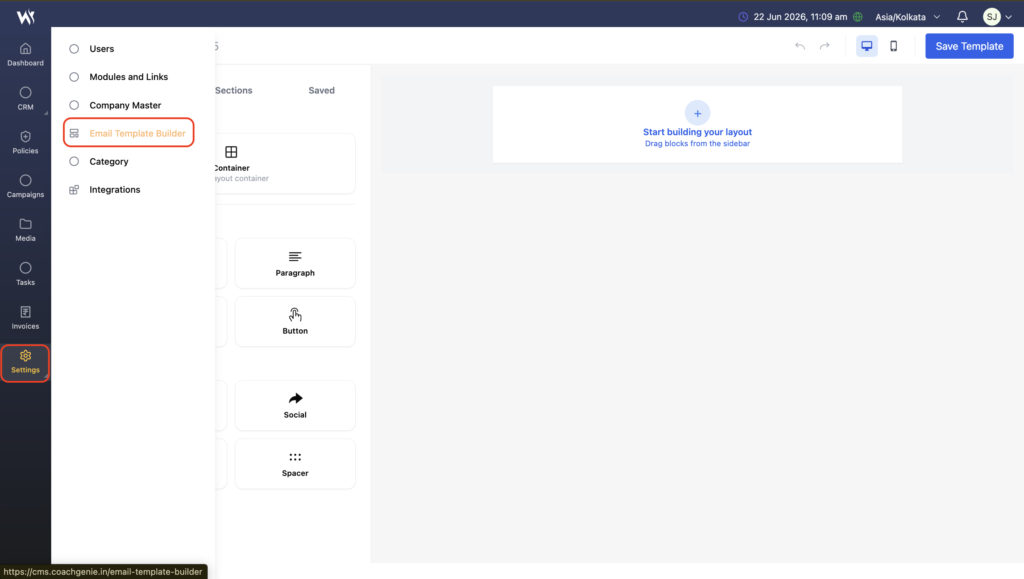
Understanding the Email Template Builder Interface
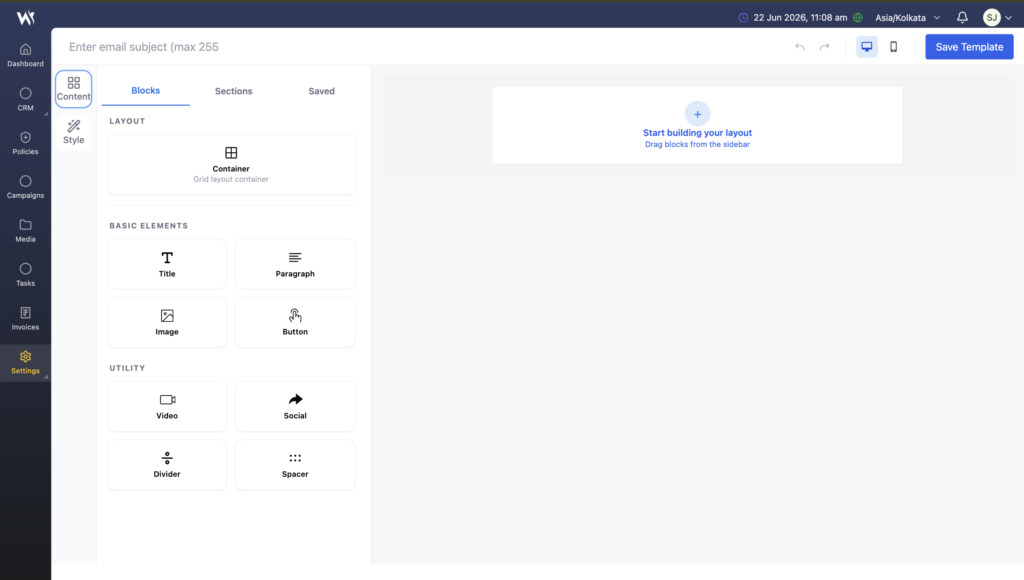
Subject Line
Content Tab
Sections Tab
Saved Templates Tab
Style Tab
Key Features of Email Template Builder
- Drag-and-drop email design
- Pre-built content blocks
- Ready-to-use layout sections
- Template styling options
- Save and reuse templates
- Desktop and mobile preview
- Responsive email design
- Professional email creation without coding
Creating an Email Template
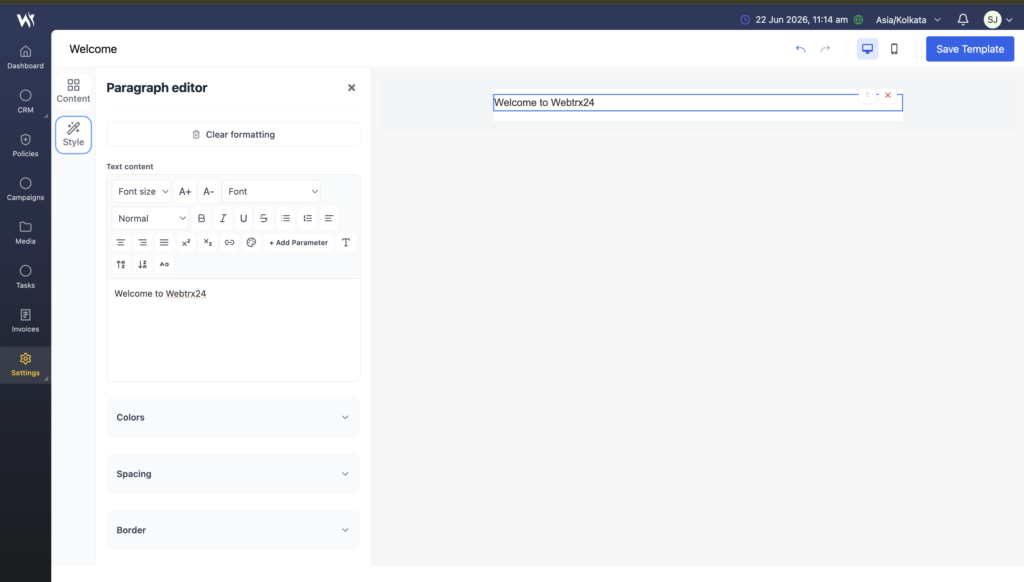
Users can create a new email template by entering an email subject and adding content blocks to the design canvas.
The builder allows users to visually arrange elements and create structured email layouts.
Steps
- Open Email Template Builder.
- Enter the email subject.
- Drag content blocks into the canvas.
- Customize content and styling.
- Preview the template.
- Save the template for future use.
Content Blocks Explained
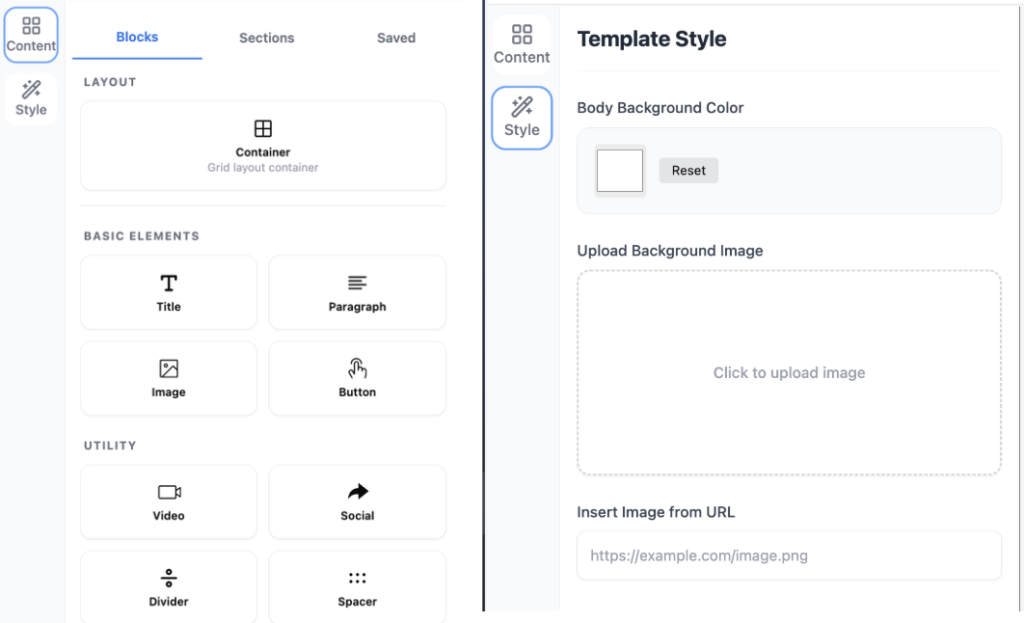
The Content tab provides all components required to build an email template.
Users can add different content elements by dragging them into the email layout.
Available options include:
Layout Container
The Container block helps organize email content into structured sections and layouts.
Title
Used to add headings and section titles.
Paragraph
Used to add descriptive text and email content.
Image
Allows users to insert images into the email template.
Button
Used to add clickable call-to-action buttons.
Video
Allows video preview or video links within email content.
Social
Used to add social media links and icons.
Divider
Creates visual separation between sections.
Spacer
Adds blank space between content blocks to improve layout design.
Sections Tab
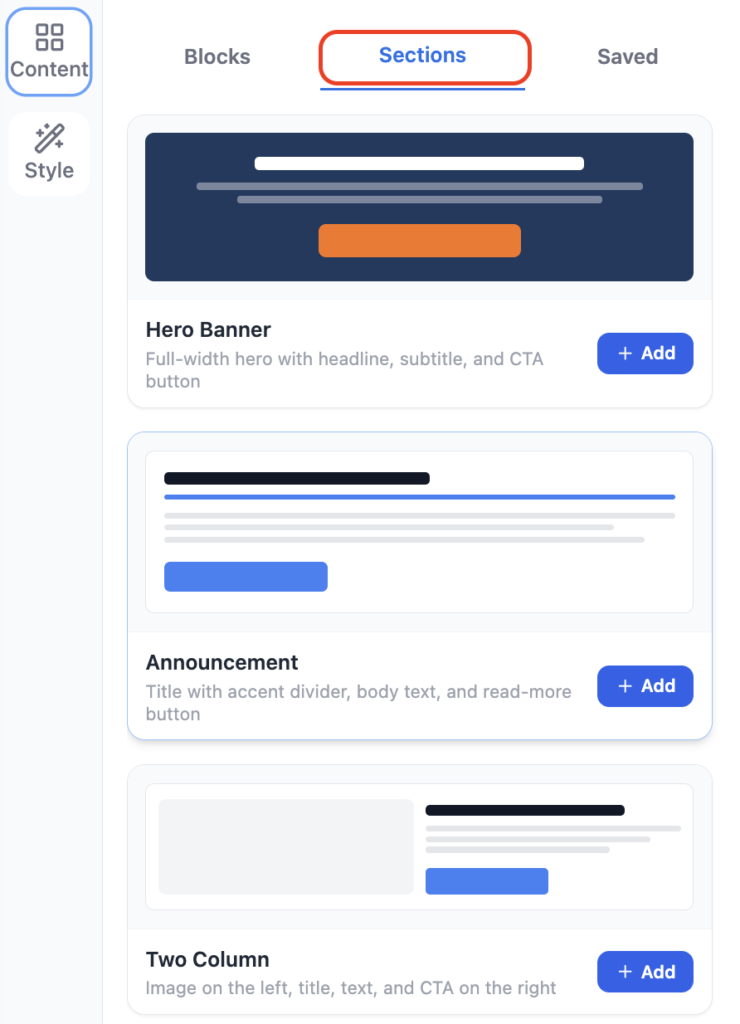
The Sections tab provides pre-designed email layouts that can be added with a single click.
These ready-made sections help users build professional email templates faster.
Available section types may include:
Hero Banner
A large banner section used for announcements, promotions, and important messages.
Announcement Section
Highlights important information with a clear heading and content area.
Two Column Layout
Displays content in two separate columns for better organization.
Multi-Content Sections
Used to showcase multiple pieces of information in a structured format.
Using predefined sections helps maintain consistent email design across campaigns.
Managing Saved Templates
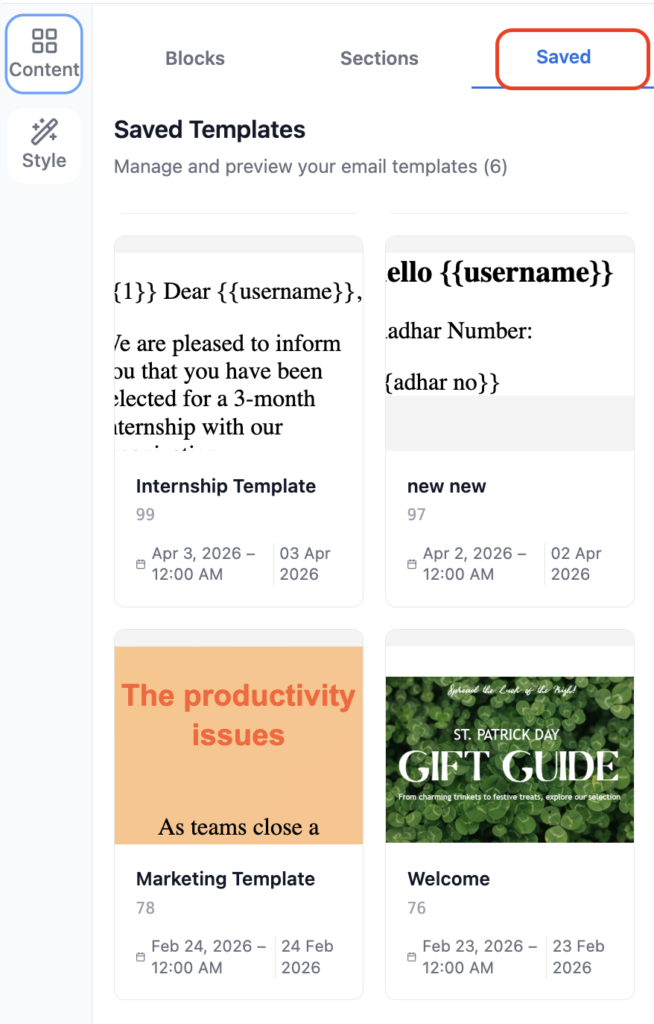
The Saved Templates tab allows users to manage previously created email templates. Users can quickly access, modify, preview, or remove templates as needed.
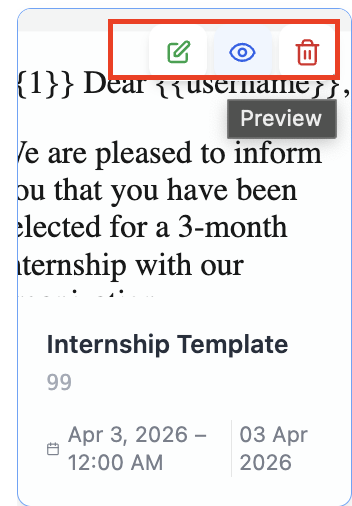
View Template
Users can preview a saved template before using it. This helps verify the content and layout without making changes.
Edit Template
Users can open an existing template and modify its content, design, subject line, or layout.
Delete Template
Unused or outdated templates can be permanently removed from the Saved Templates list.
Customizing Template Style
The Style tab allows users to customize the visual appearance of email templates.
Available customization options include:
Body Background Color
Change the overall background color of the email.
Upload Background Image
Upload custom background images for branded email designs.
Insert Image from URL
Add images directly using image URLs.
These options help maintain brand consistency across all email communications.
Previewing Email Templates
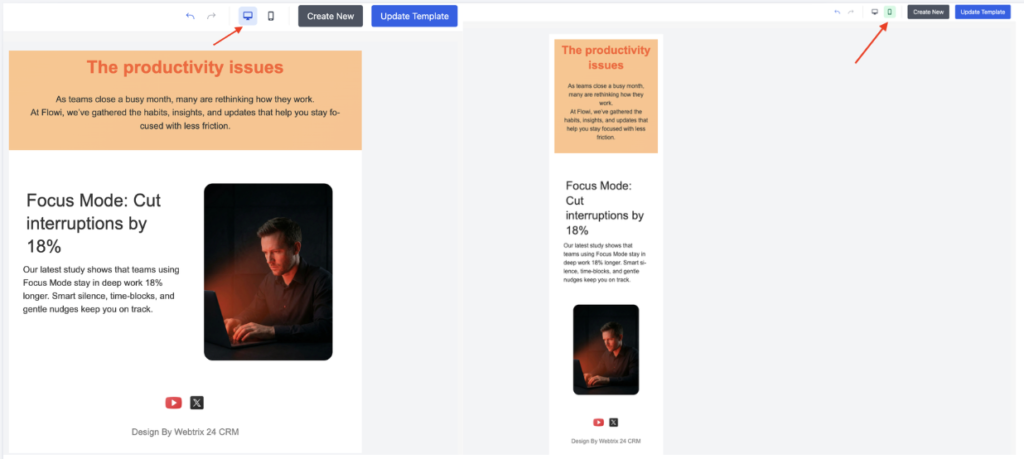
The builder provides preview options to verify how emails appear on different devices.
Desktop Preview
Displays the email layout as viewed on desktop screens.
Mobile Preview
Displays the email layout as viewed on mobile devices.
This helps ensure emails remain responsive and visually appealing across devices.
Benefits of Using Email Template Builder
- Create professional emails without coding
- Maintain consistent branding
- Improve communication efficiency
- Reuse templates across campaigns
- Reduce email design time
- Create responsive email layouts
- Improve customer engagement
Who Can Use Email Template Builder?
The Email Template Builder is useful for:
- Sales Teams
- Marketing Teams
- Customer Support Teams
- CRM Administrators
- Business Owners
- Operations Teams
It helps organizations create standardized and professional email communication for customers, leads, vendors, and internal users.
Frequently Asked Questions
Can I create email templates without coding?
Yes. The Email Template Builder provides a drag-and-drop interface for creating professional email templates without HTML knowledge.
Can I reuse existing templates?
Yes. Saved templates can be reused, edited, and customized whenever needed.
Can I preview emails before saving?
Yes. Templates can be previewed in desktop and mobile layouts.
Can I add images to email templates?
Yes. Images can be uploaded directly or inserted using image URLs.
Can I change the email background design?
Yes. Users can customize background colors and background images using Style settings.