
Webtrix24 CRM provides a powerful Campaign Management Module that helps businesses create, automate, monitor, and manage marketing campaigns using Email and WhatsApp communication channels.
Users can build workflow-based campaigns, target specific audiences, track campaign performance, and monitor recipient engagement from a centralized dashboard.
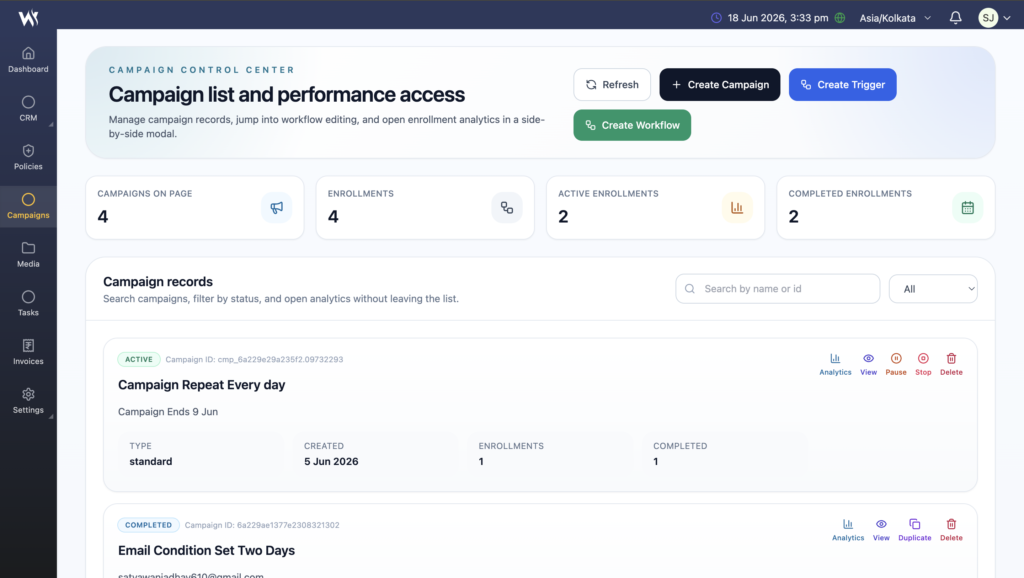
Accessing Campaigns
Steps:
- Click Campaigns from the left navigation menu.
- The Campaign Dashboard opens.
- Users can view campaign records, enrollment statistics, and campaign performance.
- Click Create Campaign to start a new campaign.
Campaign Dashboard Overview
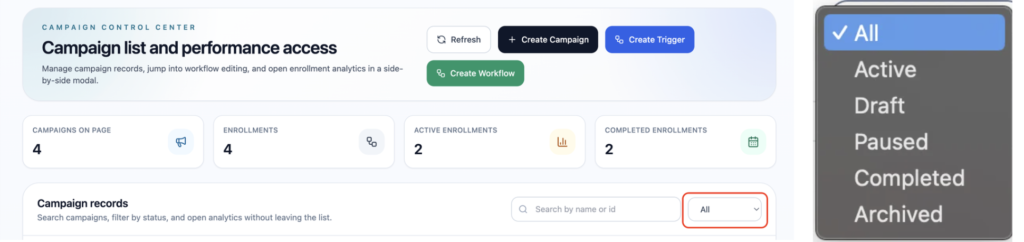
The Campaign Dashboard provides a quick overview of campaign activities.
Users can view:
- Campaigns on Page
- Total Enrollments
- Active Enrollments
- Completed Enrollments
The dashboard also includes:
- Search Campaign
- Campaign Status Filters
- Campaign Records List
- Create Campaign
- Create Workflow
- Create Trigger
Create Workflow
The Create Workflow option is available for advanced campaign workflow configuration and automation.
Create Trigger
The Create Trigger option is available for advanced campaign automation based on predefined events and conditions.
Creating a Campaign
Steps:
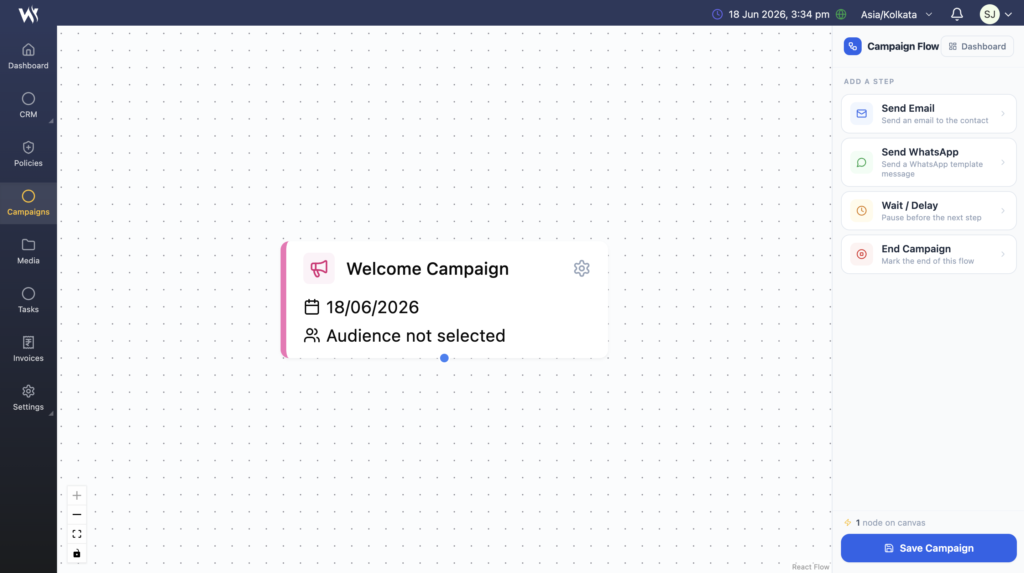
- Click Create Campaign.
- Enter the campaign details:
- Campaign Name
- Start Date
- Description (Optional)
- Select the Audience.
- Configure workflow actions.
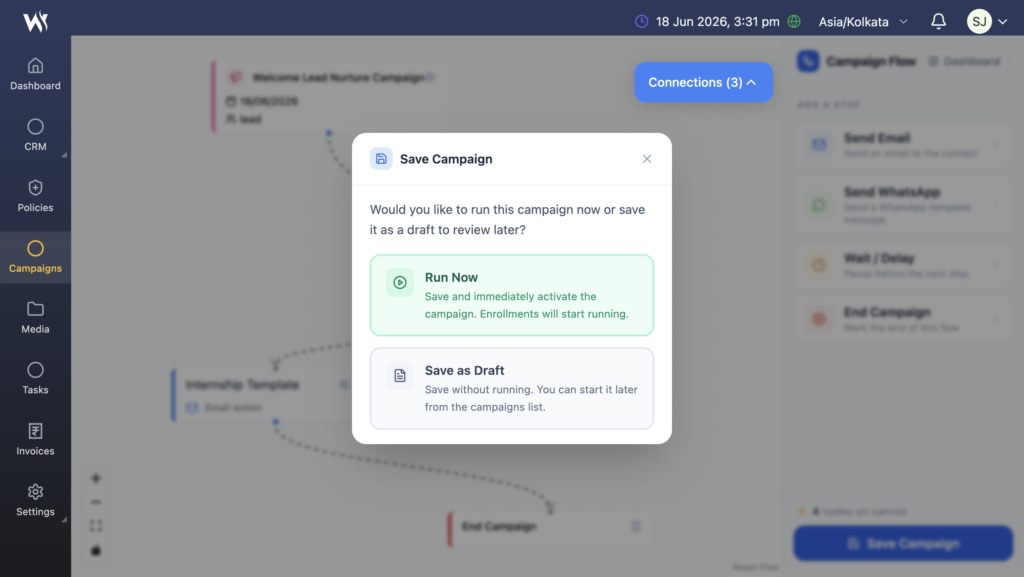
- Click Save Campaign.
Audience Selection
Campaigns can be targeted to different audience sources.
Available Audience Types
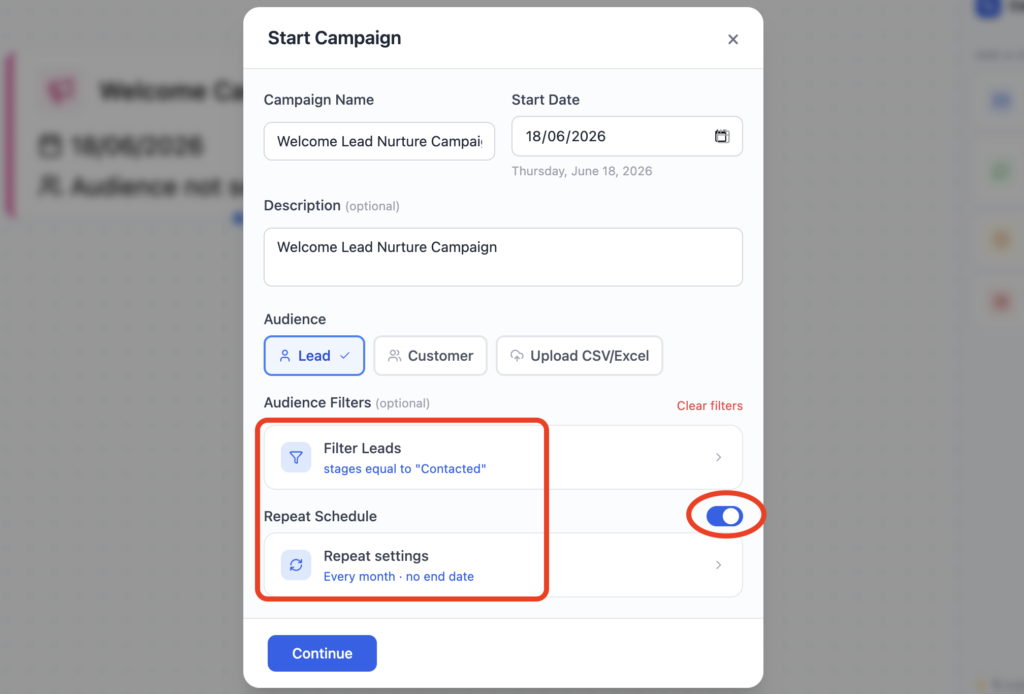
Lead Audience
Select CRM Leads for the campaign.
Users can apply Lead Filters to target specific lead groups.
Examples:
- Custom Filters
- Lead Status
- Lead Source
- Assigned User
Customer Audience
Select CRM Customers for campaign communication.
Customer filters can be applied to target specific customer segments.
Upload CSV/Excel
Users can upload contact data directly using CSV or Excel files.
This option is useful when recipients are not available in CRM records.
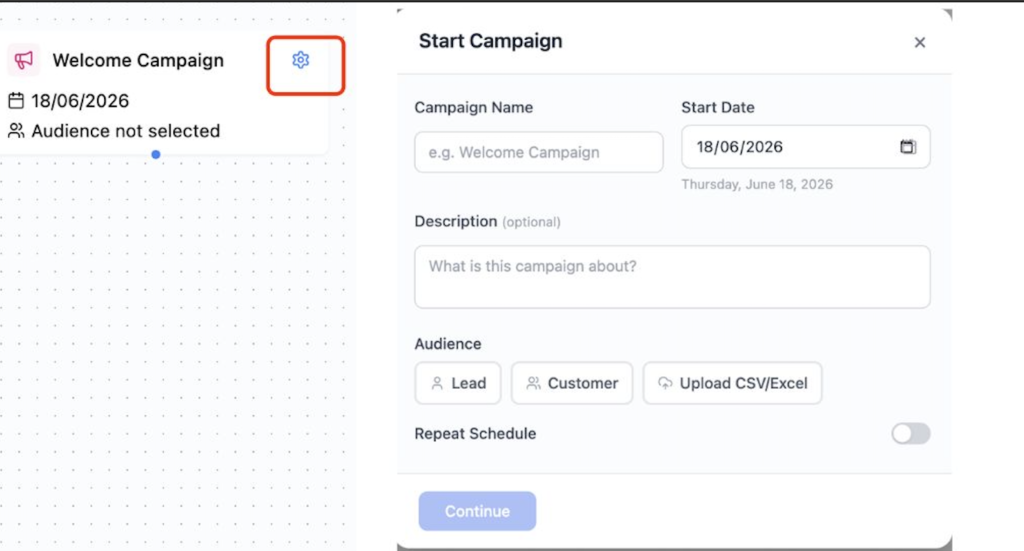
Repeat Schedule
Campaigns can be configured to run automatically on recurring schedules.
Users can configure:
- Daily
- Weekly
- Monthly
- Custom Intervals
End conditions include:
- Never
- End On Date
- End After Specific Occurrences
Repeat scheduling helps automate recurring marketing activities.
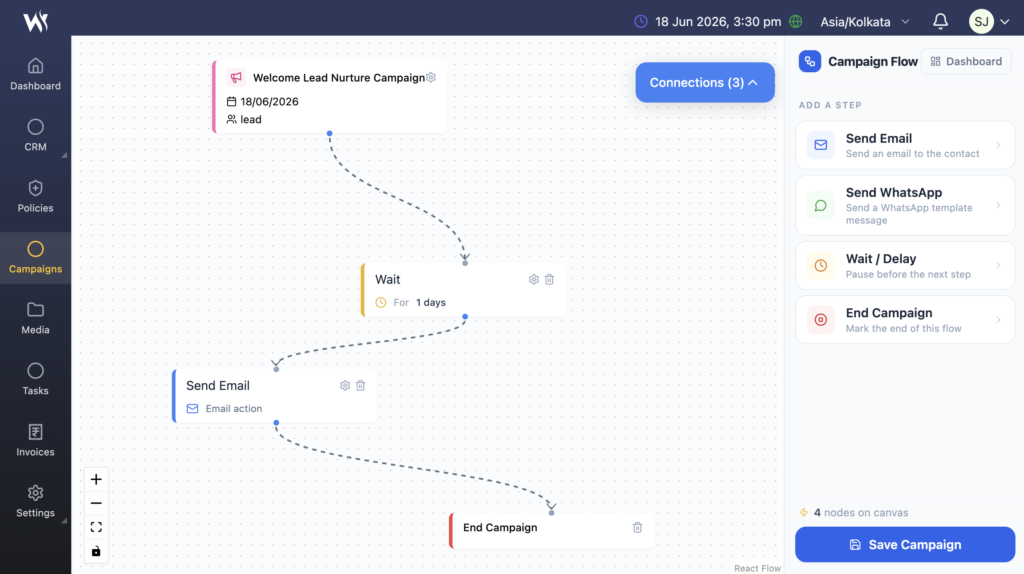
Campaign Workflow Builder
Webtrix24 CRM provides a visual workflow builder where users can create automated customer journeys.
Available workflow actions include:
- Send Email
- Send WhatsApp
- Wait / Delay
- End Campaign
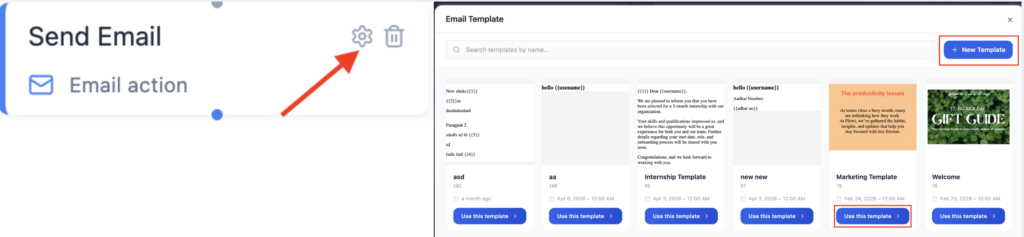
Send Email Action
The Send Email action sends automated emails to campaign recipients.
Users can:
- Select an existing Email Template
- Search available templates
- Create a New Email Template
- Configure email content before sending
Email actions are commonly used for:
- Welcome Emails
- Follow-up Emails
- Promotional Campaigns
- Customer Notifications
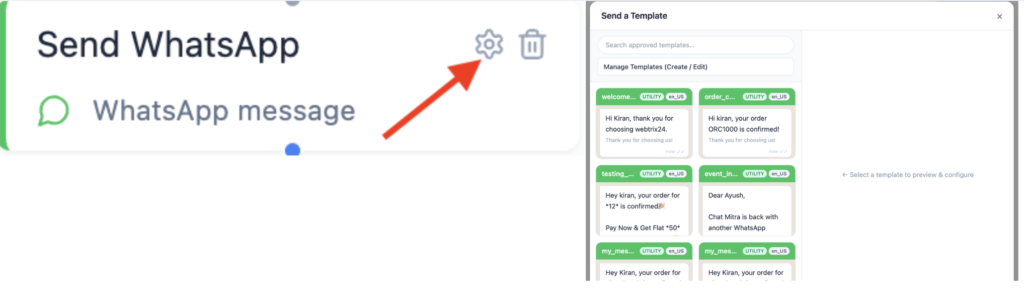
Send WhatsApp Action
The Send WhatsApp action sends approved WhatsApp template messages.
Users can:
- Select approved WhatsApp Templates
- Search templates
- Manage existing templates
- Create new templates if required
This helps automate customer communication through WhatsApp.
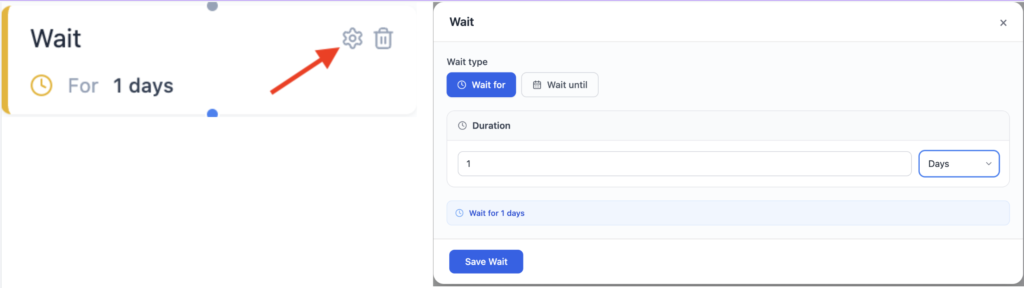
Wait / Delay Action
The Wait action pauses the workflow before executing the next action.
Wait Options
Wait For
Pause the workflow for a specific duration.
Examples:
- 1 Day
- 3 Days
- 1 Week
Wait Until
Pause the campaign until a specific date and time.
This is useful when messages need to be sent on a scheduled date.
End Campaign Action
The End Campaign node marks the completion of the workflow.
Once recipients reach this step, no further campaign actions are executed.

Campaign Workflow Example
Welcome Campaign Example
Lead Selected
↓
Send WhatsApp Welcome Message
↓
Wait 1 Day
↓
Send Welcome Email
↓
End Campaign
This workflow helps automate onboarding and customer engagement processes.
Campaign Records
After a campaign is saved, it appears in the Campaign Records section.
Users can view:
- Campaign Name
- Campaign ID
- Campaign Type
- Campaign Status
- Created Date
- Enrollment Count
- Completion Count
Campaigns can be searched using the Search box.
Campaign Status Filters
Users can filter campaigns by status.
Available filters include:
- All
- Active
- Draft
- Paused
- Completed
- Archived
Managing Campaign Records
Users can perform various actions from the Campaign Records section.
Analytics
View campaign performance and enrollment details.
View
Open and review campaign information.
Duplicate
Create a copy of an existing campaign.
Pause
Temporarily stop an active campaign.
Stop
Permanently stop campaign execution.
Delete
Remove the campaign record.

Campaign Analytics
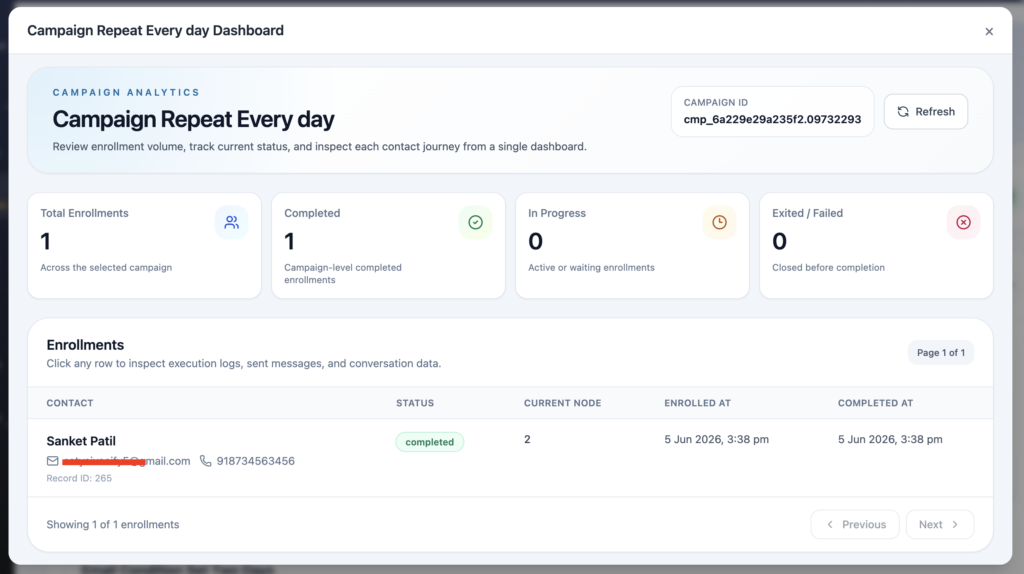
The Analytics screen provides detailed campaign performance insights.
Users can monitor:
- Total Enrollments
- Completed EnrollmentsIn
- Progress Enrollments
- Exited / Failed Enrollments
This information helps measure campaign effectiveness and recipient engagement.
Enrollment Details
The Enrollments section displays all contacts enrolled in the campaign.
Available information includes:
- Contact Name
- Email Address
- Mobile Number
- Enrollment Status
- Current Workflow Node
- Enrolled Date
- Completed Date
Users can click any enrollment record to view detailed execution information.
Enrollment Activity Details
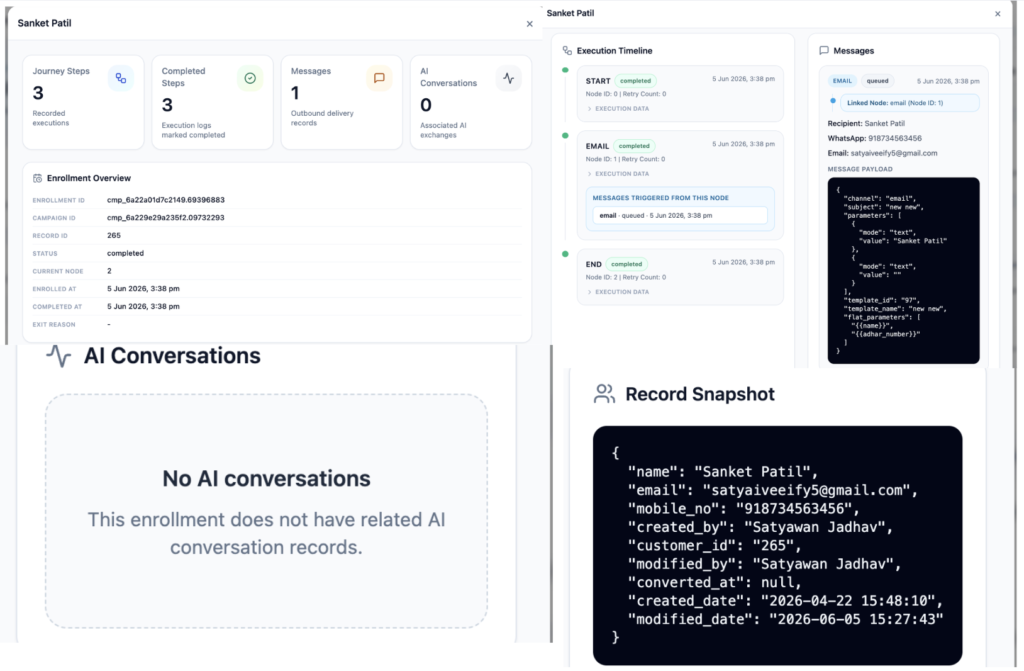
When an enrollment record is opened, the system displays detailed workflow execution information.
Enrollment Overview
Users can view:
- Enrollment ID
- Campaign ID
- CRM Record ID
- Enrollment Status
- Current Workflow Node
- Enrollment Date
- Completion Date
Execution Timeline
The Execution Timeline displays the complete workflow journey of a recipient.
Examples:
- Campaign Started
- WhatsApp Sent
- Wait Executed
- Email Sent
- Campaign Completed
This helps users track how recipients progressed through the campaign.
Message History
The Messages section displays communication activities triggered by campaign actions.
Users can view:
- Communication Channel
- Template Used
- Recipient Information
- Delivery Records
- Message Payload Details
Supported channels include:
AI Conversations
If AI-based interactions are enabled, users can review AI conversation records associated with campaign enrollments.
Record Snapshot
The Record Snapshot section displays recipient information captured during campaign execution.
Examples:
- Name
- Email Address
- Mobile Number
- CRM Record ID
- Created By
- Modified By
This helps verify the exact data used during campaign processing.
Frequently Asked Questions
Can I create recurring campaigns?
Yes. Campaigns can be configured using Repeat Schedule settings with custom recurrence options.
Can I target CRM Leads?
Yes. Campaigns can be sent to CRM Leads using Lead Audience selection and filters.
Can I target CRM Customers?
Yes. Campaigns can be sent directly to CRM Customers.
Can I upload contacts using Excel?
Yes. CSV and Excel files can be uploaded as campaign audiences.
Can I use Email and WhatsApp in the same campaign?
Yes. Multiple workflow actions can be combined within a single campaign.
What is the purpose of the Wait action?
The Wait action delays the next workflow step for a specified duration or until a selected date and time.
Can I duplicate an existing campaign?
Yes. Existing campaigns can be duplicated and reused.
Can I track campaign performance?
Yes. Campaign Analytics provides enrollment statistics, completion status, and workflow execution details.
Can I view recipient journey progress?
Yes. Users can open an enrollment record and review the complete execution timeline.
Can I see messages sent through a campaign?
Yes. The Messages section displays email and WhatsApp delivery details for each enrollment.
Can I filter campaigns by status?
Yes. Campaigns can be filtered by Active, Draft, Paused, Completed, and Archived status.
What information is available in Campaign Analytics?
Campaign Analytics displays total enrollments, completed enrollments, in-progress enrollments, failed enrollments, and campaign execution details.
Can I view enrollment details for a recipient?
Yes. Users can open an enrollment record to view enrollment information, execution timeline, messages, and record snapshots.
What actions can be performed on a campaign record?
Depending on the campaign status, users can view analytics, open campaign details, duplicate, pause, stop, or delete a campaign.