
The Delivery Challan Management module in Webtrix24 Rental CRM helps rental businesses create, manage, approve, download, and track delivery challans for products issued to customers.
A Delivery Challan records which rental products are delivered to a customer, when they are delivered, the applicable billing type and rental rate, and other order and dispatch information.
Once a Delivery Challan is approved, the selected product is marked as On Rent and becomes associated with the customer across the rental system.
Overview
The Delivery Challan module provides a centralized place to manage the complete product delivery process.
Users can:
- Create a new Delivery Challan
- Select a customer
- Select available rental products
- Deliver multiple products in one challan
- Select billing types
- Add charger and accessory details
- Add dispatch and order information
- Save Delivery Challans as drafts
- Approve Delivery Challans
- Download approved Delivery Challans
- Create replacement deliveries
- Cancel eligible approved Delivery Challans
- View delivery information from the list
- Track delivered products through the Product Journey Report
The Delivery Challan also connects the Delivery, Product, Customer, and Invoice workflows.
Accessing the Delivery Challan Module
To access the Delivery Challan module:
- Log in to Webtrix24 Rental CRM.
- From the left navigation menu, click Deliveries.
- The Deliveries List View opens.
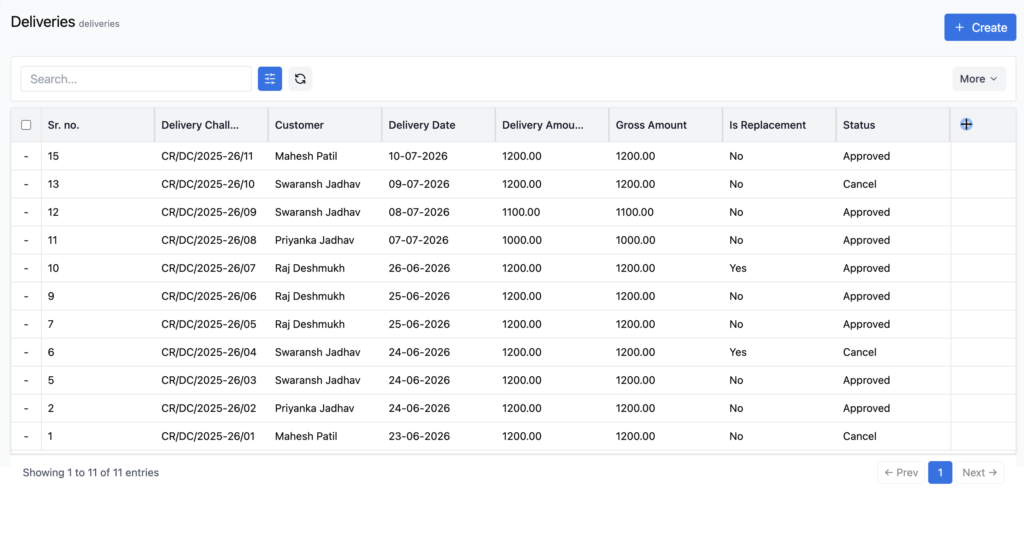
Understanding the Deliveries List View
The Deliveries List View displays the Delivery Challans created in the system.
The list provides important delivery information such as:
- Sr. No.
- Delivery Challan No.
- Customer
- Delivery Date
- Delivery Amount
- Gross Amount
- Is Replacement
- Status
The list view also provides actions based on the current Delivery Challan status.
Users can use the page to:
- Search Delivery Challans
- Apply filters
- Refresh the list
- Create a new Delivery Challan
- Manage displayed columns
- Edit or view delivery information
- Download a Delivery Challan
- Delete eligible draft Delivery Challans
- Cancel eligible approved Delivery Challans
Creating a Delivery Challan
To create a new Delivery Challan:
- Open the Deliveries module.
- Click the Create button.
- The Create Delivery Challan form opens.
- Enter the customer and delivery information.
- Select the products to be delivered.
- Enter or select the required product details.
- Add additional order information if required.
- Add terms and conditions.
- Choose Save Draft or Create Delivery Challan.
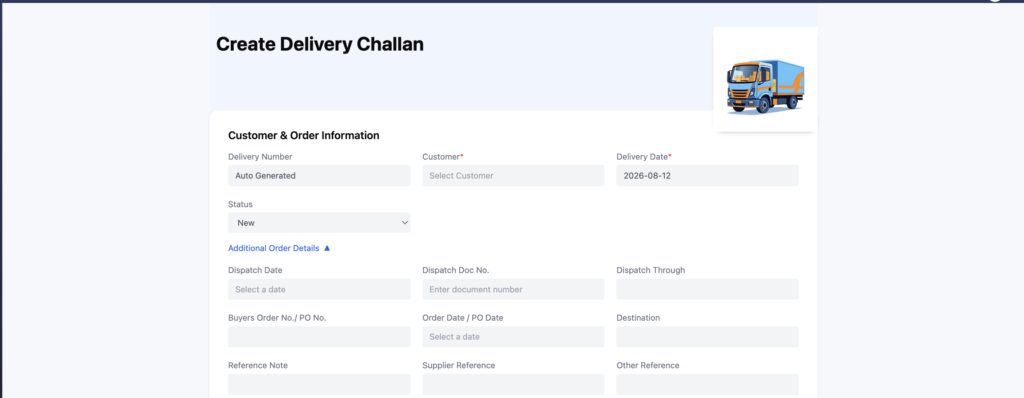
Customer & Order Information
The first section of the Create Delivery Challan form is Customer & Order Information.
This section contains the main information required for the delivery.
Delivery Number
The Delivery Number is automatically generated by the system. Users do not need to manually enter the Delivery Challan number.
The Delivery Number format can be customized according to the business requirements.
For example, the current format can be:
CR/DC/2025-26/164
If a business requires a different numbering format, the Delivery Number pattern can be configured according to the required format.
This allows businesses to maintain their preferred:
- Prefix
- Numbering pattern
- Financial year format
- Sequence number
- Other required numbering components
Once configured, the system automatically generates Delivery Numbers using the defined format when Delivery Challans are finalized.
Example: Different businesses can use different Delivery Number formats based on their internal documentation and numbering requirements.
Customer
The Customer field is required.
Users can select a customer from the available customer dropdown.
The selected customer becomes the recipient of the products included in the Delivery Challan.
For example:
Customer: Varad Shinde
Delivery Date
The Delivery Date is required.
By default, the system sets the Delivery Date to the current date.
Users can change the date when creating a Delivery Challan.
Delivery Date Validation
Draft Delivery Challans can be saved with past or future dates.
However, when a Delivery Challan is submitted for final approval, the system validates the delivery date against previously approved deliveries.
The delivery date must follow the sequence of previously approved deliveries.
For example, if a Delivery Challan has already been approved with today’s date, another Delivery Challan with an earlier date cannot be approved afterward.
In such a case, the draft Delivery Challan’s date must be updated to the same date or a later date before approval.
This helps maintain a consistent chronological sequence of approved deliveries.
Delivery Challan Status
The Status field determines the type or stage of the delivery.
The available options include:
- New
- Replacement
New Delivery
Select New when a product is being delivered to a customer for the first time as a normal rental delivery.
For example:
Status: New
This is used when the customer is receiving the product as a new rental allocation.
Replacement Delivery
Select Replacement when an already-issued product needs to be replaced with another product.
For example,
a customer may have received a laptop and later report an issue with it. If another product with the required configuration is provided as a replacement, the Delivery Challan can be created using:
Status: Replacement
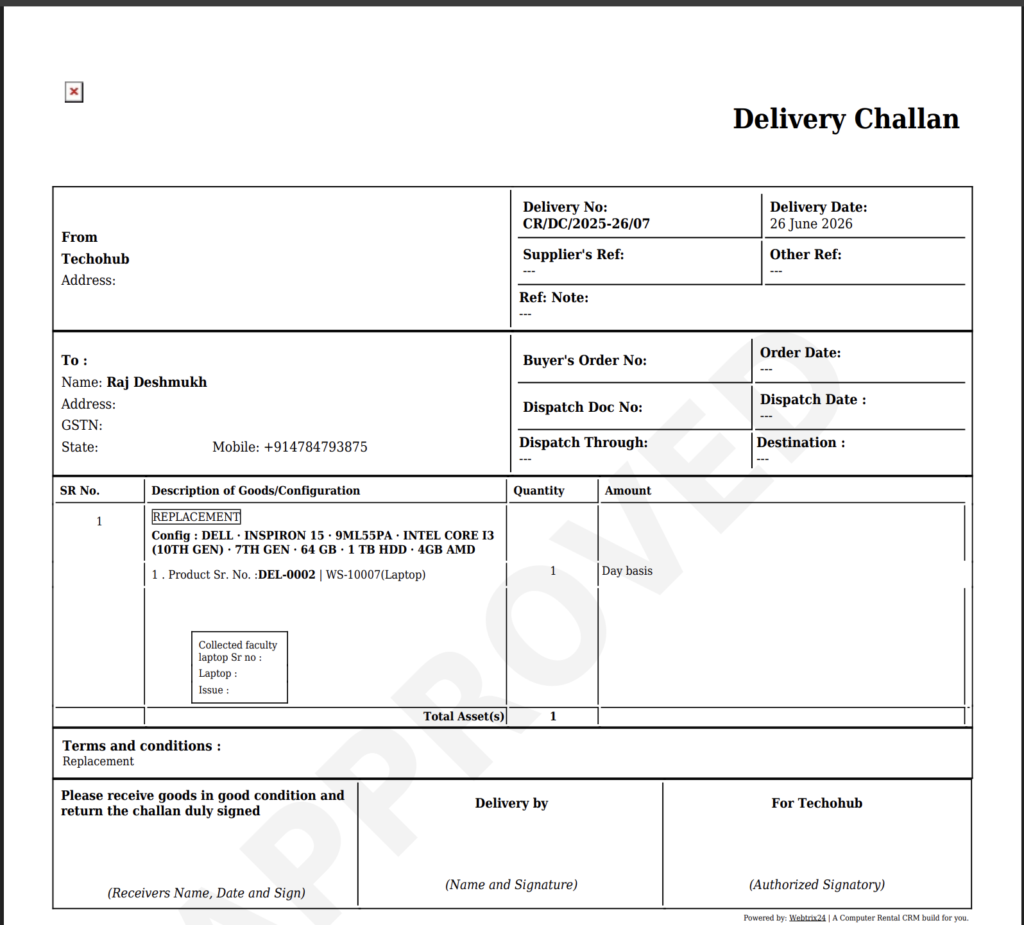
The generated Delivery Challan identifies the transaction as a replacement delivery.
The PDF can display REPLACEMENT in the product description and related delivery information.
Additional Order Details
The Additional Order Details section contains optional information related to dispatch, purchase/order references, and delivery documentation.
Users can expand this section when additional information needs to be recorded.
The available fields include:
- Dispatch Date
- Dispatch Doc No.
- Dispatch Through
- Buyers Order No. / PO No.
- Order Date / PO Date
- Destination
- Reference Note
- Supplier Reference
- Other Reference
These fields can be used to maintain additional order and dispatch information associated with the Delivery Challan.
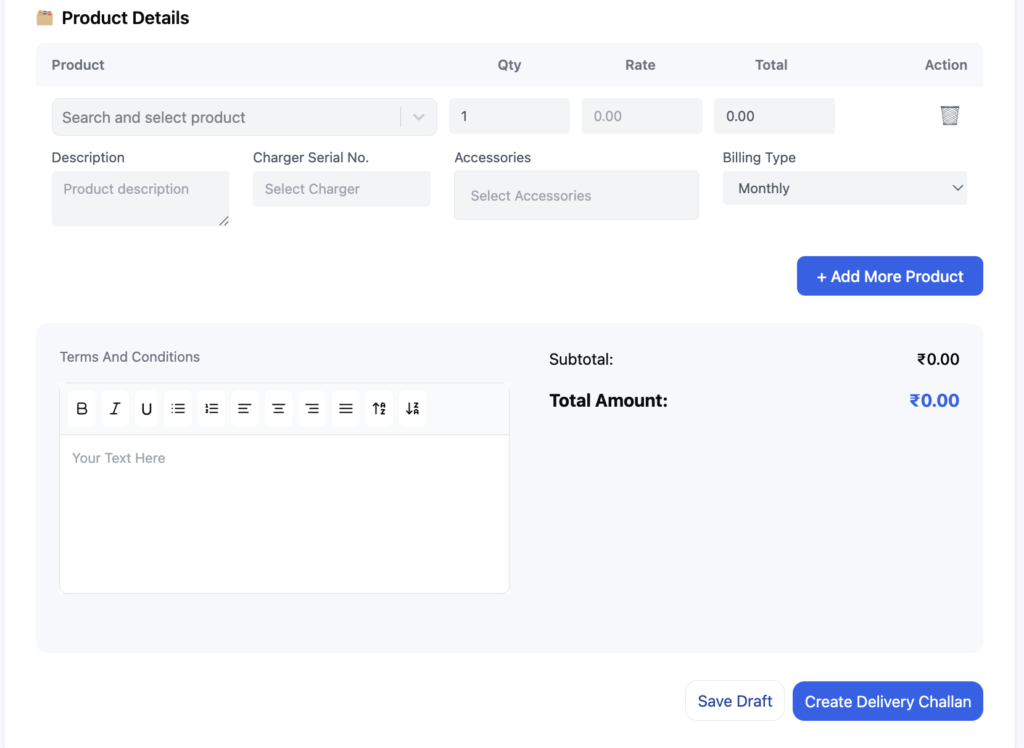
Product Details
The Product Details section is used to select the rental products that will be delivered to the customer.
Each product entry contains information such as:
- Product
- Quantity
- Rate
- Total
- Description
- Charger Serial Number
- Accessories
- Billing Type
Selecting a Product
Selecting a product is required before creating the Delivery Challan.
The product search allows users to search using:
- Product Name
- Product Serial Number
- Barcode Number
For example, users can search for:
Dell XPS 13
or:
DELL-002
or:
WST-5
This makes it easier to locate a specific rental asset.
Product Availability
Only products that are available for rental can be selected.
Products that are unavailable are displayed in a disabled state.
Products may be unavailable because they are:
- Already On Rent
- In Maintenance
- Damaged
- Sold
- Out of available stock
The system can display availability messages such as:
- No Stock Available
- In Maintenance
- Damaged
- Sold
Only products with In Inventory status and available stock can be selected for a normal delivery.
Quantity
After selecting a product, the Quantity is automatically set to 1.
The Quantity field is read-only for the selected rental product.
This ensures that the rental system maintains the individual product allocation correctly.
Rental Rate
When a rental rate is already configured for the selected product, the rate is automatically populated in the Delivery Challan.
This reduces manual data entry and helps maintain consistency between the Product and Delivery modules.
Total Amount
The product total amount is calculated automatically based on the applicable rental information.
Users do not need to manually calculate the total.
The Subtotal and Total Amount are also calculated automatically based on the products added to the Delivery Challan.
Product Description
When a product is selected, the Description field is automatically populated with available product configuration details.
The description can include information such as:
- Product Name
- Model Name
- Model Number
- Processor
- Generation
- Memory
- Storage
For example:
Config: DELL XPS 13 · INTEL CORE I7 · 8TH GEN · 8 GB · 1TB HDD
This makes the Delivery Challan more informative and helps identify the exact equipment being delivered.
Charger Serial Number
The Charger Serial No. field allows users to associate a charger with the rental product.
Users can:
- Select an existing charger serial number from the dropdown.
- Add a new charger when required.
This helps businesses track chargers issued along with rental equipment.
Accessories
Users can select accessories associated with the rental product.
Multiple accessories can be added when required.
This is useful when products are delivered with additional equipment such as laptop accessories or other rental items.
Billing Type
The Billing Type determines how the rental charges are calculated for a product. Webtrix24 Rental CRM supports:
- Day-wise
- Monthly
- Contract Period
The selected billing type determines how the rental period and rental amount are handled during invoicing.
Day-wise Billing
With Day-wise billing, the rental amount is calculated based on the actual number of rental days.
The system calculates the daily rental rate based on the number of days in the applicable month.
Example:
- Delivery Date: 1 July
- Monthly Rental Rate: ₹1,000
- Days in July: 31
- Daily Rate: ₹1,000 ÷ 31 = ₹32.25 per day
If the product is rented for 15 days, the rental amount is calculated based on those 15 actual rental days.
This means the daily rate can vary depending on whether the applicable month has 28, 29, 30, or 31 days.
Monthly Billing
With Monthly billing, the system charges the full monthly rental amount.
The number of days the product was actually used during that month does not change the monthly rental charge.
Example:
- Delivery Date: 15 July
- Monthly Rental Rate: ₹1,500
- Billing Type: Monthly
- Invoice Date: 31 July
The customer is charged the full ₹1,500 monthly rental amount.
The same monthly billing rule applies even if the product is delivered or returned on a different date within the month.
For example, if a product is delivered on 15 July and returned before the end of the month, the applicable monthly billing still follows the selected Monthly billing type.
Contract Period Billing
With Contract Period billing, users define a specific rental period using a Start Date and End Date.
When Contract Period is selected, the Delivery Challan displays fields for:
- Contract Start Date
- Contract End Date
Example:
- Delivery Date: 10 July
- Contract Start Date: 10 July
- Contract End Date: 10 September
The contract follows the defined rental period and uses the full-month billing approach, similar to Monthly billing.
When the invoice is generated, the system calculates the applicable number of months / contract period and generates the rental amount for the defined contract period.
Billing Type Summary
| Billing Type | How It Works |
|---|---|
| Day-wise | Calculates rental charges based on actual rental days and the number of days in the applicable month. |
| Monthly | Charges the full monthly rental amount regardless of the delivery or return date within the month. |
| Contract Period | Uses the defined Start Date and End Date and calculates the applicable contract period for invoicing. |
Important: The Billing Type selected while creating the Delivery Challan determines how the rental product is subsequently handled during invoice generation.
Adding Multiple Products
Users can click + Add More Product to add multiple products to the same Delivery Challan.
This allows a customer to receive multiple rental assets through a single delivery document.
For example, a customer may receive:
- Laptop
- Charger
- Additional rental equipment
Each product can have its own product details and billing configuration.
Duplicate Product Selection Prevention
If a product has already been selected in the Delivery Challan, it cannot be selected again in another product row.
The product is displayed as disabled with an Already Selected message.
This prevents the same physical rental asset from being accidentally added multiple times to the same delivery.
Terms and Conditions
The Delivery Challan provides a Terms and Conditions section.
Users can enter the applicable terms and conditions for the delivery.
The editor supports basic formatting options such as:
- Bold
- Italic
- Underline
- Text alignment
- Lists
- Other available text formatting options
The entered terms and conditions are included in the Delivery Challan document.
Saving a Delivery Challan as Draft
Users can click Save Draft when the Delivery Challan is not ready for final approval.
A draft Delivery Challan can be saved without finalizing the rental transaction.
This is useful when users need to:
- Complete the Delivery Challan later
- Review product details
- Add missing order information
- Confirm the delivery date
- Verify customer information before approval
Draft Delivery Date
A draft can contain a past, current, or future delivery date.
The delivery date is validated when the Delivery Challan is finally approved.
Creating and Approving the Delivery Challan
When all required information has been entered and verified, users can click:
Create Delivery Challan
This finalizes the Delivery Challan.
The system performs the required validations before approval.
Once successfully approved:
- The Delivery Challan receives its generated number.
- The delivery becomes an approved rental transaction.
- The selected product status changes to On Rent.
- The product is associated with the selected customer.
- The delivery becomes part of the product’s lifecycle history.
What Happens After Delivery Challan Approval?
Once a Delivery Challan is approved, the selected product is considered rented to the customer.
The system updates the related modules.
Product Module
The product status changes:
In Inventory → On Rent
The product is no longer available for another normal delivery while it is On Rent.
Customer Module
The delivered product appears under the customer’s Equipment details.
This allows users to identify which rental equipment is currently assigned to the customer.
Invoice Module
The delivered product becomes associated with the selected customer for the invoicing workflow.
This allows the product to be identified when the customer is selected during invoice processing.
Product Journey Report
The product’s lifecycle records a delivery event containing information about the rental transaction.
Delivery and Product Lifecycle
The delivery process connects several parts of Webtrix24 Rental CRM:
Product Created
↓
In Inventory
↓
Delivery Challan Created
↓
Delivery Challan Approved
↓
Product → On Rent
↓
Customer → Equipment
↓
Invoice → Customer’s Rental Product
↓
Product Journey → Delivery History
This provides a connected rental lifecycle instead of maintaining separate product and customer records manually.
Delivery Challan List View Actions
The actions available in the Delivery List View depend on the Delivery Challan status.
Draft Delivery Challan
For a Draft Delivery Challan, the available actions include:
- Edit
- Download
- Delete
Edit
Users can open the draft and make changes before approval.
Download
Users can open/download the Delivery Challan document for reference.
Delete
Draft Delivery Challans can be deleted because they have not yet been finalized as approved delivery transactions.
Approved Delivery Challan Actions
For an Approved Delivery Challan, the available actions include:
- Edit / View
- Download
- Cancel Delivery Challan
The Edit action is available for viewing the approved delivery information, but the finalized delivery cannot be freely edited like a draft.
Downloading a Delivery Challan
The Download Delivery Challan action allows users to open the generated Delivery Challan document.
To download/view a Delivery Challan:
- Open the Deliveries module.
- Find the required Delivery Challan.
- Hover over the Delivery Challan row.
- Click the Download icon.
- The Delivery Challan PDF opens.
- The document can then be saved or downloaded using the PDF viewer.
The generated document can contain information such as:
- Delivery Number
- Delivery Date
- Customer details
- Customer address
- Customer GST details, when applicable
- Order/reference information
- Product configuration
- Product Serial Number
- Barcode
- Quantity
- Rental rate
- Billing basis
- Terms and conditions
- Delivery/signature sections
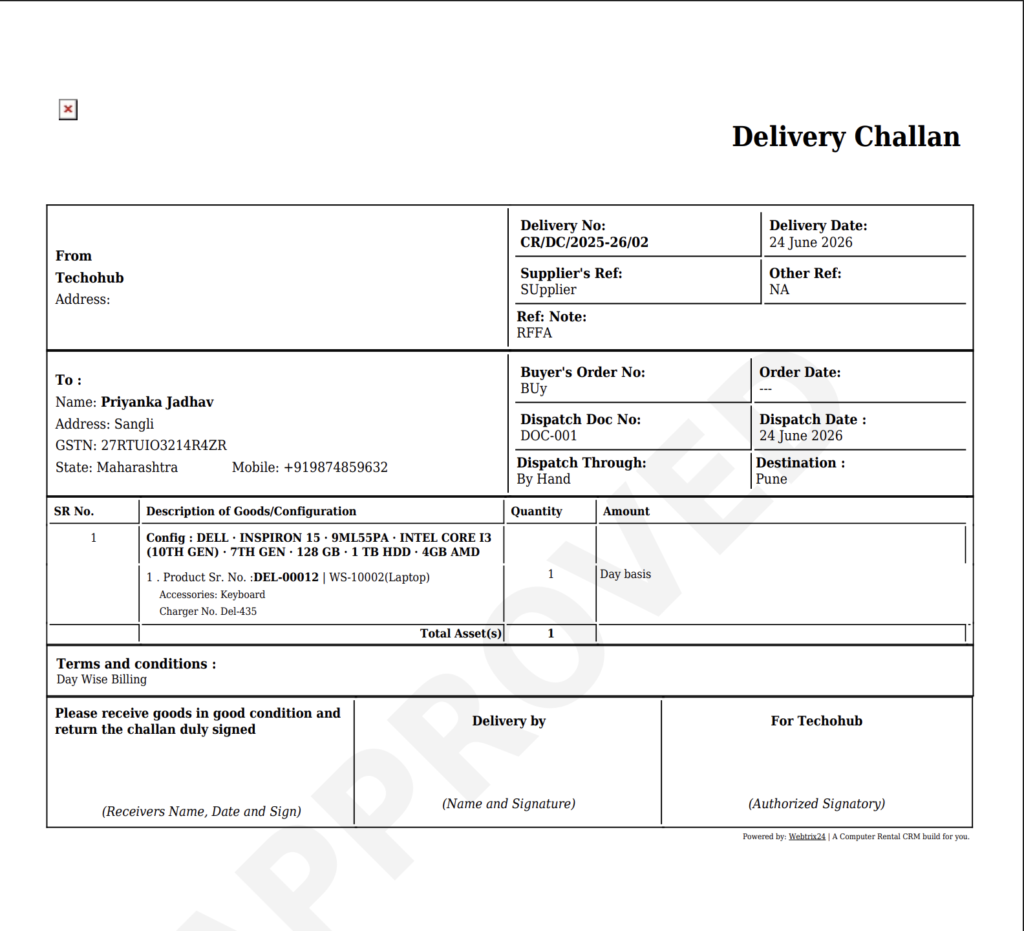
Replacement Delivery Challan
When Replacement is selected as the Delivery Challan status, the generated document identifies the delivery as a replacement transaction.
The PDF can display:
REPLACEMENT
along with the replacement product’s configuration and identification details.
This helps distinguish a replacement delivery from a normal first-time rental delivery.
Cancelling an Approved Delivery Challan
An approved Delivery Challan can be cancelled when the rental transaction has not progressed to another dependent action.
The Cancel Delivery Challan option is available when the approved delivery is eligible for cancellation.
When Can an Approved Delivery Challan Be Cancelled?
An approved Delivery Challan can be cancelled only when no further dependent action has been completed for the delivered product.
Cancellation is not allowed if actions such as the following have already been completed:
- Invoice Generation
- Replacement
- Return
- Upgrade
This restriction protects the relationship between the Delivery Challan and subsequent rental transactions.
How to Cancel a Delivery Challan
To cancel an eligible approved Delivery Challan:
- Open the Deliveries module.
- Find the approved Delivery Challan.
- Hover over the delivery row.
- Click the Cancel Delivery Challan icon.
- Confirm the cancellation when prompted.
- The Delivery Challan is cancelled.
Once the Delivery Challan is cancelled, the Cancel action is no longer available for that delivery.
What Happens After Cancellation?
Cancelling a Delivery Challan reverses the active delivery relationship created by that transaction.
The system updates the related product and customer records.
Product Journey
A Delivery Cancelled event is added to the Product Journey Report.
The report records the cancelled delivery and the associated customer information.
The active rental calculations are reset according to the cancellation.
For example, the Product Journey can show:
Delivery Cancelled — Delivery cancelled for Swaransh Jadhav
Delivery Challan: CR/DC/2025-26/10
Rate: ₹1200
Customer: Swaransh Jadhav
Product Status
The cancelled delivery no longer represents an active rental allocation for the product.
Customer Equipment
The cancelled product is removed from the customer’s active Equipment details.
Invoice Workflow
The cancelled delivery/product is no longer treated as an active product for the relevant customer’s invoice selection.
This ensures that a cancelled rental delivery does not continue as an active rental transaction.
Delivery Cancellation Restrictions
The cancellation rules can be summarized as follows:
| Delivery Status / Condition | Action |
|---|---|
| Draft | Edit / Download / Delete |
| Approved with no dependent action | View / Download / Cancel |
| Approved + Invoice Generated | Cannot Cancel |
| Approved + Replacement completed | Cannot Cancel |
| Approved + Return completed | Cannot Cancel |
| Approved + Upgrade completed | Cannot Cancel |
| Cancelled | Cancel action no longer available |
These restrictions help preserve the integrity of the rental lifecycle.
Delivery Challan and Product Journey Report
Every approved product delivery becomes part of the product’s lifecycle history.
The Product Journey Report can show delivery information such as:
- Delivery event
- Customer name
- Delivery Challan number
- Billing type
- Monthly rental rate
- Delivery date
- User who performed the activity
The Delivery Challan number shown in the Product Journey can be clickable, allowing users to open the associated Delivery Challan directly.
This creates a direct connection between:
Product Journey → Delivery Challan
Delivery Challan and Customer Equipment
When a Delivery Challan is approved, the delivered product becomes associated with the selected customer.
The customer’s Equipment information can therefore be used to identify the products currently issued to that customer.
For example:
Customer: Varad Shinde
Equipment:
- Dell XPS 13
- Serial No.: DELL-002
- Barcode: WST-5
This makes it easier for rental businesses to answer:
“Which equipment is currently with this customer?”
without manually checking every Delivery Challan.
Delivery Challan and Invoice Management
Approved delivery information is also connected to the invoice workflow.
The customer selected in the Delivery Challan becomes associated with the delivered rental product.
When the customer is selected during invoice processing, the relevant rental product can be identified for billing.
This creates the following workflow:
Customer
→ Approved Delivery
→ Rented Product
→ Invoice
This helps maintain consistency between the actual product delivered and the product used for rental billing.
Delivery Challan Business Rules
The main Delivery Challan rules can be summarized as follows:
- Customer selection is required.
- Delivery Date is required.
- Delivery Date defaults to the current date.
- Draft Delivery Challans can use past or future dates.
- Final approval validates the Delivery Date sequence.
- Delivery Number is automatically generated.
- New is used for normal product delivery.
- Replacement is used when replacing an existing rental product.
- Product selection is required.
- Products can be searched by Product Name, Serial Number, or Barcode.
- Only available inventory products can be selected.
- On-Rent, Maintenance, Damaged, and Sold products cannot be selected.
- Quantity defaults to 1 and is read-only.
- Configured rental rates are populated automatically.
- Product totals are calculated automatically.
- Product descriptions can be populated from product configuration.
- Multiple products can be added to one Delivery Challan.
- The same product cannot be selected twice in the same Delivery Challan.
- Draft Delivery Challans can be edited and deleted.
- Approved Delivery Challans cannot be freely edited.
- Approved deliveries can be cancelled only when no dependent action has been performed.
- Invoice, Replacement, Return, or Upgrade activity prevents cancellation.
- Approved delivery changes the product status to On Rent.
- Approved delivery associates the product with the customer.
- Cancellation removes the active customer-product relationship created by the delivery.
Delivery Challan Example
Consider a rental business delivering a laptop to a customer.
Customer
Varad Shinde
Product
Dell XPS 13
Serial Number
DELL-002
Barcode
WST-5
Billing Type
Day-wise
Rental Rate
₹1,200
The user creates a Delivery Challan and selects the customer and product.
After clicking Create Delivery Challan:
Delivery Challan → Approved
The system then updates:
Product Status → On Rent
Customer Equipment → Dell XPS 13
Invoice Workflow → Product associated with Varad Shinde
Product Journey → Delivery event recorded
This provides a complete connection between the delivery transaction, product, customer, and rental billing process.
Benefits of Delivery Challan Management
The Delivery Challan module helps rental businesses:
- The Delivery Challan module helps rental businesses:
- Improve delivery tracking – Maintain a clear record of which products were delivered, to whom, and when.
- Maintain accurate customer-product allocation – Easily identify which rental equipment is currently assigned to each customer.
- Reduce inventory errors – Prevent products that are already On Rent, damaged, under maintenance, or sold from being selected for normal delivery.
- Simplify rental operations – Manage customer selection, product delivery, billing type, rental rate, and order information from one place.
- Track replacement deliveries – Clearly record when a rental product is provided as a replacement.
- Connect delivery with billing – Approved deliveries are connected with the customer and rental product for the invoicing workflow.
- Maintain complete product history – Delivery activities become part of the Product Journey Report.
- Protect transaction accuracy – Cancellation restrictions prevent approved deliveries from being cancelled after related actions such as invoicing, return, replacement, or upgrade.
- Keep customer equipment records updated – Approved deliveries automatically establish the product’s active association with the customer.
- Simplify documentation – Download and maintain Delivery Challan PDFs for business records and customer communication.
Frequently Asked Questions
What is a Delivery Challan in rental management?
A Delivery Challan is a document used to record the delivery of rental products from the business to a customer.
How do I create a Delivery Challan?
Open Deliveries, click Create, select the customer, select the available products, enter the required information, and click Create Delivery Challan to approve it.
Is the Delivery Number entered manually?
No. The Delivery Number is automatically generated by the system.
Is the Delivery Date required?
Yes. Delivery Date is a required field and defaults to the current date.
Can I save a Delivery Challan without approving it?
Yes. Use Save Draft to save the Delivery Challan without final approval.
Can I use a past date in a draft Delivery Challan?
Yes. Draft Delivery Challans can contain past or future dates. The date is validated when the Delivery Challan is finally approved.
What happens when a Delivery Challan is approved?
The selected product is marked On Rent and associated with the selected customer. The delivery also becomes part of the product journey and customer equipment records.
Which products can be selected for delivery?
Only products with available stock and In Inventory status can be selected for normal delivery.
Can I select a product using its serial number?
Yes. Products can be searched using the Product Name, Product Serial Number, or Barcode Number.
Can I deliver multiple products using one Delivery Challan?
Yes. Use Add More Product to add multiple products to the same Delivery Challan.
Can I select a product that is already On Rent?
No. Products that are already rented are disabled and cannot be selected for another normal delivery.
What is the Replacement option?
The Replacement option is used when an existing rental product needs to be replaced with another product for the customer.
Can an approved Delivery Challan be edited?
An approved Delivery Challan cannot be edited like a draft. It can be opened for viewing/reference.
Can I delete an approved Delivery Challan?
No. Only eligible Draft Delivery Challans can be deleted.
Can an approved Delivery Challan be cancelled?
Yes, but only when no dependent action has been completed for the product.
When can a Delivery Challan not be cancelled?
Cancellation is not allowed when dependent actions such as Invoice Generation, Replacement, Return, or Upgrade have already been completed.
What happens when a Delivery Challan is cancelled?
The system records a Delivery Cancelled event in the Product Journey, removes the active customer-equipment relationship, and no longer treats the cancelled delivery as an active rental allocation.
Where can I see which customer has a product?
The Issued to Customer information in the Products module and the customer’s Equipment details can be used to identify the customer associated with a rented product.
Can I download a Delivery Challan?
Yes. Use the Download Delivery Challan action from the Deliveries List View to open the generated PDF.
What information is included in the Delivery Challan PDF?
The PDF can include the Delivery Number, Delivery Date, customer information, order/reference information, product configuration, serial number, barcode, quantity, rental rate, billing basis, terms and conditions, and delivery/signature information.