
Release Date: 25 June 2026
Release Overview
Version 1.0.0 introduces two new modules to the Webtrix24 Rental Application:
- Lead Module
- Task Module
These modules help businesses manage customer inquiries, assign follow-up tasks, improve team collaboration, and streamline daily rental operations.
What’s New
New Modules
Lead Module
A new module for managing enquiries and converting potential customers into active customers.
Key Features
- Create, Edit and Delete Leads
- Lead to Customer Conversion
- Email Integration
- Lead Details Panel
- Kanban View
- Search & Advanced Filters
- Export PDF & Excel
- Activity History
- Notes & Documents
Task Module
A new task management module to assign, monitor and track daily work.
Key Features
- Create & Update Tasks
- Task Priority & Status
- Task Repeat
- Custom Repeat
- Sub Tasks
- Work Log
- Documents
- Comments
- History
- Kanban View
- Email & In-App Notifications
- Export PDF & Excel
Module Configuration
Before using the new modules, they must be added to your Rental Application.
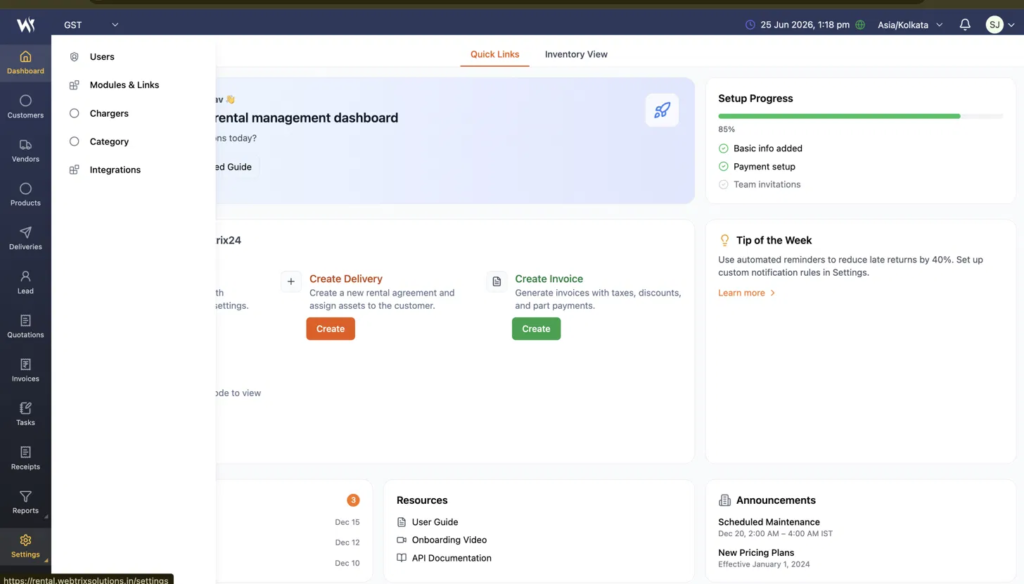
Step 1: Open Settings → Modules & Links
- Log in to the Webtrix24 Rental Application.
- After the Dashboard opens, click Settings from the left sidebar.
- Select Modules & Links.
Step 2: Module & Permission Management Page Opens
The Module & Permission Management page will open.
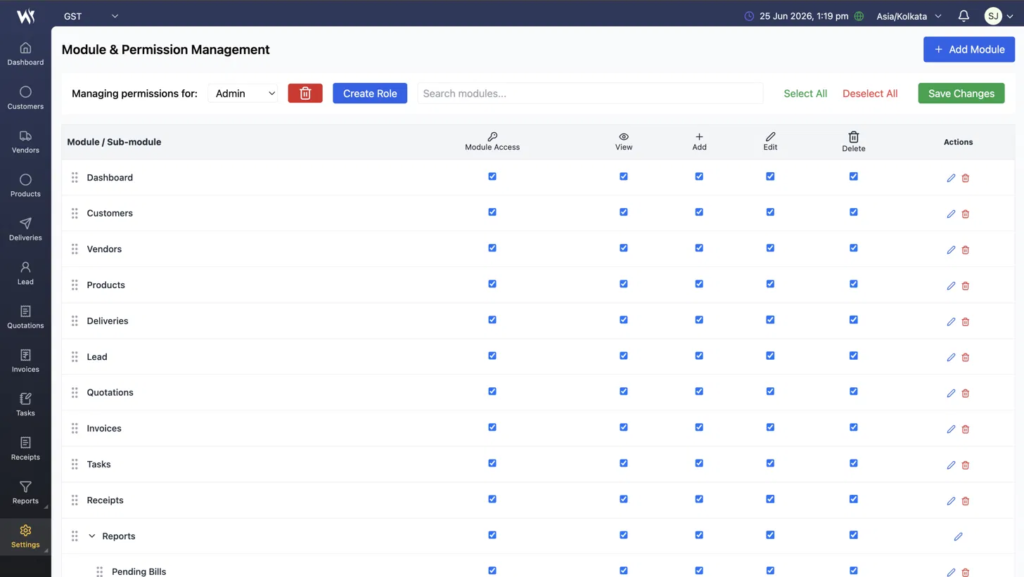
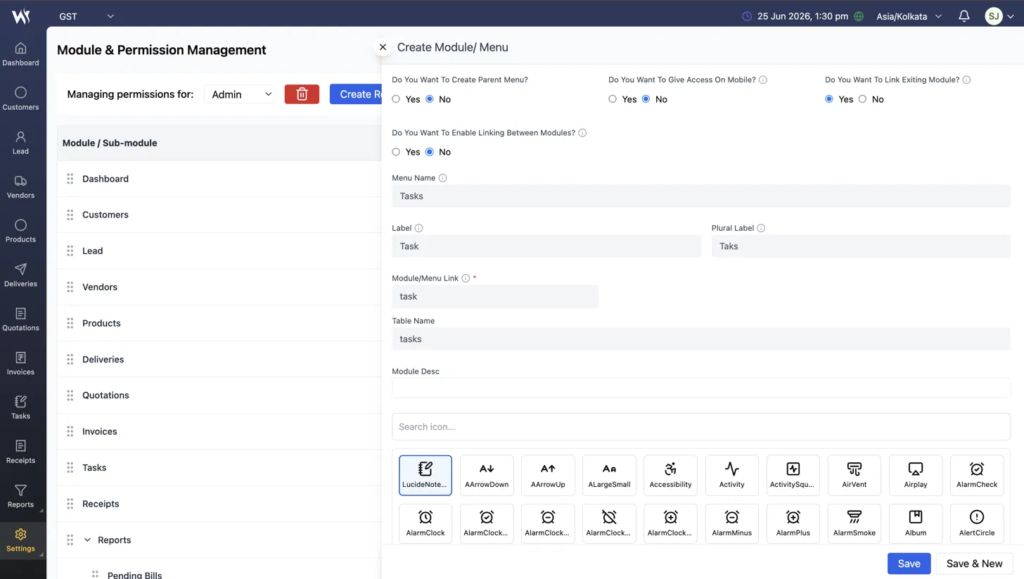
Step 3:Click “+ Add Module”
- Click the + Add Module button located in the top-right corner.
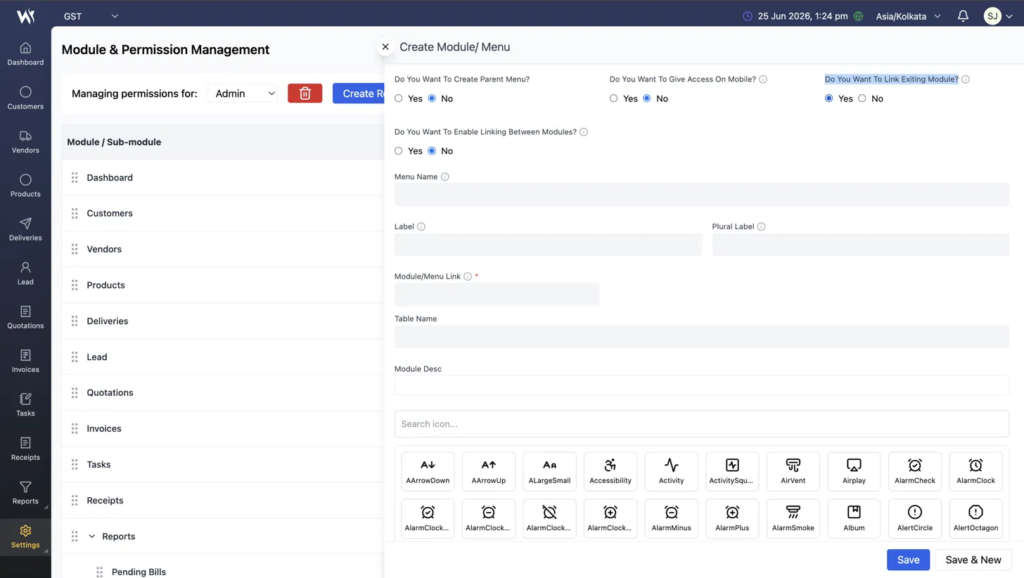
- The Create Module/Menu popup will appear.
- By default, Do You Want To Link Existing Module? is set to No.
- Change this option to Yes.
- Once enabled, additional fields such as Module/Menu Link and Table Name will become available.
Step 4: Add the Lead Module
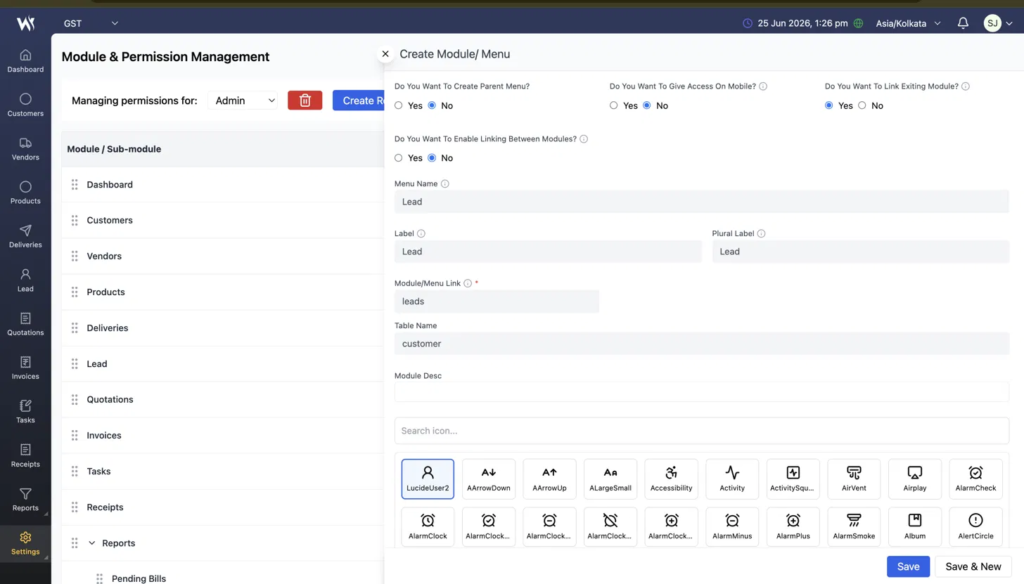
Enter the following information:
| Field | Value |
|---|---|
| Menu Name | Lead |
| Label | Lead |
| Plural Label | Leads |
| Module/Menu Link | Lead |
| Table Name | customer |
After completing the form:
- Select the desired module icon.
- Click Save.
The Lead module will be added to the module list.
Enable Module Access and the required permissions, then click Save Changes.
The Lead module will now appear in the left navigation panel.
Add the Task Module
Repeat the same process to add the Task module.
Enter the required Task module details in the Create Module/Menu form.
| Field | Value |
|---|---|
| Menu Name | Tasks |
| Label | Task |
| Plural Label | Taks |
| Module/Menu Link | task |
| Table Name | tasks |
After saving:
- Enable Module Access.
- Grant the required permissions.
- Click Save Changes.
The Task module will now be available in the left navigation panel.
Major Highlights
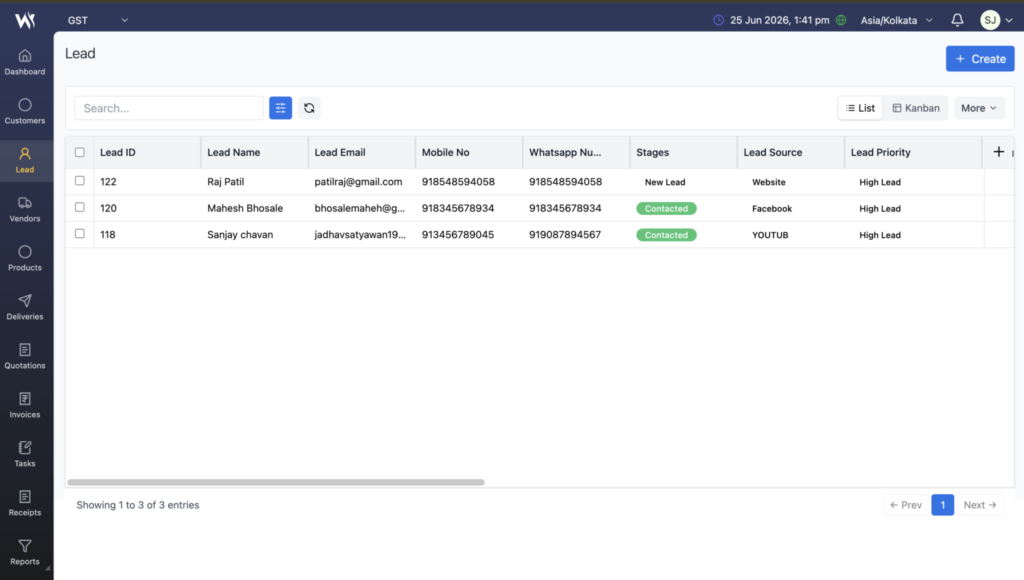
Lead Management
- Capture customer enquiries.
- Track lead stages.
- Convert qualified leads into customers.
- Send emails directly from Lead records.
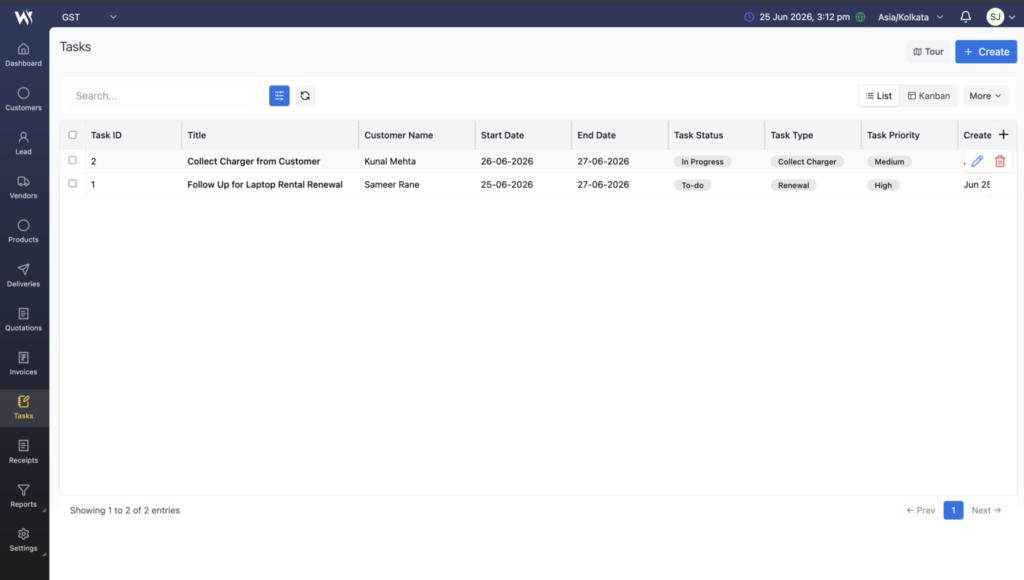
Task Management
- Assign work to team members.
- Track task progress.
- Create recurring tasks.
- Maintain Work Logs.
- Manage Sub Tasks.
- Receive Email & In-App notifications
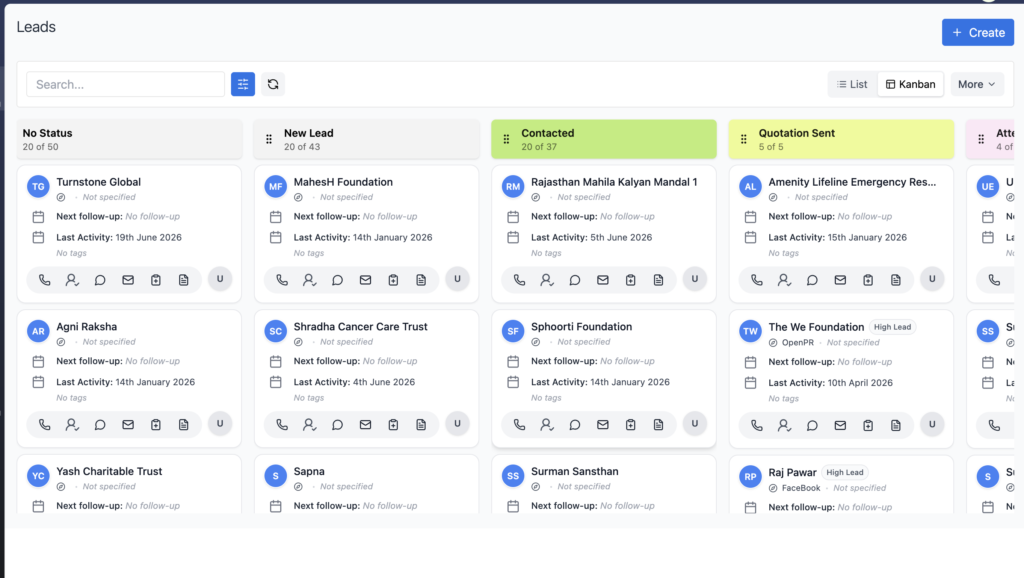
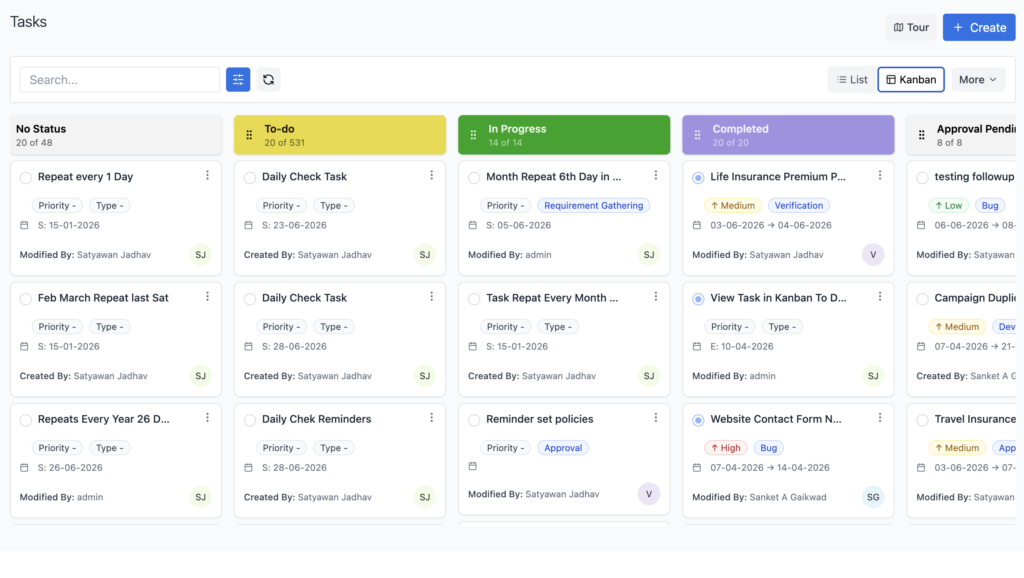
Kanban Support
Both Lead and Task modules now support Kanban View for visual workflow management.
Users can drag and drop cards between stages/statuses for faster updates.
Export Support
Both modules support:
- Export PDF
- Export Excel
Filtered records can also be exported.
Notification Support
Task assignees automatically receive:
- Email Notifications
- In-App Notifications
when a new task is assigned.
Compatibility
Supported in:
- Rental Application
- Web Browser
- Desktop View
How to Use — Quick Summary
Lead Module
Task Module
- Open Lead Module
Click “Lead” in the Left Side Panel. - Create a Lead
Click “+ Create”, fill the form, and click Save. - Search / Filter / Refresh
Use the Search bar, Filters icon, or Refresh icon to find and update records. - Hover for Quick Actions
Edit, Convert to Customer, Send Email, Create Task, Lead Details, or Delete — directly from the row. - Convert Qualified Leads
Click Convert to Customer → confirm → lead moves to the Customer module. - Switch to Kanban for a Visual View
Click “Kanban” to see leads grouped by stage with the same quick actions on each card. - Export When Needed
Use More → Export PDF / Export Excel to download the (filtered) lead list.
- Open Task Module
Click “Tasks” in the Left Side Panel. - Create a Task
Click “+ Create”, fill in the form, and click Save. - Edit via Hover Icons
Hover a row → click Edit to open the full task with Comments, Sub Tasks, History, Documents, Work Log. - Break it Down with Sub Tasks
Use the Sub Tasks tab to split work into smaller trackable pieces. - Log Your Time
Use Work Log to track Estimated vs Logged hours against the task. - Set Up Recurring Tasks
Use Task Repeat (Daily / Mon To Fri / Weekend) or Custom Repeat for advanced schedules (e.g. “Last Sunday of every month”).
Release Summary
Version 1.0.0 introduces powerful Lead and Task Management capabilities to the Rental Application.
Included in this Release
✅ Lead Module
✅ Task Module
✅ Lead to Customer Conversion
✅ Email Integration
✅ Task Repeat
✅ Custom Repeat
✅ Sub Tasks
✅ Work Log
✅ Kanban View
✅ Notifications
✅ Export PDF & Excel