
Webtrix24 Rental CRM’s Product Management module helps rental businesses manage laptops, desktops, computers, and other rental equipment from a centralized product inventory.
Businesses can create detailed product records, store hardware specifications, manage unique serial numbers and barcodes, set rental pricing, track product status, identify which customer has a rented product, and monitor the complete product journey from inventory to rental, return, replacement, upgrade, or other lifecycle activities.
The Product module is designed for businesses that need accurate tracking of individual rental assets throughout their rental lifecycle.
What Is the Product Management Module?
The Product Management module is the central place in Webtrix24 Rental CRM for creating and managing rental equipment.
Each product can have its own:
- Product / Service Name
- Product Type
- Product Serial Number
- Barcode
- Hardware specifications
- Purchase information
- Rental rate
- Vendor information
- Warranty details
- Condition
- Current status
- Customer allocation
This allows rental businesses to maintain a detailed record of every laptop, desktop, or computer in their inventory.
Who Can Use the Product Management Module?
The Product Management module is useful for rental businesses that manage equipment such as:
- Laptops
- Desktop computers
- Computers
- MacBooks
- Other rental equipment
It is particularly useful when each physical product needs to be individually tracked using a serial number or barcode.
Accessing the Product Module
To access Product Management:
- Log in to Webtrix24 Rental CRM.
- Open the Products module from the left navigation menu.
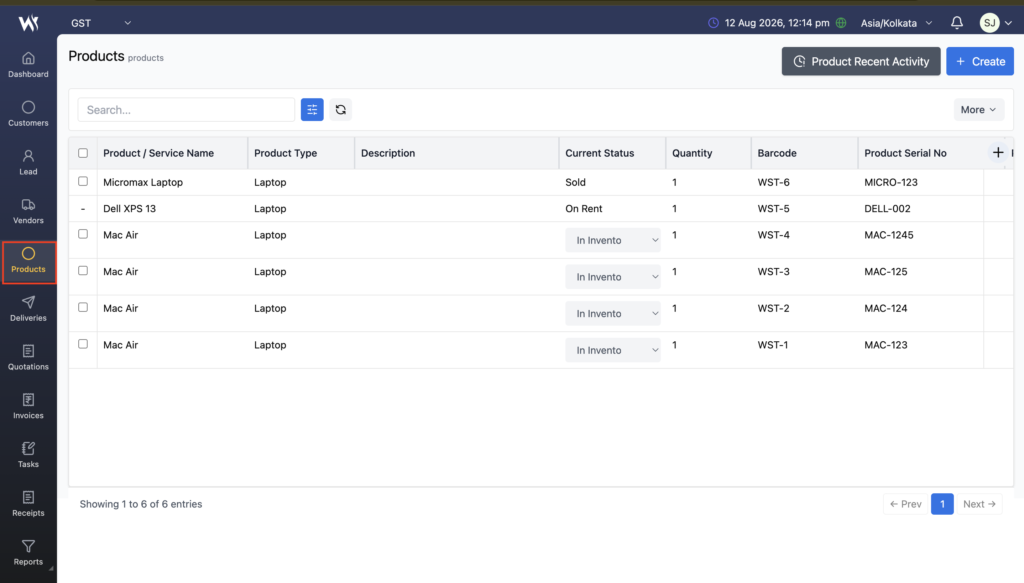
- The Product List View opens.
The Product List View provides access to product creation, search, filtering, status management, product history, recent activity, exports, and barcode printing.
Product List View
The Product List View displays the products maintained in the rental inventory.
Users can use the list to search, review, and manage product records.
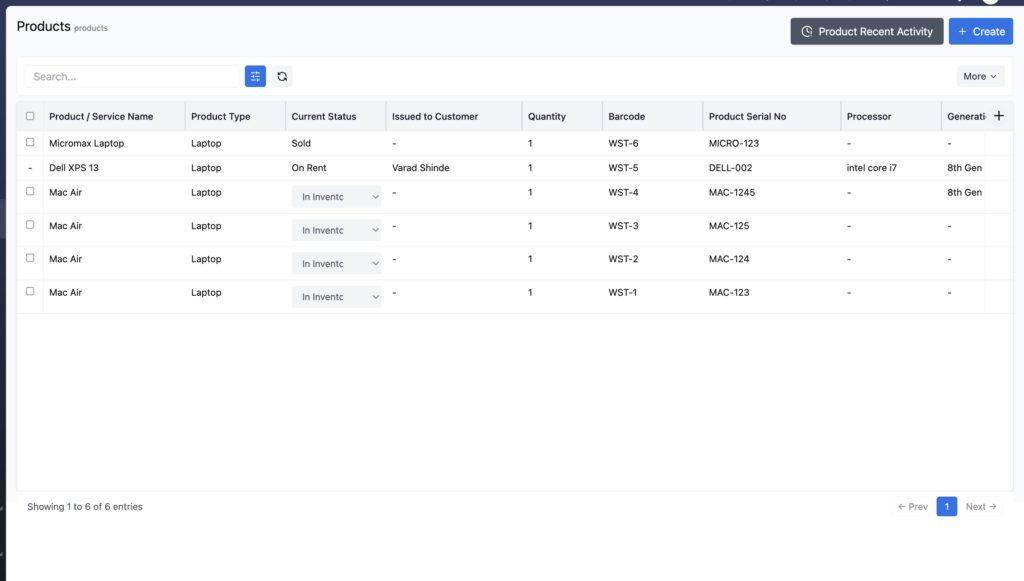
The Product List View can display information such as:
- Product / Service Name
- Product Type
- Description
- Current Status
- Quantity
- Barcode
- Product Serial Number
- Processor
- Generation
- Memory
- Other configured product fields
- Issued to Customer
The list also provides quick actions for individual products.
Creating a New Product
A new rental product can be added from the Product List View.
How to Create a Product
- Open the Products module.
- Click Create.
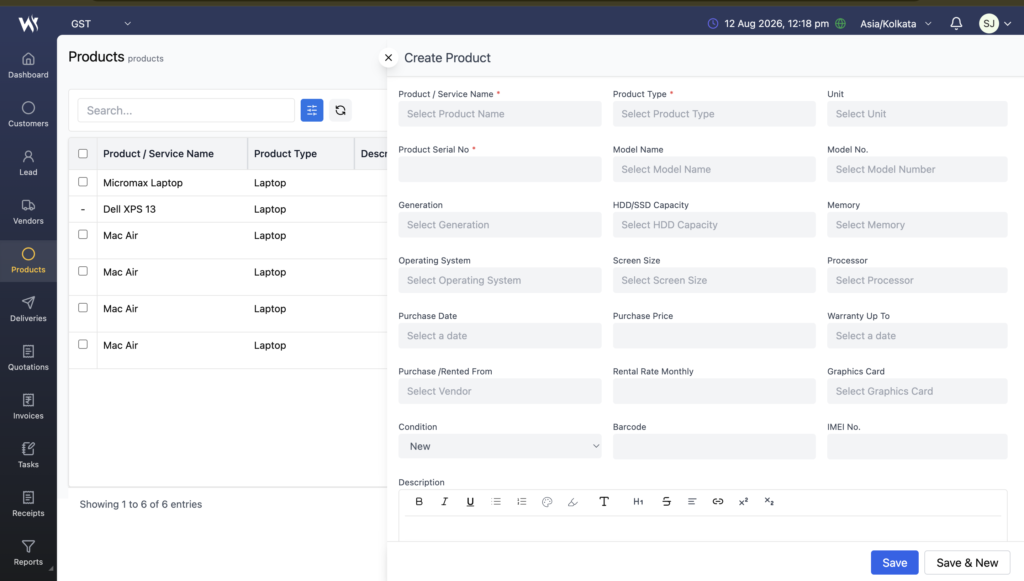
- The Create Product form opens.
- Enter the required product information.
- Review the information.
- Click Save.
Users can also click Save & New to save the current product and immediately open another Product form.
Product Information and Fields
The Create Product form stores detailed information about the rental equipment.
Basic Product Information
The form includes:
- Product / Service Name
- Product Type
- Unit
- Product Serial No.
The Product Serial Number is used to uniquely identify the physical product.
Product Specifications
Users can record the hardware configuration of the rental equipment.
The available specification fields include:
- Model Name
- Model No.
- Generation
- HDD/SSD Capacity
- Memory
- Operating System
- Screen Size
- Processor
- Graphics Card
For example, a laptop record can contain information such as its processor, RAM, storage capacity, operating system, screen size, and generation.
This makes it easier to identify the exact configuration of a rental device.
Purchase and Vendor Information
The Product form also allows businesses to maintain purchase-related information.
Users can record:
- Purchase Date
- Purchase Price
- Purchase / Rented From
- Warranty Up To
The Purchase / Rented From field can be used to associate the equipment with the relevant vendor.
This information helps businesses maintain the background and acquisition details of rental equipment.
Rental Information
Rental pricing can be maintained directly in the product record.
The Product form includes:
- Rental Rate Monthly
This allows the business to maintain the applicable monthly rental rate for the product.
The rental information can later be relevant when the product is used in rental transactions.
Product Condition
The Product form includes a Condition field.
This allows the business to record the condition of the equipment, such as whether the product is new or has another applicable condition.
Maintaining product condition helps businesses keep accurate records of their physical rental assets.
Barcode and IMEI Information
The Product form includes:
- Barcode
- IMEI No.
The barcode is used to identify the product within the rental inventory.
For applicable devices, the IMEI Number can also be stored as part of the product information.
Product Description
The Product form provides a Description field where users can maintain additional information about the rental equipment.
Businesses can use this field to record useful product-specific notes or details that are not covered by the standard product fields.
Saving a Product
After entering the product information, users have two saving options.
Save
Click Save to save the product record.
The product is then added to the Product List View.
Save & New
Click Save & New to save the current product and immediately open a new Product form.
This is useful when adding multiple laptops, desktops, or other rental products one after another
Editing a Product
After a product is saved, it appears in the Product List View.
Users can edit an existing product using the Edit action.
How to Edit a Product
- Open the Products module.
- Locate the required product.
- Hover over the product row.
- Click the Edit icon.
- The Update Product form opens.
- Update the required information.
- Click Save.
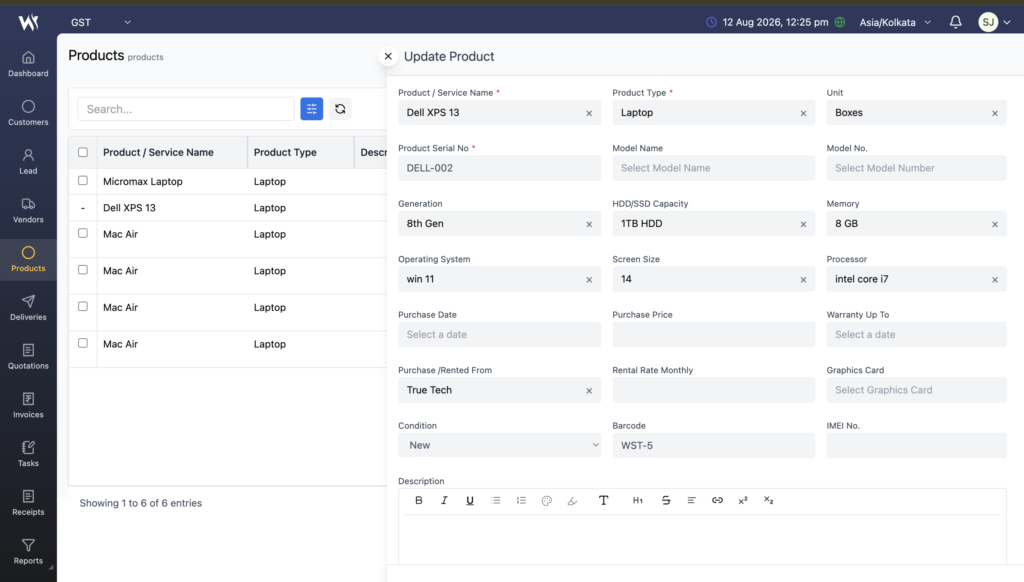
The Update Product form displays the existing product information and allows the user to update the product record when editing is permitted.
Barcode Management
Webtrix24 Rental CRM supports barcode management for rental products.
A barcode can either be system-generated or entered manually by the user.
System-Generated Barcode
If a barcode is not manually entered while creating a product, the system can generate a barcode automatically.
This makes product identification easier without requiring the user to create a barcode manually.
Manually Entered Barcode
Businesses can also enter their own barcode while creating a product.
This is useful when the business already has an existing barcode system for its rental equipment.
Barcode Uniqueness
Each product barcode must be unique.
A duplicate barcode cannot be assigned to another product.
This prevents multiple products from having the same barcode and helps maintain accurate product identification.
For rental businesses managing multiple laptops and desktops, unique barcodes make physical inventory tracking easier and more reliable.
Duplicating a Product
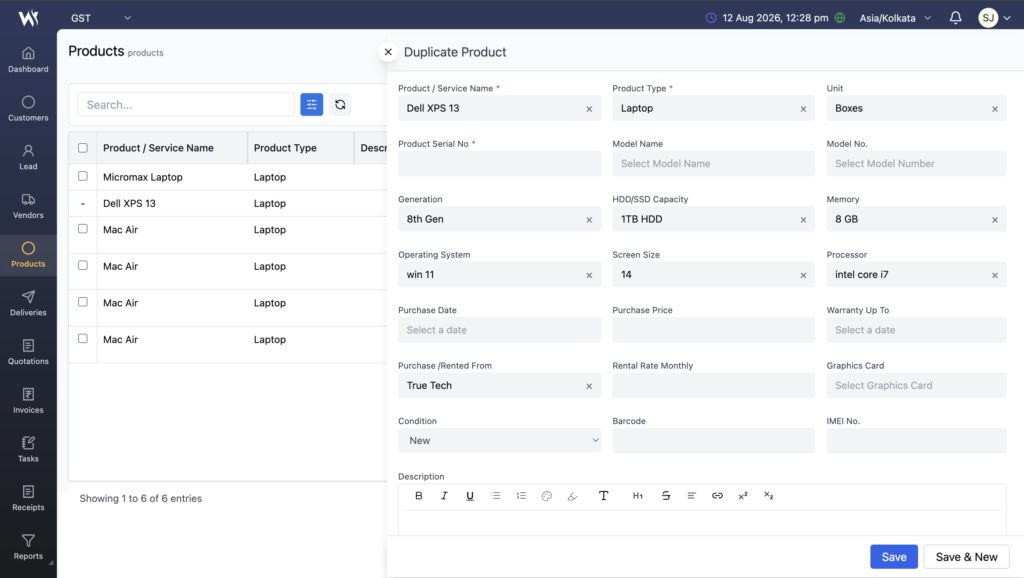
Webtrix24 Rental CRM allows users to create a new product using the configuration of an existing product.
This is especially useful when a business has multiple laptops or desktops with similar specifications.
For example, if several laptops have the same:
- Product Type
- Model
- Generation
- Memory
- Processor
- Storage
- Operating System
the user can duplicate an existing product instead of entering all the information again.
How to Duplicate a Product
- Open the Products module.
- Find the required product.
- Hover over the product row.
- Click Duplicate this Product.
- The Duplicate Product form opens.
- The existing product configuration is copied.
- Enter a new Product Serial Number.
- Enter a new Barcode, if required.
- Review the information.
- Click Save.
Why Are Serial Number and Barcode Empty in Duplicate Product?
The Product Serial Number and Barcode fields are cleared when the Duplicate Product form opens.
This is intentional because both values are unique product identifiers.
For example:
Original Product
- Product: Mac Air
- Product Type: Laptop
- Model: MacBook Air
- Generation: 8th Gen
- Serial Number: MAC-1245
- Barcode: WST-4
Duplicated Product
- Product: Mac Air
- Product Type: Laptop
- Model: MacBook Air
- Generation: 8th Gen
- Serial Number: Enter new value
- Barcode: Enter new value
The configuration can be reused, while the new physical product receives its own unique identifiers.
Managing Product Status
The Current Status column in the Product List View allows users to manage the operational status of a product.
For products that are available for direct status management, users can change the status from the dropdown.
Available status options include:
- In Inventory
- Damaged
- In Maintenance
- Sold
A product can also have the On Rent status when it is issued to a customer through a rental Delivery Challan.
In Inventory
In Inventory indicates that the product is currently part of the rental inventory and is available for rental operations, subject to the applicable business rules.
For example:
Dell XPS 13 → In Inventory
Damaged
Damaged indicates that the product has been marked as damaged
This helps rental businesses identify equipment that should not be treated as normal rental-ready inventory.
In Maintenance
In Maintenance indicates that the product is currently undergoing maintenance or repair.
This makes it easier for the rental team to identify equipment that is temporarily unavailable.
Sold
Sold indicates that the product has been sold and is no longer being managed as an available rental asset.
On Rent Status
When a product is delivered to a customer through a Delivery Challan, its status changes to:
On Rent
The Product List View can then show the product as currently rented.
This allows the business to distinguish rented equipment from inventory that is currently available.
Product Restrictions When On Rent
When a product is On Rent, certain product actions are restricted.
The product cannot be directly edited while it is part of an active rental.
When a Product Is On Rent
- Edit: Not available
- Deliver Again: Not allowed
- Duplicate: Available
This protects the active rental product record from changes that could affect the accuracy of the rental transaction.
Why Is Product Editing Restricted While On Rent?
A product that is currently with a customer is associated with an active rental transaction.
Allowing the product’s core information to be changed during the active rental could make product tracking and rental records inconsistent.
Therefore, Webtrix24 Rental CRM restricts direct editing of an On-Rent product.
Users can still use Duplicate Product if they need to create another product with similar specifications.
Tracking Which Customer Has a Product
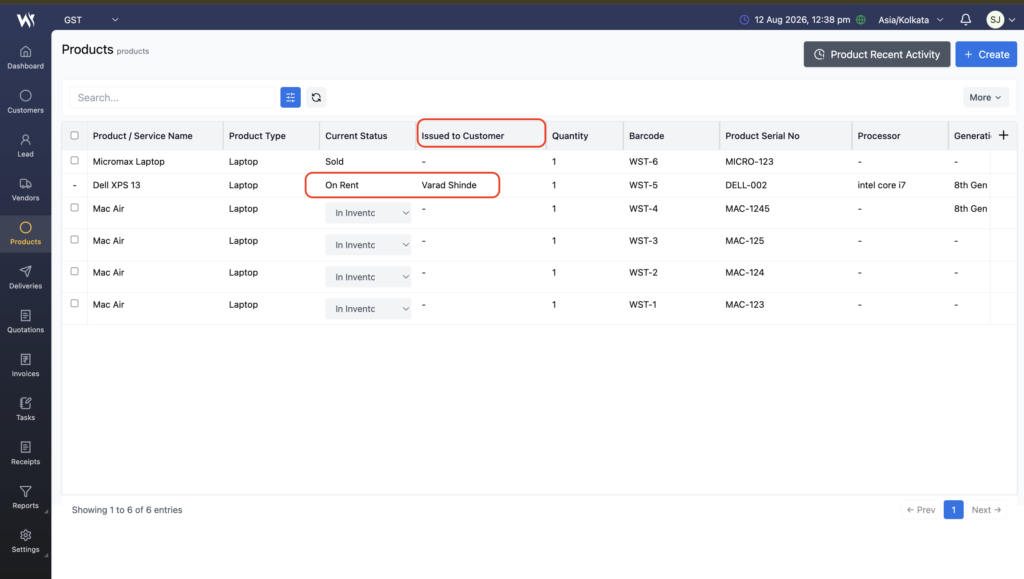
When a product is delivered to a customer, the Product List View displays the customer’s name in the Issued to Customer column.
For example:
Product: Dell XPS 13
Status: On Rent
Issued to Customer: Varad Shinde
This gives rental businesses an immediate view of which customer currently has a particular product.
Why Issued to Customer Is Useful
The Issued to Customer column helps users:
- Identify the current customer using a product.
- Find which laptop is with a particular customer.
- Verify product allocation.
- Track rented equipment from the Product List View.
- Reduce the need to open individual Delivery Challans for basic customer information.
Product Recent Activity
The Product Recent Activity feature provides a quick way to view recent activity for a selected rental product.
Users can search for a product using:
- Product Name
- Product Serial Number
- Barcode Number
How to View Product Recent Activity
- Open the Products module.
- Click Product Recent Activity.
- Search for the required product.
- Search using the product name, serial number, or barcode.
- Select the product.
- View its recent activity.
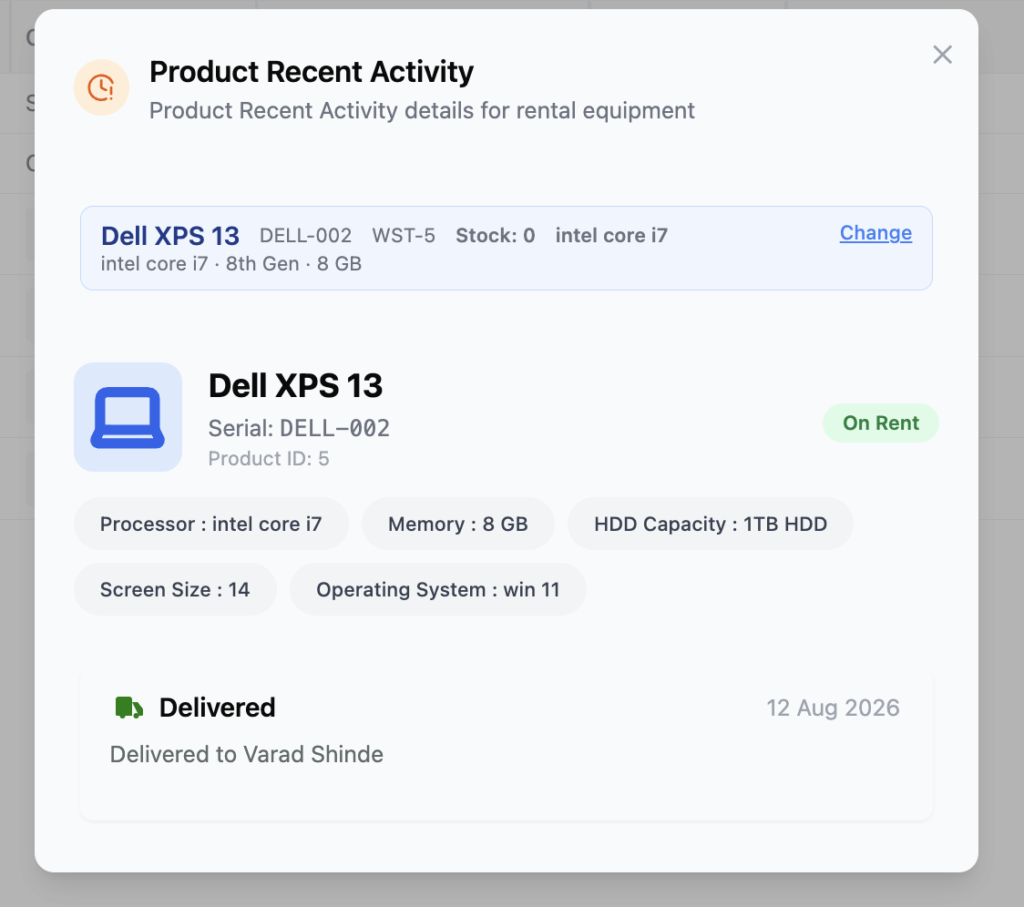
The Recent Activity view can display important product information such as:
- Product Name
- Serial Number
- Barcode
- Product ID
- Current Status
- Processor
- Memory
- HDD/SSD Capacity
- Screen Size
- Operating System
- Recent rental activity
- Customer associated with the activity
For example, a product that has been rented can show a Delivered activity and the customer to whom it was delivered.
Product Journey Report
The Product Journey Report provides a complete lifecycle view of an individual rental product.
It helps businesses track a product from the time it is added to inventory through rental activities and other product lifecycle events.
How to Open Product Journey
- Open the Products module.
- Find the required product.
- Hover over the product row.
- Click the Product Journey / History icon.
- The Product Journey Report opens.
Product Journey Product Summary
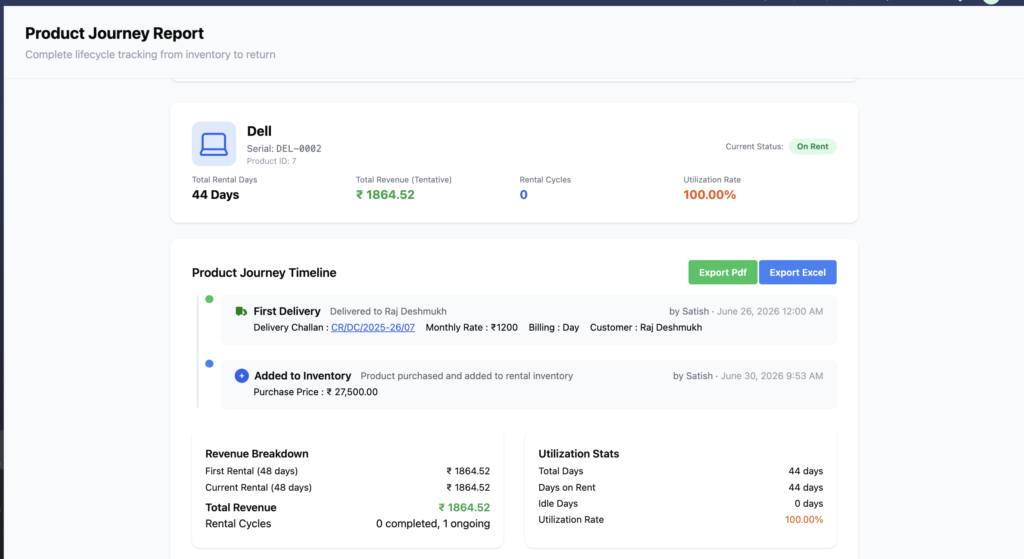
At the top of the Product Journey Report, users can view important product information such as:
- Product Name
- Product Serial Number
- Product ID
- Product specifications
- Current Status
- Stock information
This confirms that the report belongs to the selected product.
Product Rental Summary
The Product Journey Report provides rental performance information such as:
Total Rental Days
Shows the total number of days associated with the product’s rental activity.
Total Revenue
Shows the revenue associated with the product’s rental activity.
Rental Cycles
Shows the number of rental cycles associated with the product.
Utilization Rate
Shows how much the product has been utilized during the tracked period.
These metrics help rental businesses understand how individual equipment performs.
Product Journey Timeline
The Product Journey Timeline records important events throughout the product lifecycle.
Depending on the product’s activity, the timeline can include events such as:
- Added to Inventory
- First Delivery
- Return
- Replacement
- Upgrade
- Other recorded product activities
Each event provides relevant information about what happened to the product and when the activity occurred.
The timeline can also identify the user who performed or recorded the activity.
Added to Inventory
When a new product is created and added to the rental inventory, the Product Journey Timeline records an Added to Inventory event.
The event can show information such as:
- Purchase Price
- User who added the product
- Date and time of the activity
This provides a starting point for the product’s lifecycle history
First Delivery Tracking
When a product is delivered to a customer for the first time, the Product Journey Report records the event as First Delivery.
The timeline can show important delivery details including:
- Customer Name
- Delivery Challan Number
- Billing Type
- Monthly Rental Rate
- Delivery Date
- Customer
- User who recorded the delivery
For example:
First Delivery — Delivered to Varad Shinde
Delivery Challan: CR/DC/2025-26/164
Monthly Rate: ₹1200
Billing: Day
Customer: Varad Shinde
This provides a clear record of the product’s first rental transaction.
Opening the Delivery Challan from Product Journey
The Delivery Challan Number shown in the Product Journey Timeline is clickable.
Users can click the challan number to open the related Delivery Challan.
This provides a direct path from:
Product History → Delivery Transaction
Users do not need to manually search for the Delivery Challan.
The linked Delivery Challan can provide the detailed rental transaction information associated with that product.
Return Tracking
When a rented product is returned from a customer, the product lifecycle can continue with a Return activity in the Product Journey.
This allows the business to maintain the product’s rental history and understand that the product has moved from an active rental back into the next stage of its lifecycle.
The product’s subsequent availability or status depends on the applicable rental workflow and product condition.
Product Replacement Tracking
If a product is replaced as part of the rental workflow, the Product Journey can record the Replacement activity.
This helps businesses maintain a historical record of product movements and understand that the original product was replaced during the rental lifecycle.
Product Upgrade Tracking
When a product is upgraded through the rental workflow, the Product Journey can record the Upgrade activity.
This helps maintain the product’s lifecycle history and provides visibility into upgrade-related product movement.
Revenue Breakdown
The Product Journey Report includes a Revenue Breakdown section.
It can show information such as:
- First Rental
- Current Rental
- Total Revenue
- Rental Cycles
This helps rental businesses understand the revenue generated by an individual product.
Utilization Statistics
The Utilization Stats section provides information about product usage.
It can include:
- Total Days
- Days on Rent
- Idle Days
- Utilization Rate
These statistics help businesses identify equipment that is frequently rented and equipment that remains idle.
Exporting Product Journey Report
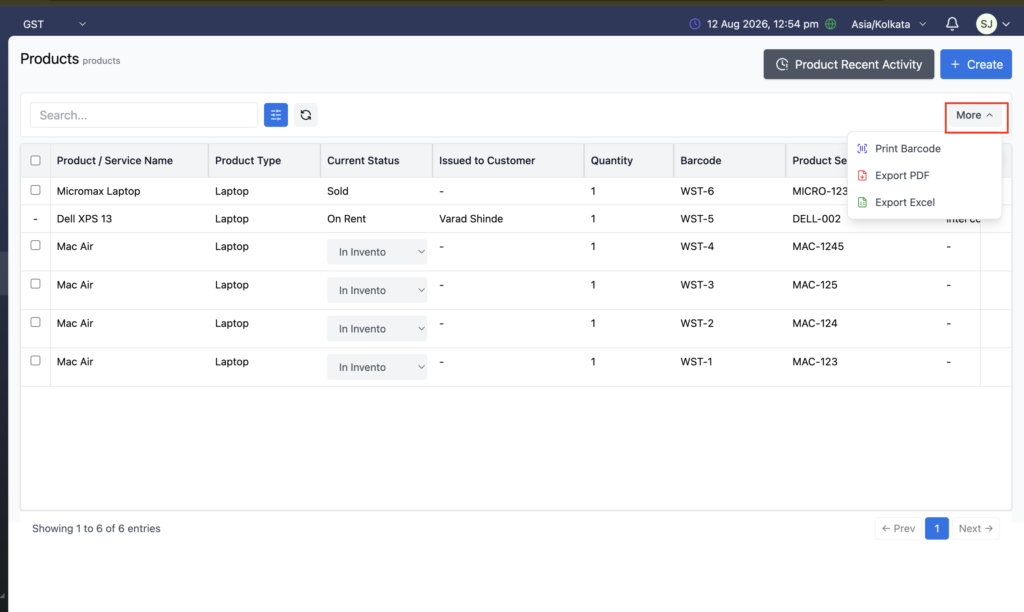
The Product List View includes a More menu that provides additional product actions.
Click More to access:
- Print Barcode
- Export PDF
- Export Excel
Exporting the Product List
The Product List can be exported directly from the More menu.
Export PDF
Go to:
Products → More → Export PDF
The system generates a PDF containing product list information.
Export Excel
Go to:
Products → More → Export Excel
The system exports product list information into an Excel file.
These options are useful for inventory reports, record keeping, data analysis, and sharing product information.
Printing Product Barcodes
Webtrix24 Rental CRM provides a Print Barcode option from the Product List View.
How to Print Product Barcodes
- Open the Products module.
- Click More.
- Select Print Barcode.
- The system opens a printable PDF.
- The PDF contains the product barcode information.
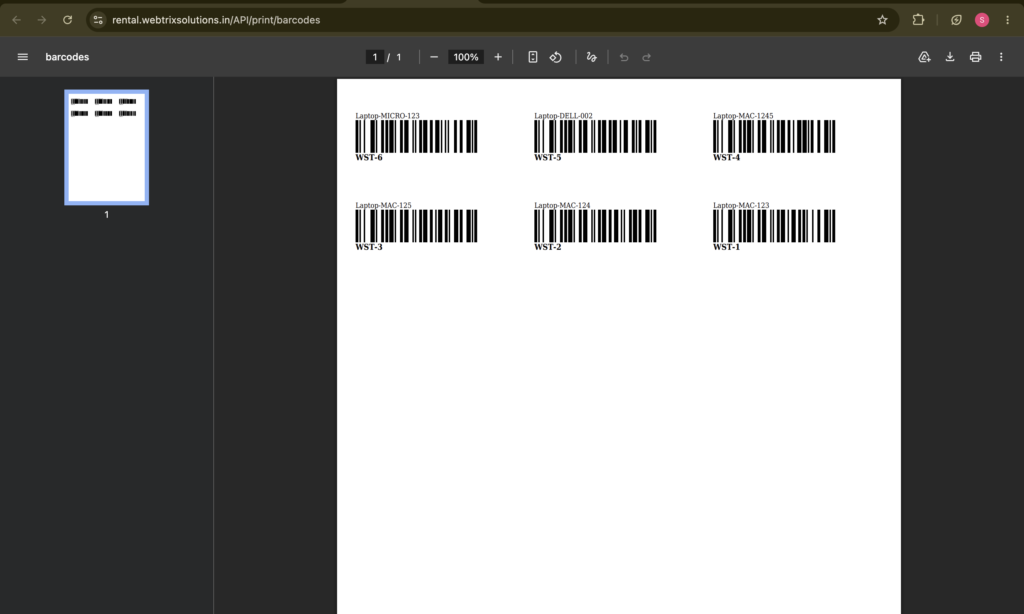
The generated barcode document contains identifying information for each product, including:
- Product Type
- Product Serial Number
- Barcode Number
- Barcode
For example:
Laptop – MICRO-123
WST-6
Barcode
Laptop – DELL-002
WST-5
Barcode
This allows businesses to print barcode labels and use them for physical rental equipment identification.
Why Product Barcode Printing Is Useful
Barcode printing helps rental businesses:
- Identify physical equipment quickly.
- Match equipment with its CRM product record.
- Improve inventory identification.
- Reduce manual product lookup.
- Track individual rental assets more efficiently.
- Maintain consistent product identification.
It is especially useful for businesses managing a large number of laptops, desktops, and other rental equipment.
Product Management Workflow
The Product Management workflow can be summarized as:
Create Product
↓
Add Product Specifications
↓
Assign Serial Number / Barcode
↓
Save Product
↓
Product Added to Inventory
↓
Deliver Product to Customer
↓
Product Status → On Rent
↓
Customer Appears in Issued to Customer
↓
Track Activity in Product Recent Activity
↓
Track Full Lifecycle in Product Journey
↓
Return / Replacement / Upgrade
↓
Continue Managing Product Based on Its Current Status
This workflow gives rental businesses visibility into the complete lifecycle of individual rental equipment.
Benefits of Webtrix24 Product Management
The Product Management module helps rental businesses:
- Maintain a centralized product inventory.
- Track individual laptops and desktops.
- Store complete hardware specifications.
- Assign unique serial numbers.
- Manage unique barcodes.
- Maintain rental pricing.
- Store purchase and warranty information.
- Track product status.
- Identify the customer currently holding a rented product.
- Prevent direct editing of products during active rentals.
- Quickly duplicate products with similar configurations.
- Track product lifecycle events.
- Monitor rental revenue.
- Measure product utilization.
- Export product information.
- Print product barcodes.
Frequently Asked Questions
What is the Product Management module in Webtrix24 Rental CRM?
The Product Management module is used to create, manage, and track rental products such as laptops, desktops, and computers throughout their rental lifecycle.
Can I create a laptop product in Webtrix24 Rental CRM?
Yes. You can create a laptop product and store its model, serial number, processor, memory, storage, operating system, screen size, rental rate, barcode, and other information.
Can I store desktop computer information?
Yes. Desktop computers can be maintained as individual product records with their relevant specifications and unique identification details.
Can a product have a unique serial number?
Yes. Each product can have its own Product Serial Number for individual equipment identification.
Can I use my own barcode?
Yes. A barcode can be manually entered while creating a product. The system also supports system-generated barcodes.
Can two products have the same barcode?
No. Product barcodes must be unique. A duplicate barcode cannot be assigned to another product.
Can I duplicate an existing product?
Yes. The Duplicate this Product option allows users to reuse the configuration of an existing product when creating another similar product.
Why are the Serial Number and Barcode blank when duplicating a product?
They are cleared because both Product Serial Number and Barcode are unique identifiers. The new product must receive its own unique values.
Can I edit a product after creating it?
Yes, an existing product can be edited from the Product List View when editing is permitted for its current lifecycle status.
Can I edit a product when it is On Rent?
No. A product that is currently On Rent cannot be directly edited because it is associated with an active rental transaction.
Can I duplicate a product that is On Rent?
Yes. The Duplicate Product option remains available even when the original product is On Rent. The new product receives its own Serial Number and Barcode.
What happens when a product is delivered to a customer?
When a product is delivered through a Delivery Challan, its status changes to On Rent, and the customer’s name can appear in the Issued to Customer column.
How can I find which customer has a product?
Check the Issued to Customer column in the Product List View. It displays the customer associated with the rented product.
What is Product Recent Activity?
Product Recent Activity provides a quick view of recent activity for a selected product. Products can be searched using the Product Name, Product Serial Number, or Barcode Number.
What is the Product Journey Report?
The Product Journey Report tracks the lifecycle of an individual product, including inventory activity, deliveries, returns, replacements, upgrades, rental performance, revenue, and utilization information.
Can I open a Delivery Challan from the Product Journey Report?
Yes. The Delivery Challan number shown in the Product Journey Timeline is clickable and can be used to open the related Delivery Challan.
Can I track the first delivery of a product?
Yes. The Product Journey Timeline can record the first customer delivery and show information such as the customer, Delivery Challan, billing type, rental rate, date, and user.
Can I export Product Journey information?
Yes. The Product Journey Report provides Export PDF and Export Excel options.
Can I export the Product List?
Yes. The Product List can be exported using More → Export PDF or More → Export Excel.
Can I print product barcodes?
Yes. Use More → Print Barcode from the Product List View. The system opens a PDF containing product barcode information.
What information is included in the barcode PDF?
The barcode PDF includes identifying information such as the Product Type, Product Serial Number, Barcode Number, and the barcode itself.