
The Invoice module helps businesses create, manage, preview, and track invoices from a centralized location.
Users can generate professional invoices, configure invoice line items, apply taxes and additional charges, and maintain billing records for customers.
The module supports customizable invoice templates, dynamic invoice columns, and invoice previews before final submission.
Key Features
- Create and manage invoices
- Configure invoice line items
- Add custom invoice columns
- Apply taxes and additional charges
- Save invoices as drafts
- Save invoice templates
- Preview invoices before submission
- Generate printable invoice layouts
- Download invoices as PDF
How to Access the Invoice Module
- Open the CRM application.
- Navigate to Invoices from the left navigation menu.
- The Invoice List View screen will open.
Creating a New Invoice
Users can create a new invoice by clicking the Create button.
Basic Invoice Information
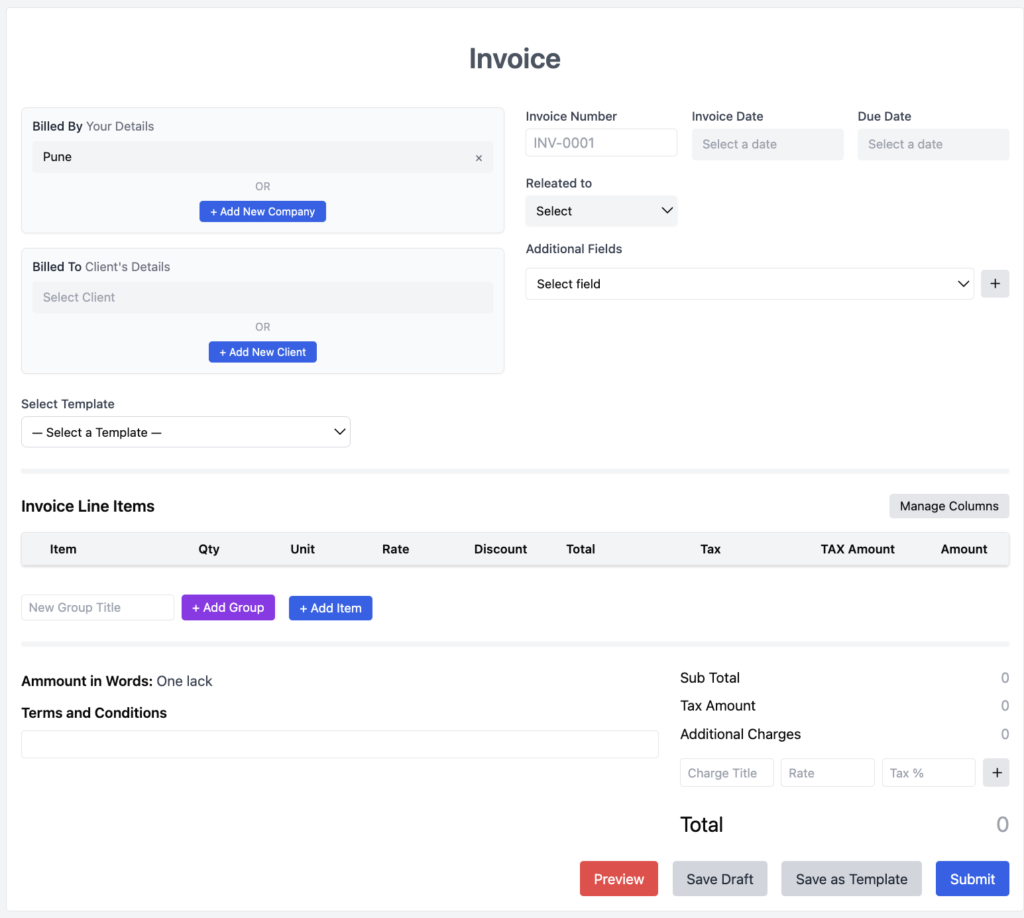
The invoice form contains the following sections:
Billed By Details
Displays company or business information used for invoice generation.
Users can:
- Select existing company details
- Add a new company
Billed To Client Details
Used to select the customer receiving the invoice.
Users can:
- Select an existing client
- Add a new client
Invoice Information
Includes:
- Invoice Number
- Invoice Date
- Due Date
- Related To
Additional Fields
Users can add extra invoice information using configurable fields.
Invoice Templates
The Select Template option allows users to apply predefined invoice layouts.
Templates help maintain consistent invoice formatting across the organization.
Users can:
- Select an existing template
- Apply standardized invoice designs
- Reuse invoice formats
Managing Invoice Line Items
Invoice Line Items are used to define products, services, or billable items included in the invoice.
Default columns may include:
- Item
- Quantity
- Unit
- Rate
- Discount
- Tax
- Tax Amount
- Amount
Users can:
- Add Groups
- Add Items
- Organize invoice entries
Managing Invoice Columns
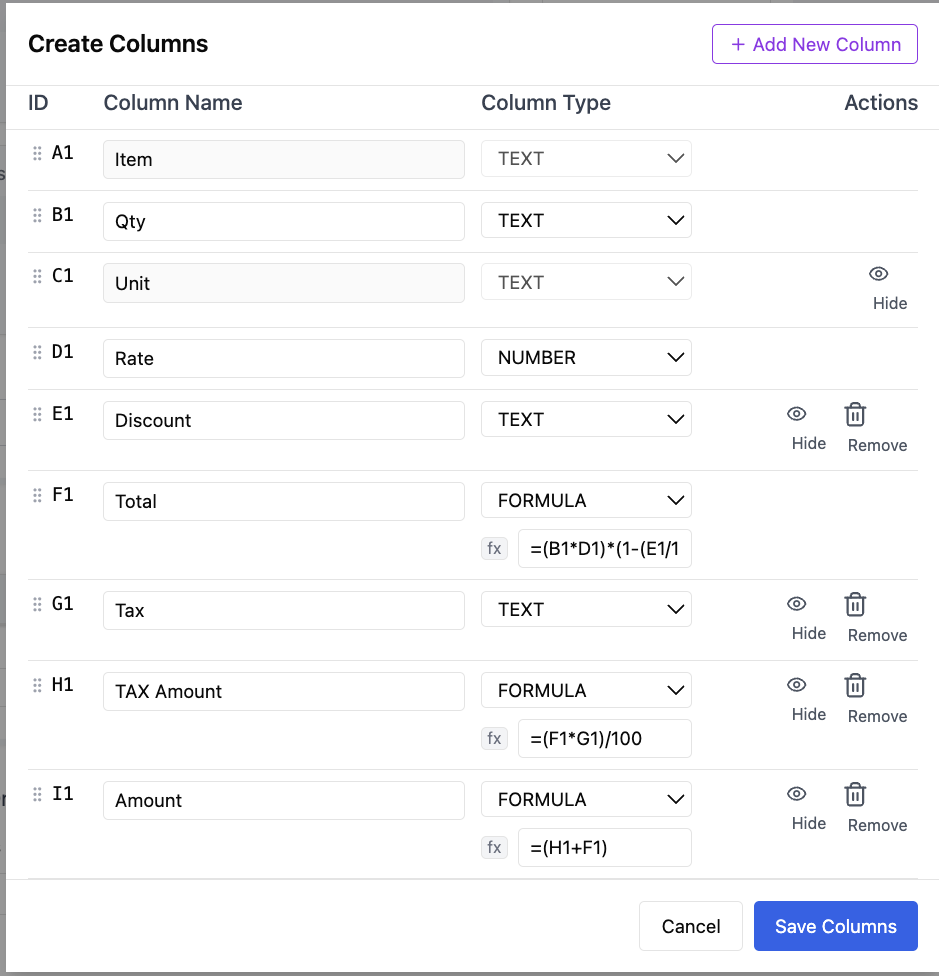
The Manage Columns option allows users to customize invoice line item fields.
Users can:
- Create new columns
- Rename columns
- Select column types
- Hide columns
- Remove columns
- Configure formula-based calculations
Supported column types may include:
- Text
- Number
- Formula
This flexibility allows businesses to customize invoices according to their billing requirements.
Invoice Calculations
The invoice automatically calculates financial values based on entered line items.
Available calculation sections include:
Sub Total
Displays the total value of all invoice line items before additional charges.
Tax Amount
Displays calculated tax values.
Additional Charges
Allows users to add extra charges such as service fees or handling charges.
Grand Total
Displays the final invoice amount.
Terms and Conditions
Users can add invoice-specific terms and conditions.
These notes appear as part of the final invoice document.
Previewing an Invoice
The Preview option allows users to review the invoice before final submission.
Users can:
- Verify invoice information
- Review calculations
- Check invoice formatting
- Validate customer details
Invoice Styles and Templates
The preview screen allows users to choose different invoice designs.
Available template styles may include:
- Classic
- Modern
- Minimal
Users can apply a template style before generating the final invoice.
Saving and Submitting Invoices
The module provides multiple actions:
Save Draft
Stores the invoice without final submission.
Save as Template
Creates a reusable invoice template.
Submit
Finalizes and saves the invoice.
Print
Generates a printable invoice version.
PDF Export
Downloads the invoice as a PDF document.
Benefits of Using the Invoice Module
- Centralized invoice management
- Faster invoice generation
- Consistent invoice formatting
- Flexible billing structures
- Improved financial tracking
- Professional invoice presentation
- Reusable invoice templates
Who Can Use the Invoice Module?
The Invoice module is useful for:
- Business Owners
- Finance Teams
- Accounts Teams
- Billing Departments
- Sales Teams
- Service Providers
- Consultants
Frequently Asked Questions
Can I create invoices for customers?
Yes. Users can select clients and generate invoices directly from the Invoice module.
Can I save an invoice before submitting it?
Yes. The Save Draft option allows users to store incomplete invoices.
Can I customize invoice columns?
Yes. The Manage Columns feature allows users to add, hide, remove, and configure columns.
Can I use invoice templates?
Yes. Users can select predefined templates and save invoices as reusable templates.
Can I preview invoices before finalizing them?
Yes. The Preview option allows users to review invoice details before submission.
Can I export invoices as PDF?
Yes. The Preview screen provides a PDF export option.