
Overview
The Customer Equipment Report in Webtrix24 Rental CRM provides a complete overview of all rental assets assigned to a customer. It helps businesses track ongoing rentals, returned products, replacements, upgrades, rental duration, billing information, and return details from a single report.
Users can also filter customer assets and export the report in PDF or Excel format when rental data is available.
How to Open Customer Equipment Report
There are two ways to open the report:
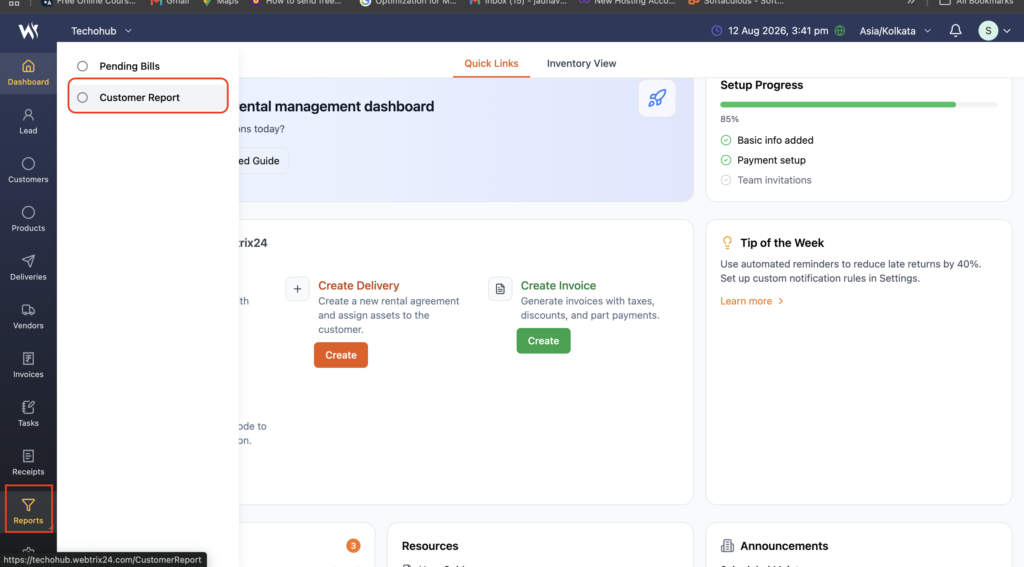
From Reports
- Go to Reports from the left-side menu.
- Click Customer Report.
- Select a customer from the Customer dropdown.
From Customers
- Go to the Customers module.
- Hover over a customer record.
- Click Customer Rental Report.
Both options open the Customer Equipment Report.
Customer Selection
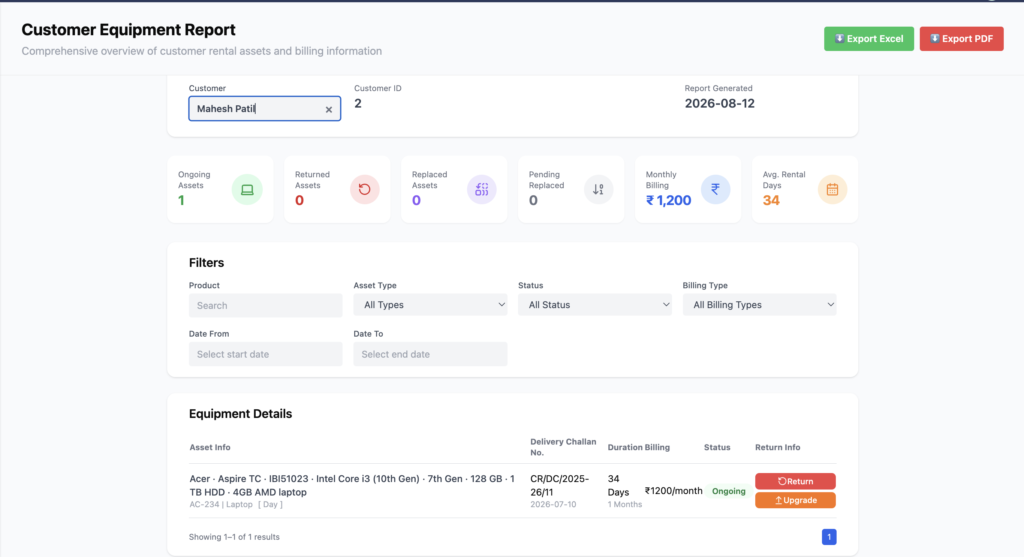
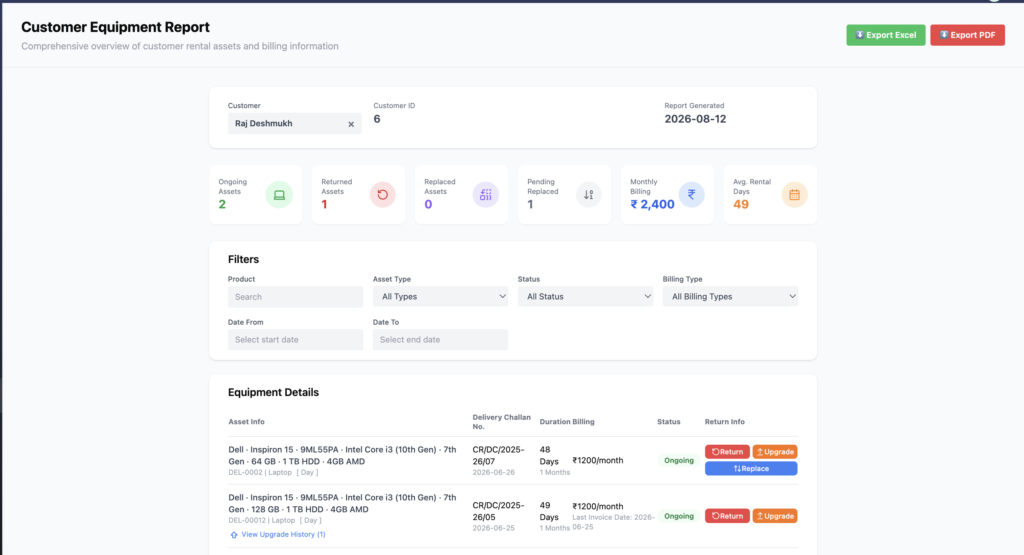
At the top of the report, select the required customer.
Once a customer is selected, the system automatically loads the rental information associated with that customer.
The report displays:
- Customer Name
- Customer ID
- Report Generated Date
If the selected customer has no rental assets, the Equipment Details section displays No data found.
Summary Cards
The report provides summary cards for quick visibility into the customer’s rental activity.
Ongoing Assets
Shows the number of products currently rented by the customer.
Returned Assets
Shows the number of products that have been returned by the customer.
Replaced Assets
Shows products that have been replaced during the rental lifecycle.
Pending Replaced Assets
Shows replacement-related assets that are still pending.
Monthly Billing
Displays the customer’s current monthly rental billing amount.
Average Rental Days
Shows the average number of days the customer’s products have been rented.
These cards allow users to understand the customer’s rental status without checking every asset individually.
Filters
The Equipment Details section provides filters to quickly find specific rental records.
Users can filter by:
- Product
- Asset Type
- Status
- Billing Type
- Date From
- Date To
This makes it easier to locate a specific product or review rental activity for a particular period.
Equipment Details
The Equipment Details section displays rental assets associated with the selected customer.
The report includes information such as:
- Asset/Product Information
- Delivery Challan Number
- Rental Duration
- Billing Amount
- Billing Type
- Current Status
- Return Information
For example, an ongoing asset may show:
Status: Ongoing
Billing: ₹1,200/month
Duration: 34 Days
Ongoing Assets
Products that are currently rented by the customer are displayed with Ongoing status.
For ongoing products, users can perform available rental actions such as:
- Return
- Upgrade
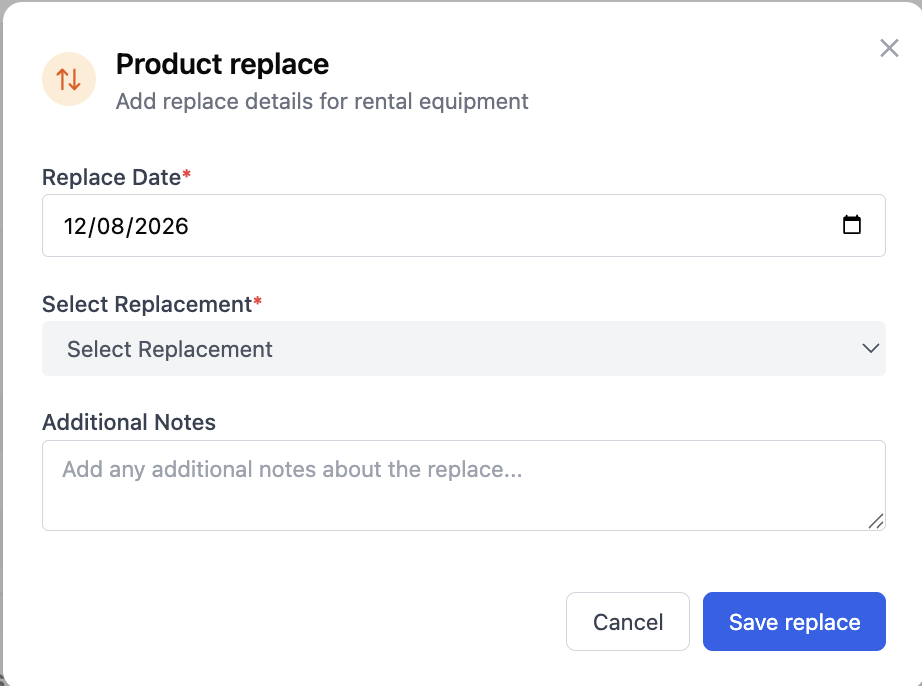
- Replace, where applicable
This allows users to manage the complete rental lifecycle directly from the customer’s equipment report.
Returned Assets
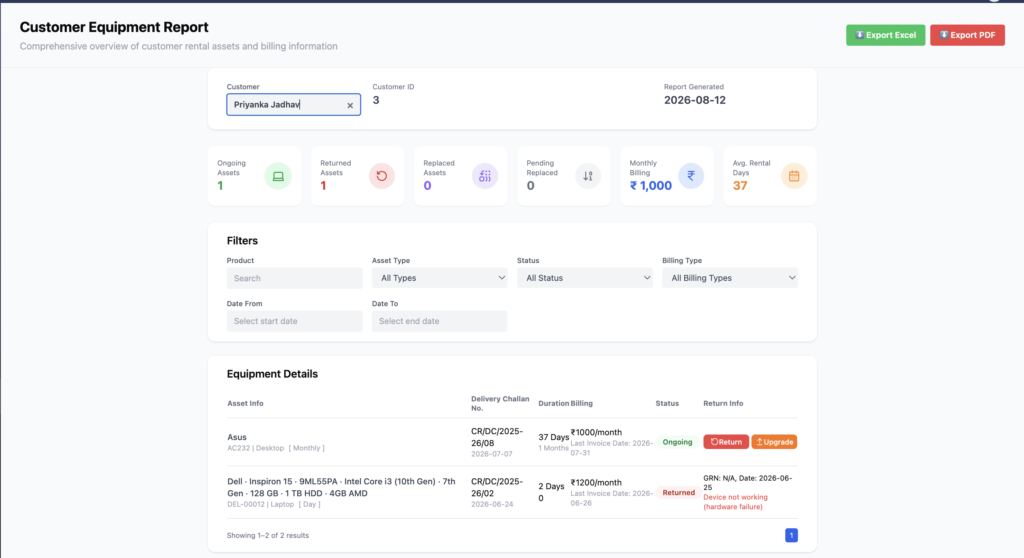
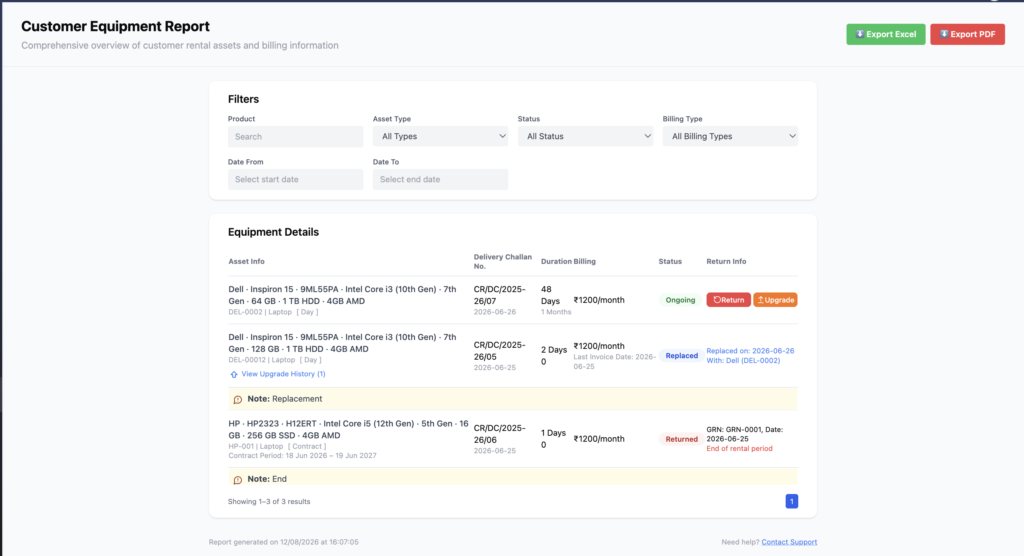
When a customer returns a product, the product appears with Returned status.
The report can display return information such as:
- GRN Number
- Return Date
- Return Reason
For example:
- Device not working
- Hardware failure
- End of rental period
This provides a clear record of why and when the equipment was returned.
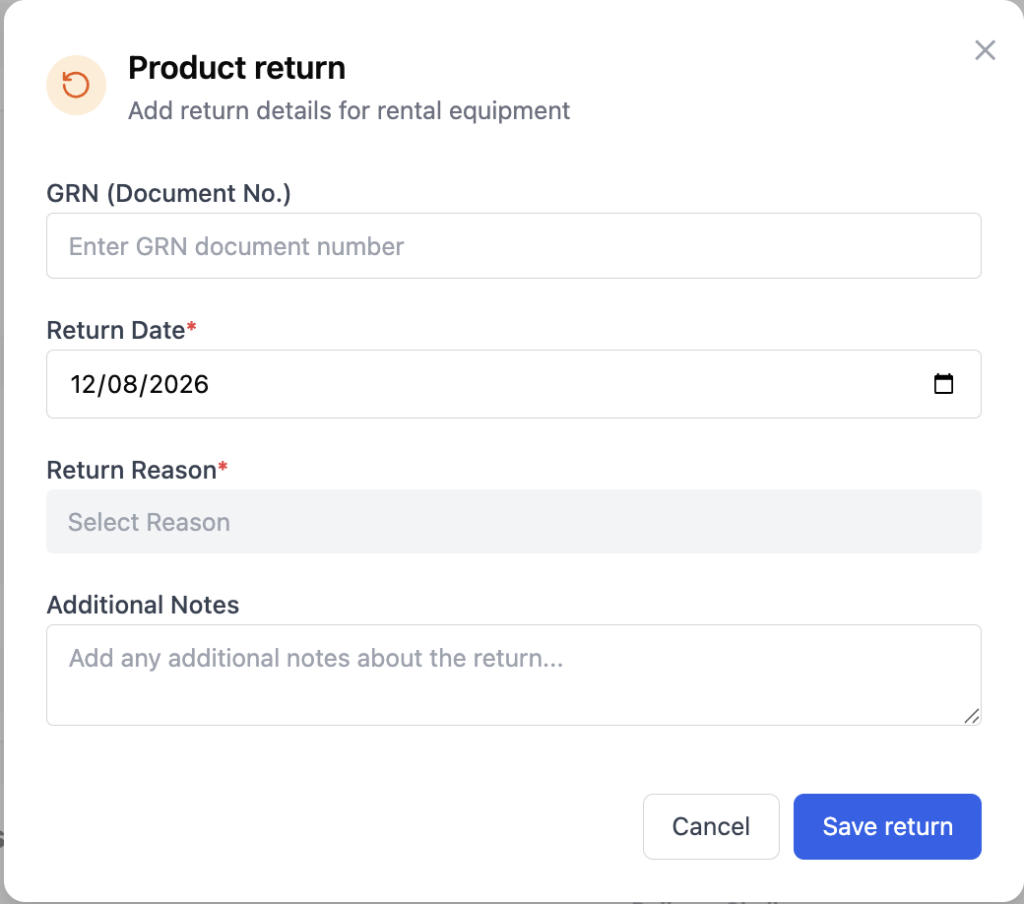
Return Date Validation
Before saving a return, Webtrix24 Rental CRM validates the selected Return Date to maintain accurate rental records and billing.
| Validation | Result |
|---|---|
| Return Date before Delivery Date | Not Allowed |
| Future Return Date | Not Allowed |
| Return Date before Invoice Date | Not Allowed (if invoice exists) |
| Return Date before Product Upgrade Date | Not Allowed |
These validations ensure that product history, billing, and inventory records remain accurate throughout the rental lifecycle.
Replaced Assets
If a product is replaced for a customer, the report maintains the replacement information.
The report can show:
- Original product
- Replacement information
- Replacement date
- New product details
- Replacement status
This helps users track which equipment was replaced during the customer’s rental lifecycle.
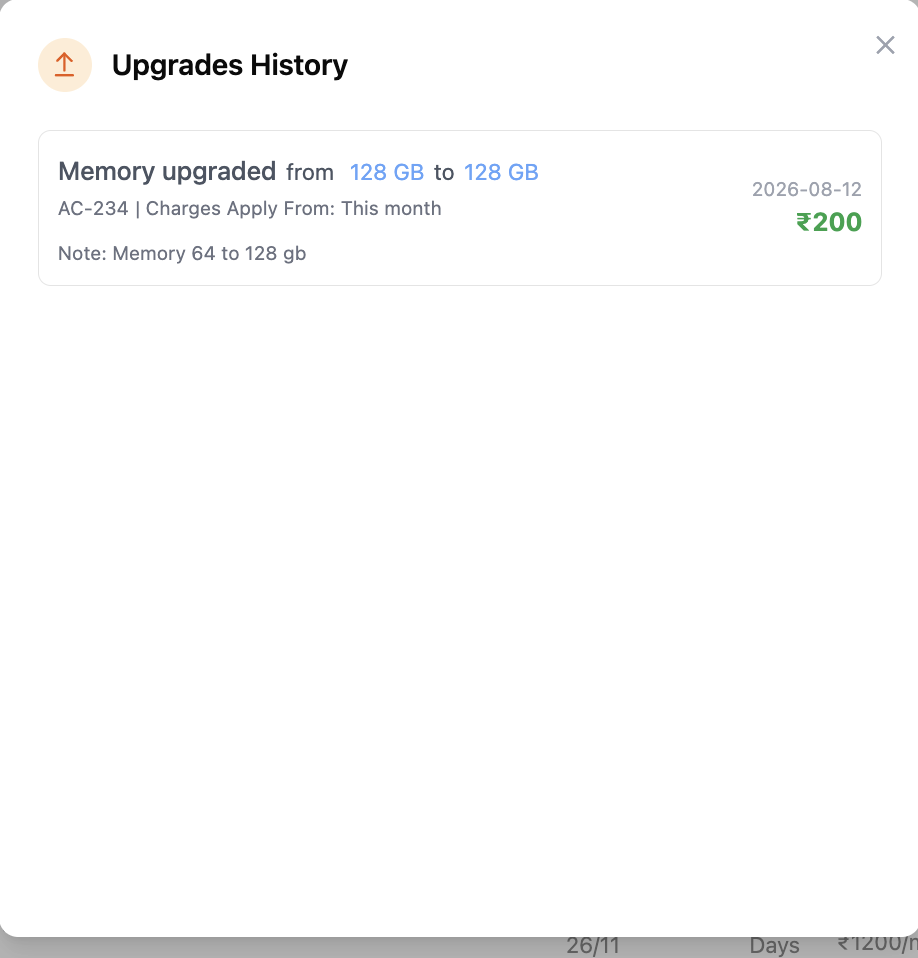
Upgrade History
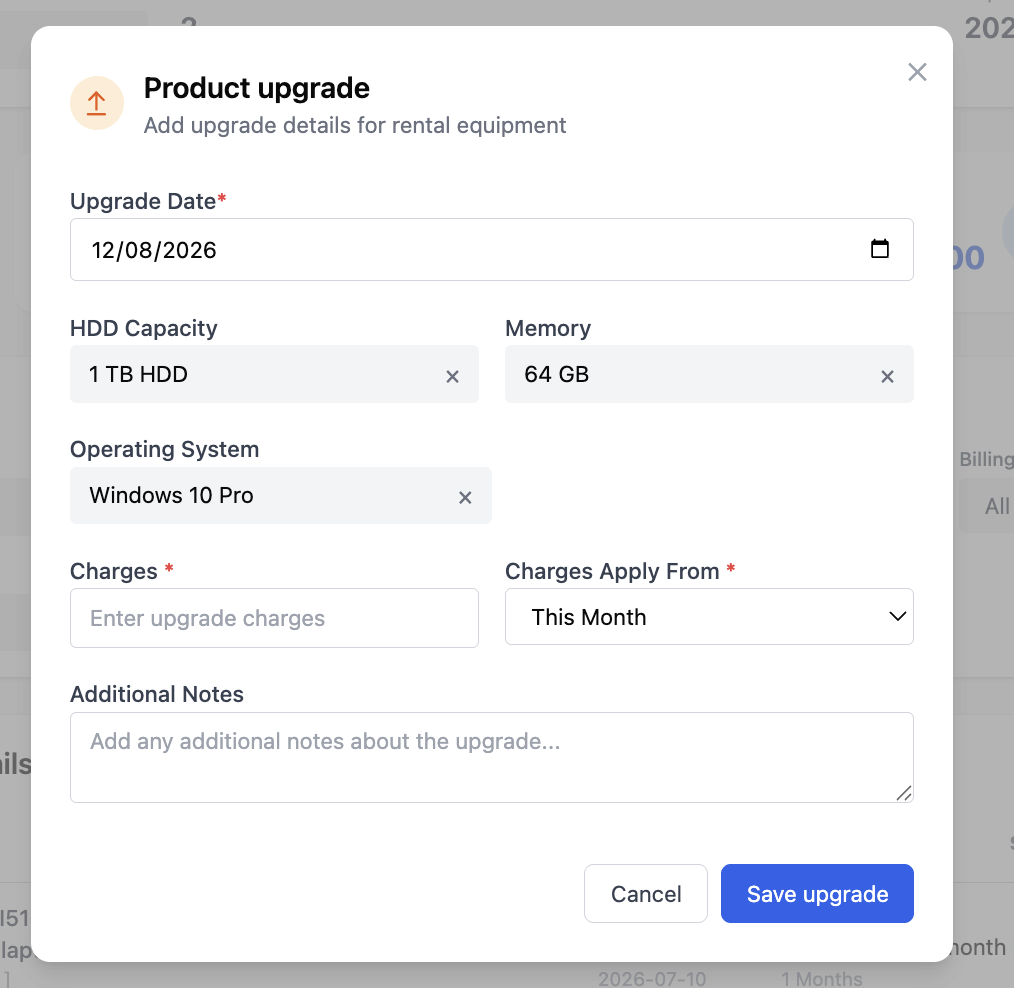
When a product has undergone an upgrade, the report provides a View Upgrade History option.
Clicking this option opens the Upgrades History popup.
The popup displays:
- Upgrade details
- Previous configuration
- New configuration
- Upgrade date
- Additional upgrade charges
- Related delivery/product information
For example:
Memory upgraded from 128 GB to 64 GB
Additional Charge: ₹100
This provides a historical record of configuration changes made to rented equipment.
Billing Information
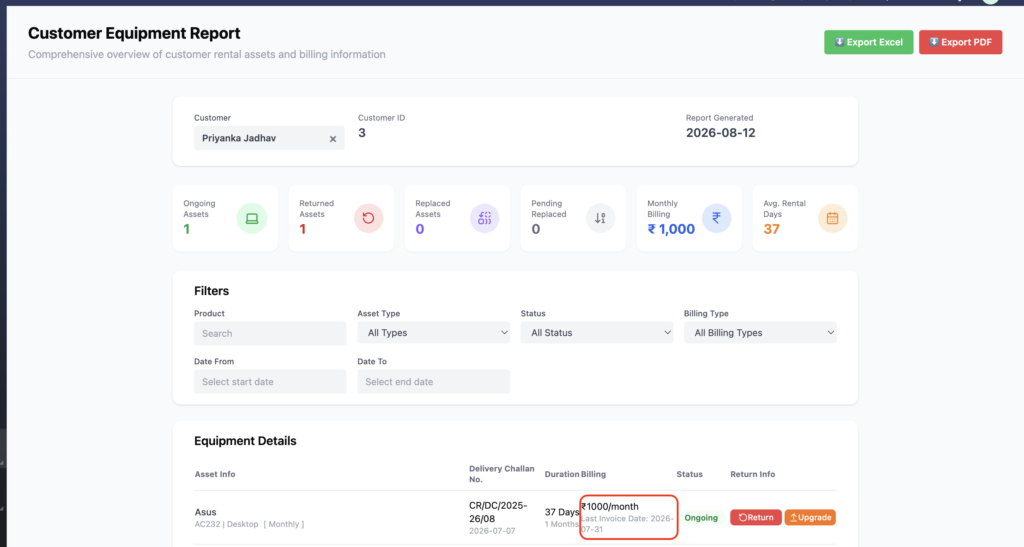
The report also provides billing-related information for each rental asset.
It can display:
- Rental Amount
- Billing Type
- Rental Duration
- Last Invoice Date
Last Invoice Date
After an invoice is generated for a delivered product, the selected Billing Date is stored in the system.
That date is then displayed as the Last Invoice Date in the Customer Equipment Report.
For example:
If the Billing Date selected during invoice generation is:
28 February 2026
the Equipment Details section displays:
Last Invoice Date: 28 February 2026
This helps users identify the latest billing activity for that rental asset.
Customer Report and Delivery Challan Flow
The Customer Report is connected with the Delivery Challan workflow.
Step 1: Deliver Product
Create and approve a Delivery Challan for a customer.
Step 2: Product Becomes Ongoing
After the Delivery Challan is approved, the product is assigned to the customer and appears in the Customer Equipment Report with:
Status: Ongoing
Step 3: Generate Invoice
Generate an invoice for the same customer and rental product.
Select the required Invoice Date and Billing Date.
Step 4: Billing Date Is Stored
The selected Billing Date is stored against the rental billing information.
Step 5: Check Customer Report
Open the Customer Report again.
The product remains visible under Equipment Details, and the Billing section displays the latest Last Invoice Date.
This connects the customer’s delivery, rental and billing history in one place.
Export Customer Equipment Report
The Customer Equipment Report provides two export options:
- Export Excel
- Export PDF
These buttons are available when the customer has rental asset data in the report.
If no product has been delivered to the customer and the Equipment Details section is empty, the export buttons remain hidden.
Once a product is successfully delivered and appears in the report, the export options become available.
Users can then export the customer’s rental information for documentation, sharing, or record keeping.
When filters are applied, only the filtered records are exported to PDF or Excel.
Customer Rental Lifecycle
The Customer Equipment Report helps track the complete lifecycle of customer assets:
Delivery → Ongoing Rental → Invoice/Billing → Upgrade/Replacement → Return
The report maintains the relevant information at each stage so users can easily understand the customer’s current and historical rental activity.
Benefits
1. Complete Customer Rental Visibility
View all rental assets assigned to a customer from one place.
2. Track Ongoing Rentals
Quickly identify which products are currently with the customer.
3. Monitor Returned Equipment
View returned products along with return dates, GRN details, and return reasons.
4. Track Replacements
Maintain visibility of replaced products and replacement information.
5. Track Product Upgrades
View previous and new configurations along with upgrade charges.
6. Monitor Billing
View rental amounts, billing types, rental duration, and the latest invoice date.
7. Customer-Wise Reporting
Generate a complete rental report for an individual customer.
8. Easy Filtering
Use product, asset type, status, billing type, and date filters to quickly find required records.
9. PDF and Excel Export
Export customer rental information for reporting and documentation.
10. Complete Rental History
Keep delivery, rental, billing, upgrade, replacement, and return information connected to the customer’s equipment history.
Why Customer Equipment Report Is Useful
The Customer Equipment Report gives rental businesses a single view of the customer’s complete equipment lifecycle.
Instead of checking Delivery Challans, Products, Invoices, Returns, and Upgrades separately, users can review the customer’s rental assets and their current status from one centralized report.
In simple words:
Select Customer → View Assets → Track Rental → Check Billing → Manage Return/Upgrade → Review History → Export Report
Frequently Asked Questions
What is the Customer Equipment Report?
It is a customer-wise rental report that displays assigned equipment, rental status, duration, billing, returns, replacements, and upgrade information.
Where can I open the Customer Report?
You can open it from Reports → Customer Report or from the Customers module using the customer’s Customer Rental Report action.
What happens after a Delivery Challan is approved?
The delivered product becomes associated with the customer and appears in the Customer Equipment Report with Ongoing status.
Can I see returned products?
Yes. Returned products appear with Returned status along with available return information.
Can I see upgrade history?
Yes. Products with upgrade activity can display a View Upgrade History option containing previous and updated configuration details.
Does the report show invoice information?
Yes. The report displays billing information including rental amount, billing type, duration, and Last Invoice Date where applicable.
Can I export the Customer Report?
Yes. When rental asset data is available, the report can be exported in PDF or Excel format.
Why are Export buttons not visible?
If the selected customer has no delivered rental assets and the Equipment Details section is empty, the export buttons remain hidden.