
The Pending Billing Report in Webtrix24 Rental CRM helps rental businesses identify products that require billing action. It provides a centralized view of ongoing rental assets, returned but unbilled products, rental periods, and pending billing amounts.
How to Open the Pending Billing Report
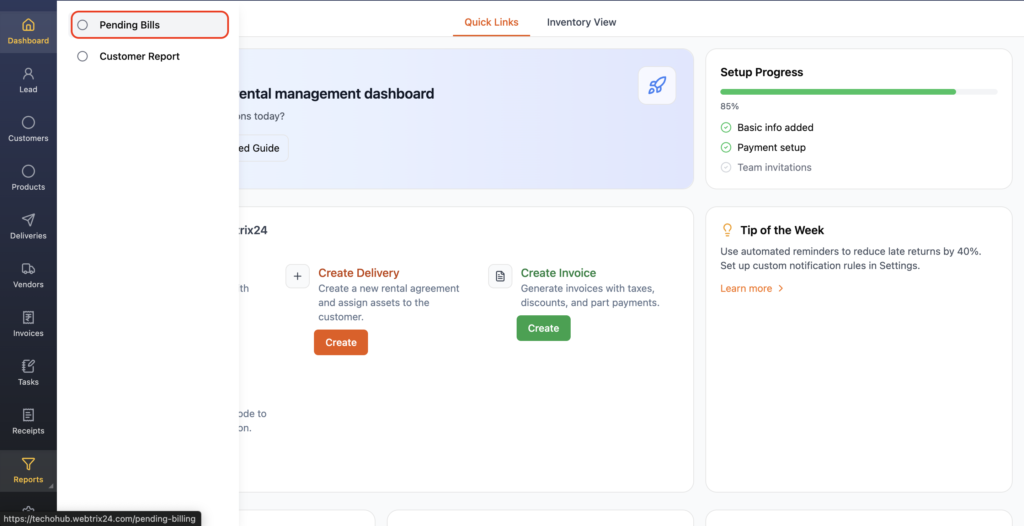
To open the Pending Billing Report:
- Log in to Webtrix24 Rental CRM.
- Go to the Reports module from the left-side menu.
- Click Pending Bills.
- The Pending Billing Report page opens.
Pending Billing Report Overview
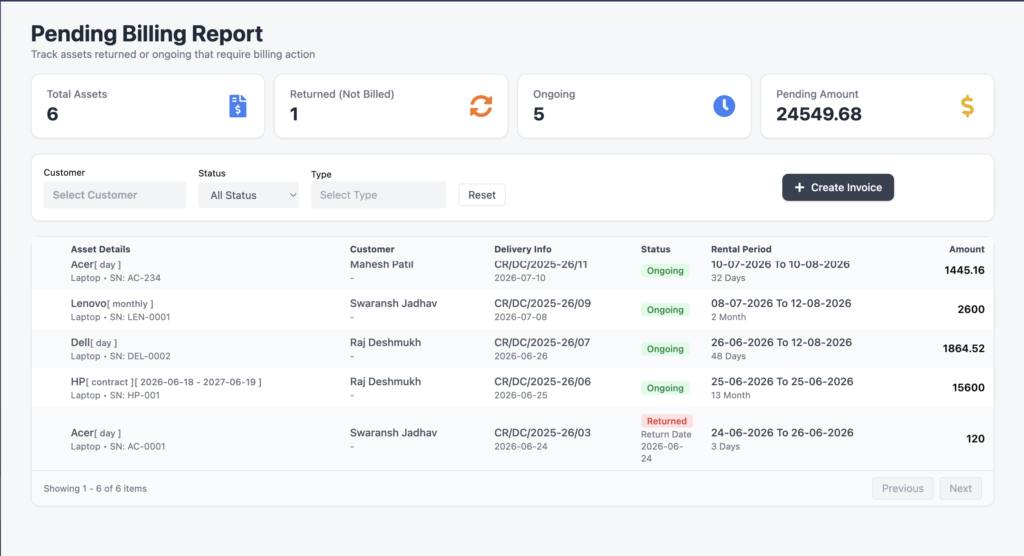
The Pending Billing Report shows rental assets for which billing action is required.
The report helps users identify:
- Ongoing rental products
- Returned products that are not yet billed
- Pending billing amounts
This makes it easier to identify rental assets that still require invoice generation.
Dashboard Summary
At the top of the report, summary cards provide an overview of the pending billing data.
The report displays:
Total Assets
Shows the total number of rental assets currently included in the pending billing report.
Returned (Not Billed)
Shows the number of returned rental assets for which billing has not yet been completed.
Ongoing
Shows the number of rental assets that are currently ongoing and require billing action.
Pending Amount
Shows the total pending billing amount across the listed rental assets.
Filter Options
Users can filter pending billing records using:
- Customer
- Status
- Type
The Reset button can be used to clear the applied filters and return to the default report view.
Pending Billing List
The report displays pending billing records in a list.
The list includes information such as:
- Asset Details
- Customer
- Delivery Challan Information
- Status
- Rental Period
- Amount
This gives users a customer-wise and asset-wise view of billing that still needs to be processed.
Ongoing Rental Products
When a product has been delivered to a customer and the rental is still ongoing, the asset can appear in the Pending Billing Report when billing action is required.
These records are displayed with an Ongoing status.
The report helps users identify active rental assets that need invoice generation.
Returned but Not Billed Products
When a customer returns a rental product before the corresponding billing has been completed, the product appears in the report with a Returned status.
The Returned (Not Billed) summary card also helps users identify how many returned assets still require billing.
This helps reduce the possibility of missing billing after a product is returned.
Rental Period
The report displays the rental period for each asset.
Users can see information such as:
- Rental Start Date
- Rental End Date
- Rental Duration
For example:
10-07-2026 to 10-08-2026
32 Days
This helps users understand the rental period used for pending billing.
Pending Billing Amount
The Amount column displays the billing amount associated with the rental asset.
The amount is based on the rental information available for that asset, including the applicable rental period and billing type.
This helps users identify the amount that needs to be invoiced.
Create Invoice
The Create Invoice button is available on the Pending Billing Report.
Users can use this option to proceed with invoice generation for rental billing that is pending.
This makes it easier to move from identifying pending billing records to creating the required invoice.
Benefits of Pending Billing Report
The Pending Billing Report helps rental businesses:
- Track pending rental billing from one place.
- Identify ongoing assets that require billing action.
- Find returned but unbilled products.
- Monitor rental periods for billing.
- View pending billing amounts.
- Filter billing records by customer, status, and type.
- Reduce missed billing for returned and ongoing rental assets.
- Quickly proceed to invoice generation using the Create Invoice option.
Frequently Asked Questions
What is the Pending Billing Report in Webtrix24?
The Pending Billing Report is used to identify rental assets that require billing action, including ongoing rentals and returned products that have not yet been billed.
Where can I find the Pending Billing Report?
Go to Reports → Pending Bills from the left-side navigation menu.
What does the Pending Billing Report show?
It shows asset details, customer information, Delivery Challan details, rental status, rental period, and pending billing amount.
What does “Returned (Not Billed)” mean?
It indicates rental products that have been returned by the customer but still require billing action.
What does “Ongoing” mean in the report?
Ongoing indicates that the rental asset is currently active and may require billing action.
What filters are available in the Pending Billing Report?
Users can filter records using Customer, Status, and Type.
Can I see the rental period in the report?
Yes. The report displays the rental start date, end date, and rental duration for the listed assets.
Can I see the pending billing amount?
Yes. The Pending Amount summary card shows the overall pending amount, while the Amount column shows the amount associated with individual rental assets.
Can I create an invoice from the Pending Billing Report?
Yes. The Create Invoice button allows users to proceed with invoice generation for pending billing.
Why is the Pending Billing Report useful for rental businesses?
It helps users identify ongoing and returned rental assets that require billing action, making it easier to track pending invoices and reduce missed billing.