
The Quotations Module in Webtrix24 Rental CRM helps rental businesses create and manage quotations for customers before final product delivery or billing.
Users can select a customer, add one or more rental products, define rental rates and billing types, add accessories and charger details, and generate the quotation with applicable GST and total amount.
How to Open the Quotations Module
To open the Quotations Module:
- Log in to Webtrix24 Rental CRM.
- Click Quotations from the left-side menu.
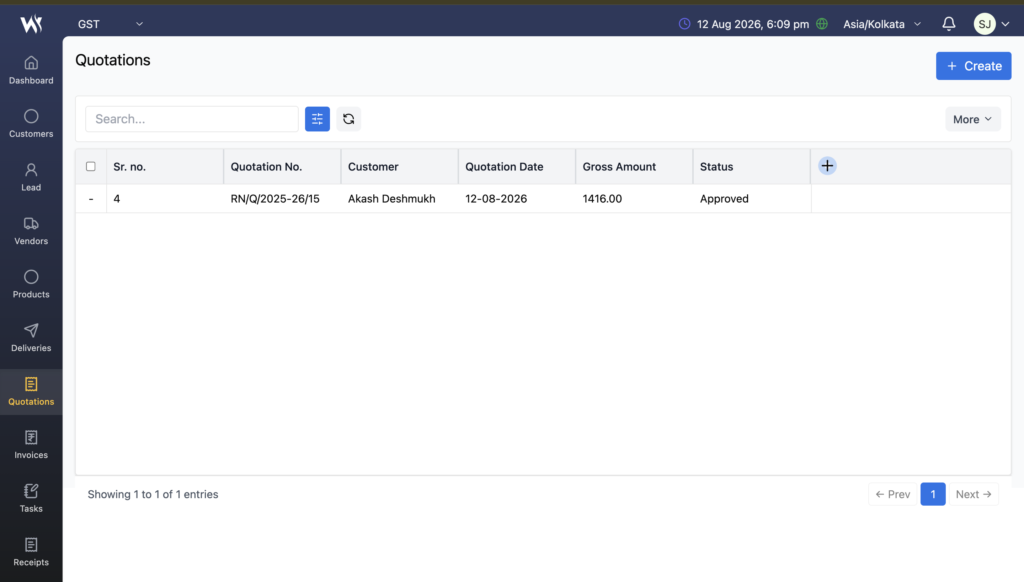
- The Quotations List View opens.
The List View displays existing quotation records with information such as:
- Sr. No.
- Quotation Number
- Customer
- Quotation Date
- Gross Amount
- Status
Users can also use the Search and filter options to find quotation records.
Create a Rental Quotation
To create a new quotation:
- Open the Quotations module.
- Click the + Create button.
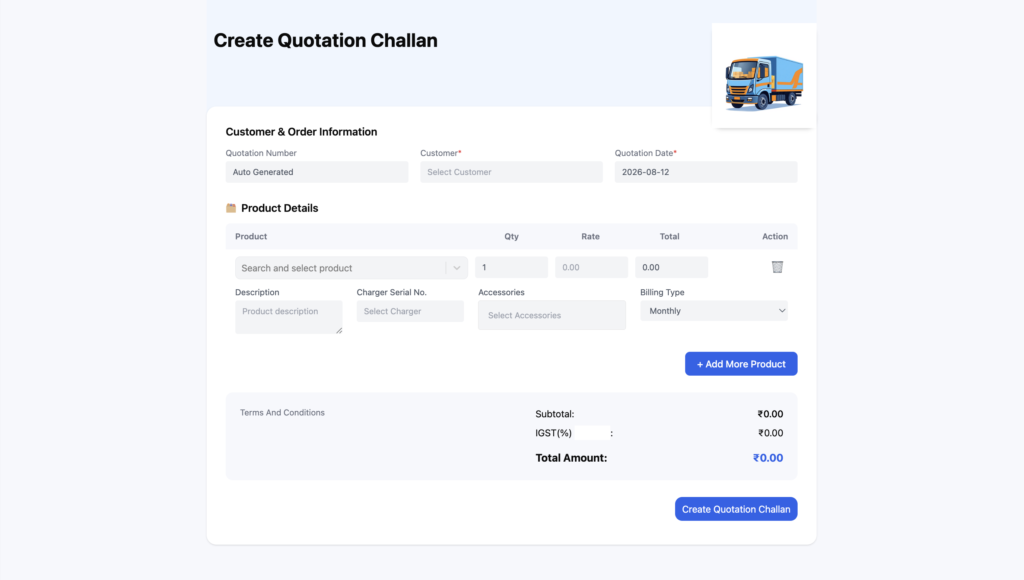
- The Create Quotation Challan form opens.
- Select the customer.
- Add the required rental products.
- Enter or verify the product details.
- Select the applicable billing type.
- Add charger and accessory details if required.
- Review the GST and total amount.
- Add Terms and Conditions if required.
- Save the quotation.
Customer & Order Information
The quotation form contains a Customer & Order Information section.
It includes:
- Quotation Number
- Customer
- Quotation Date
Quotation Number
The Quotation Number is automatically generated by the system.
Users do not need to manually enter the quotation number.
Customer
The Customer field is required.
Select the customer for whom the rental quotation is being prepared.
Quotation Date
The Quotation Date is also required and is used to identify when the quotation was created.
Add Products to a Quotation
The Product Details section allows users to add rental products to the quotation.
For each product, users can manage:
- Product
- Quantity
- Rate
- Total
- Description
- Charger Serial Number
- Accessories
- Billing Type
To add a product:
- Click Search and select product.
- Select the required rental product.
- Enter or verify the Quantity.
- Enter or verify the Rate.
- Review the calculated Total.
- Add additional product details if required.
Add Multiple Products
A single quotation can contain multiple rental products.
To add another product:
- Add the first product.
- Click + Add More Product.
- Select the next product.
- Enter the required quantity and rate.
- Continue adding products as required.
This allows users to prepare one quotation containing multiple rental items.
Product Description
The quotation form provides a Description field for the selected product.
The product description can be displayed along with the product details in the quotation.
For example, the screenshot shows product information such as Mac Air · MacBook Air in the description field.
Charger Serial Number
The Charger Serial No. field allows users to select a charger associated with the rental product.
Available charger serial numbers are maintained through the Chargers module and can be selected while preparing the quotation.
This helps maintain proper charger and equipment tracking.
Accessories
The Accessories field allows users to select applicable accessories for the rental product.
This helps businesses include required rental accessories along with the main equipment in the quotation.
Billing Type
The Billing Type determines how the rental product is priced for the quotation.
Depending on the rental requirement, available billing options can include:
- Monthly
- Day
- Contract
The selected billing type is applied to the product’s quotation calculation.
Add More Products with Different Billing Types
Multiple products can be added to the same quotation, and the applicable rental billing details can be managed for each product.
This is useful when a customer requires multiple rental products with different rental pricing arrangements.
GST Calculation in Quotations
GST is calculated based on the Company State and Customer State.
The quotation automatically applies the appropriate GST type based on whether the company and customer are in the same state or different states.
Same State – CGST + SGST
If the Company State and Customer State are the same, such as:
Company State: Maharashtra
Customer State: Maharashtra
the quotation calculates:
- CGST
- SGST
For example, if the applicable GST rate is 18%, the quotation displays CGST 9% + SGST 9%.
Different States – IGST
If the Company State and Customer State are different, such as:
Company State: Maharashtra
Customer State: Karnataka
the quotation calculates:
- IGST
The applicable GST rate is calculated directly as IGST.
Quotation Amount Calculation
The quotation automatically calculates the amount based on the selected products, quantities, and rental rates.
The calculation displays:
- Subtotal
- Applicable GST
- Total Amount
For example, the screenshot shows a product with a rate of ₹1,200 and the system calculates CGST 9% + SGST 9% when the company and customer are in the same state.
Terms and Conditions
The quotation form includes a Terms and Conditions section.
Users can add relevant terms and conditions that should be included with the quotation before sharing it with the customer.
Update an Existing Quotation
Existing quotations can be opened and updated when changes are required.
When editing a quotation, the form displays Update Quotation Challan.
Users can review or update applicable quotation details such as:
- Customer
- Products
- Quantity
- Rate
- Product Description
- Charger
- Accessories
- Billing Type
- Terms and Conditions
The quotation amount and applicable GST are recalculated based on the updated details.
Quotation List View
After quotations are created, they are displayed in the Quotation List View.
The List View provides important quotation information such as:
- Sr. No.
- Quotation Number
- Customer
- Quotation Date
- Gross Amount
- Status
The quotation status can help users track the current state of a quotation, such as Approved.
Search and Manage Quotations
The Quotations List View provides search and filtering functionality.
Users can quickly locate quotation records and review their:
- Quotation Number
- Customer
- Quotation Date
- Gross Amount
- Status
This makes it easier to manage quotations as the number of customer quotations increases.
Benefits of the Quotations Module
The Quotations Module helps rental businesses:
- Create professional rental quotations.
- Manage multiple products in one quotation.
- Define product quantity and rental rates.
- Select different rental billing types.
- Add charger and accessory details.
- Automatically calculate GST.
- Apply CGST + SGST for same-state transactions.
- Apply IGST for different-state transactions.
- Add Terms and Conditions.
- Track quotation status.
- Search and manage existing quotations.
- Update quotations when changes are required.
Frequently Asked Questions
What is the Quotations Module in Webtrix24?
The Quotations Module is used to create and manage rental quotations for customers before product delivery or billing.
How do I create a rental quotation?
Go to Quotations → + Create, select the customer, add products, configure the rental details, review the GST and total amount, add terms if required, and save the quotation.
Is the quotation number entered manually?
No. The Quotation Number is automatically generated by the system.
Can I add multiple products to one quotation?
Yes. You can use + Add More Product to add multiple rental products to a single quotation.
Can I select a billing type for a rental product?
Yes. The quotation form provides a Billing Type option for rental products, such as Monthly, Day, or Contract, depending on the available configuration.
Can I add charger and accessory details?
Yes. You can select a Charger Serial Number and applicable Accessories for the rental product.
How is GST calculated in a quotation?
GST is calculated based on the Company State and Customer State.
When is CGST and SGST applied?
When the Company State and Customer State are the same, the quotation calculates CGST and SGST.
When is IGST applied?
When the Company State and Customer State are different, the quotation calculates IGST.
Can I add Terms and Conditions?
Yes. The quotation form provides a Terms and Conditions section for adding applicable quotation terms.
Can I update an existing quotation?
Yes. Existing quotations can be opened and updated using the quotation update form.
Where can I see created quotations?
All created quotations are displayed in the Quotations List View, where users can search and review quotation records.